This is not a stand-alone procedure. Customer disruption and damage
to the hardware might occur if microcode and power boundaries are
not in the proper conditions for this service action.
If you were sent here by a serviceable event FRU repair, the microcode
and power boundaries have already been set.
If there is no FRU identify indicator or location code, you
were sent here by an isolation MAP or symbolic FRU procedure. Use the information in that procedure
and the figures in this procedure to locate the proper part to exchange.
Most, but not all, FRUs have identify indicators. Use the flashing amber or solid blue FRU identify indicators to ensure that you are working
on the correct enclosure or FRU.
The "light path" identify LEDs are a hierarchy of LEDs that can
identify the rack, enclosure, FRU, and even the FRU connector to which a cable is
connected.
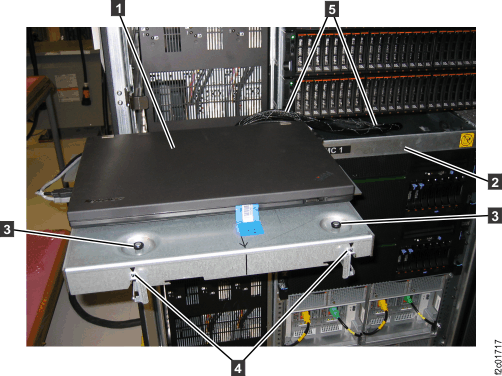
Push the now empty management console tray fully into the rack. This allows access
to the top and rear of the I/O enclosures.
Figure 1. Alternate service position
Observe the I/O enclosure power supply that is
not being replaced in this I/O enclosure. See Figure 2.
The
power good LED or on the I/O enclosure power supply must be
lit before going to the next step. This will ensure that the I/O enclosure
remains powered on when the failing power supply is removed. If the
power good LED is not lit, DO NOT CONTINUE. Instead contact your next
level of support.
and input power to power supply
and output power from power supply
and identify for I/O enclosure power supply
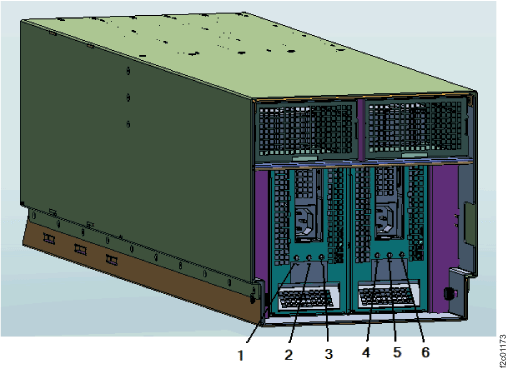
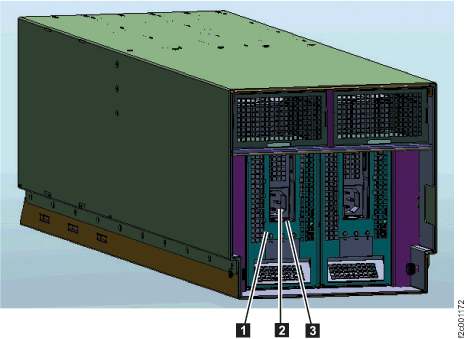
Figure 2. LEDs on the I/O enclosure (front)
Observe the I/O enclosure power supply that is
being replaced.
The input power good LED or and the output power LED or are still lit even though the HMC
screen said the FRU was powered off. This is normal. The power good
LEDs will be off after the power input cable is disconnected in the
next step.
At the power supply being replaced, disconnect the power
input cable from the power supply . See Figure 3.
Figure 3. I/O enclosure power supply,
power connector, and handle
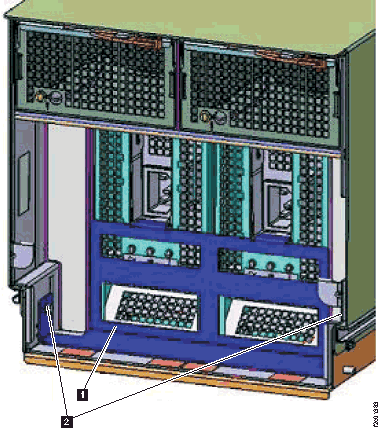
Remove the I/O power supply
retention bracket by removing the screws on either side
of the bracket . See Figure 4.
Figure 4. I/O
enclosure power supply retention bracket
Push down on the red release
button beneath the input power connector.
See Figure 3.
Pull the power supply straight out from the I/O enclosure.
Install the I/O enclosure power supply
Procedure
After removing the old power supply, wait 90
seconds before going to the next step to install the new power supply.
Note: Failure to wait for the SPCN and PHYP code to synchronize
their status may cause the fault LED on the new power supply to be
falsely lit.
Slide the new power supply into the I/O enclosure until it latches into place.
Reinstall the I/O power supply retention bracket , as shown in Figure 4.
Connect the power input cable to the power supply.
Before
you go to the next step, read all of these substeps so you know what
to do if the FRU verification test fails. The test will
not start until after this window has been closed.
If the test is successful, you do not need to perform the remaining
tasks in these substeps.
If the test fails and you have not already replaced all FRUs listed
in the serviceable event that sent you here, you must replace the
remaining FRUs.
If the test fails and you have already replaced all FRUs listed
in the serviceable event that sent you here, you must use these substeps
to reset the I/O enclosure.
Note: If you need to review these substeps
after this window has closed, you can start the service information
center and then display Exchanging parts > I/O enclosure > Models 9xx > I/O enclosure power supply
To reset the I/O enclosure, do a pseudo repair of the I/O enclosure
backplane assembly. This removes all power from the I/O enclosure
and fully resets it.
You do not remove any parts and do not disconnect
any cables at the rear of the racks.
To do a pseudo repair of the I/O enclosure backplane assembly,
click Storage Facility Management > storage facility > Exchange
Parts.
When the procedure in the service information center instructs
you to exchange the I/O enclosure backplane assembly, do not exchange
the backplane assembly. Instead, follow the instructions to unplug
and reconnect the I/O enclosure power cables and then complete the
repair normally.
Note: If you need to reread this step at any time,
you can find this procedure in the service information center with
the following steps:
Click Help in the upper right of the HMC GUI screen to
launch the Service Information Center.
From the navigation area of the Service Information Center, click Exchanging Parts > I/O enclosure > Models 9xx > I/O enclosure power supply.
Go to the next step.
If you moved the management console to the alternate service
position, return it now to the standard service position.
To continue this repair you must click Close at
the top of this screen.