This is not a stand-alone procedure. Customer disruption and damage
to the hardware might occur if microcode and power boundaries are
not in the proper conditions for this service action.
If you were sent here by a serviceable event FRU repair, the microcode
and power boundaries have already been set.
If there is no FRU identify indicator or location code, you
were sent here by an isolation MAP or symbolic FRU procedure. Use the information in that procedure
and the figures in this procedure to locate the proper part to exchange.
Most, but not all, FRUs have identify indicators. Use the flashing amber or solid blue FRU identify indicators to ensure that you are working
on the correct enclosure or FRU.
The "light path" identify LEDs are a hierarchy of LEDs that can
identify the rack, enclosure, FRU, and even the FRU connector to which a cable is
connected.
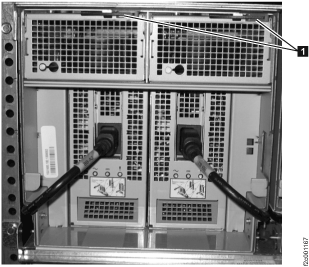
Unlatch the orange fan release lever in the upper right corner of the fan.
Then, use it to pull the fan assembly straight out from the I/O enclosure.
Figure 5. Removing the I/O enclosure fan
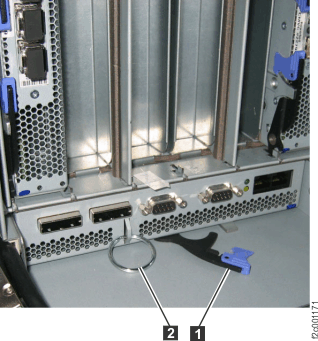
At the rear of the rack, unlatch and pull the I/O enclosure PCIe / SPCN card
out about 2.5 cm or 1 inch. See Figure 6.
You can leave the cables attached but you might need to unplug
one or more cables to gain access to the blue lever latch.
Note: Undocking
these cards will make it easier to slide the I/O enclosure planar
assembly out the front later in this procedure.
Figure 6. PCIe / SPCN card latch
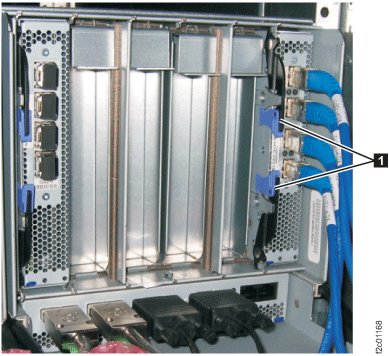
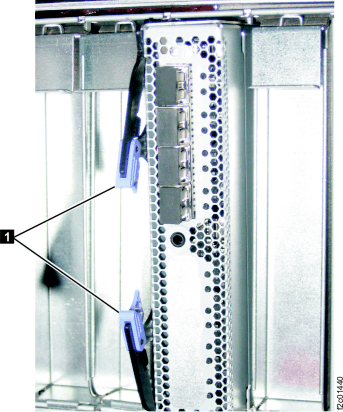
Unlatch , as shown in Figure 7 (Model 941)
and Figure 8 (Model
951), and slide each device adapter card and host adapter card
out about 2.5 cm or 1 inch. Leave the cables attached.
Note: Undocking
these cards will make it easier to slide the I/O enclosure planar
assembly out the front later in this procedure.
At the front of the rack, unscrew the two thumbscrews
that fasten the planar assembly to the I/O enclosure midplane sheet
metal.
When you removed each power supply, a sheet metal flapper
door pivoted down to block off the opening.
Lift each door up and then reach through and unscrew
the two thumbscrews. They are captive and will not fall off.
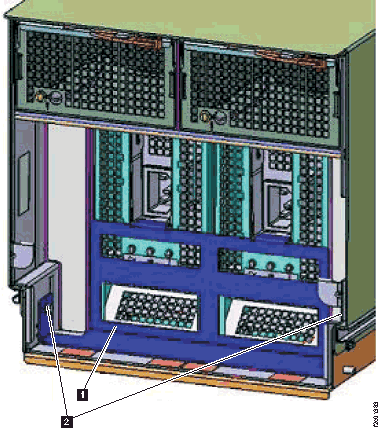
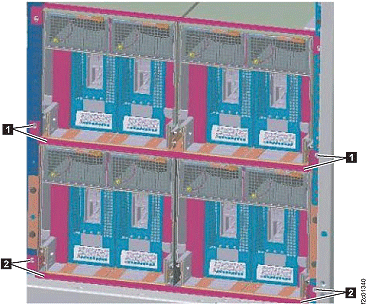
At the front of the rack, remove the hold down
bracket below the affected I/O enclosure by removing the two screws
at either end of the bracket. for the upper enclosures (rB1, rB2)
or for the lower enclosures (rB3, rB4).
See Figure 9.
Figure 9. I/O enclosure hold down brackets
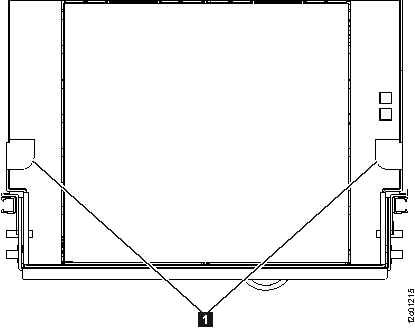
Use the brackets to pull the planar assembly out. See Figure 10.
Note: The rubber air
seals can make the planar assembly hard to pull out.
Figure 10. I/O enclosure backplane assembly
screws and brackets details
Install the I/O enclosure backplane assembly
Procedure
At the front of the rack slide the I/O enclosure backplane
assembly in by pushing on the two brackets , as shown in Figure 10.
Lift up the power supply sheet metal flapper doors and
screw in the two thumbscrews.
Install the hold down bracket below the affected
I/O enclosure, for the upper enclosures (rB1, rB2)
or for the lower enclosures (rB3, rB4).
See Figure 9.
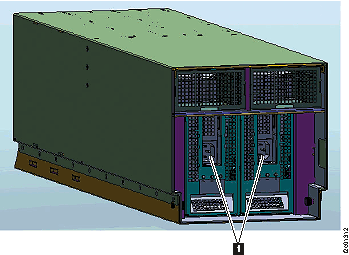
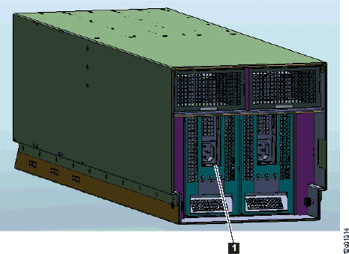
Install the two power supplies. Ensure that the red latch
beneath the input power connector is secure.
Reinstall the I/O power supply retention bracket , as shown in Figure 3.
Install and latch the two fans.
At the rear of the rack, fully install and latch the device
adapter and host adapter cards.
Fully install and latch the PCIe / SPCN
card.
Connect any cables disconnected from the PCIe / SPCN
card.
At the front of the rack, connect the power input cable
to each power supply.
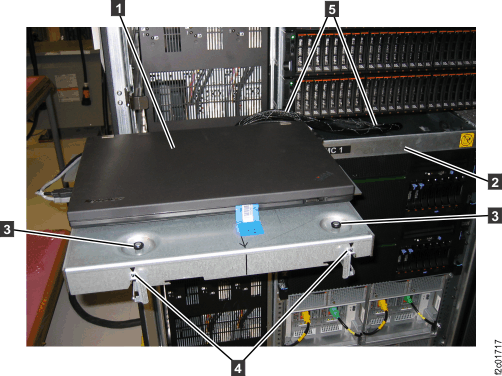
If you moved the management console to the alternate service
position, return it now to the standard service position.
Exit this service information center parts
exchange procedure and return to the procedure that sent you here.