Procedure
- Have you already set the
customer Ethernet connection settings? Notes:
- These settings are documented under the HMC option "HMC network settings" in Table 2 in the "Setting the date, time, and customer network connection" topic.
- Do not connect the Ethernet cable until you have entered the network settings provided by the customer.
- No, skip this step. Go to the next step.
- Yes, do the following to route and connect the customer Ethernet cable.
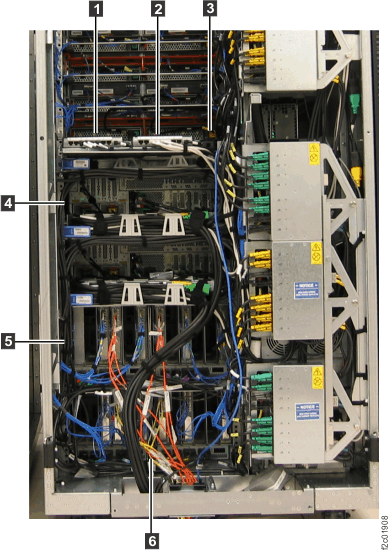
- Route the Ethernet cable through the tailgate 6 ,
up the left side of the rack alongside the FC-AL
cables and then to the rear eth2 connector 3 .
Use cable ties 4 and 5 to
secure the cable to the left side of the rack. Refer to Figure 1. Figure 1. Routing customer and private Ethernet cables
- Connect the cable to the customer Ethernet
port (eth2) connector. See Figure 2 (ThinkPad laptop) or Figure 3 (DS8870 All Flash). Note: If the customer requests the Media Access Control (MAC) address of the HMC port they will connect to, refer to MAP6010 Displaying the HMC MAC address for the customer connection.Figure 2. ThinkPad laptop customer modem and Ethernet connectors, rear of rack
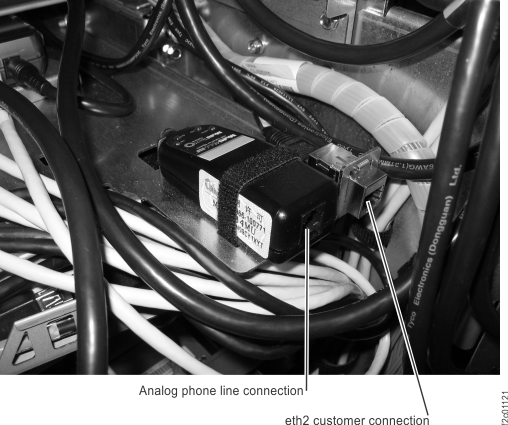 Note: Ethernet connector and modem connector may be reversed on some racks. Both connectors are located at the rear of the rack, to the right of the Ethernet switches, below the bottom storage enclosure air baffle.Figure 3. Customer modem and Ethernet connectors, DS8870 All Flash, rear of rack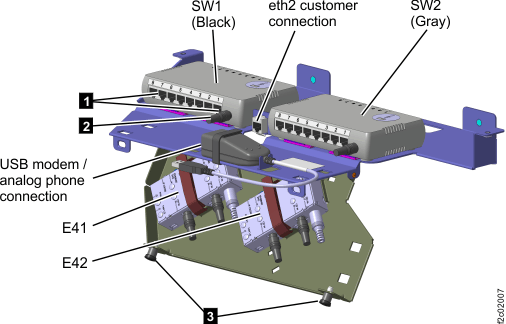
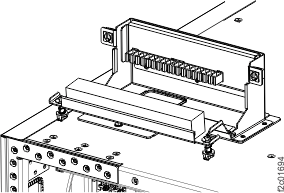
- Open
the top tailgate (if not open). Unfasten the top tailgate retention
bracket, and rotate it open. See Figure 4. Figure 4. Top tailgate
- Have you already
set the customer Ethernet connection settings?
- No, skip this step. Go to the next step. Note: You cannot connect the customer Ethernet cable until after the customer provides the information for you to enter the connection settings.
- Yes, do the following to route and connect the customer Ethernet cable.
- Locate the customer-supplied Ethernet cable.
- Ensure the cable has been routed between the customer Ethernet connector and the Rack-1 top tailgate.
- Ensure the customer end of the cable is connected to the customer network port.
- Route the Ethernet cable down through the top tailgate. Carefully route the cable ( 2 , Figure 5) through the channel in the left rear of the rack and across to the rear eth2 connector (Figure 2 or Figure 3). For DS8870 All Flash, there is no channel. Use the supplied hook and loop fasteners to route the cable along the left rear of the rack, using the path shown in Figure 5.
- Leave some slack in the cable between the eth2 connector and the tailgate. Secure the cable in the tailgate cable retention slot.
Figure 5. Overhead cable management (top exit) for Fibre Channel, communication, and power cables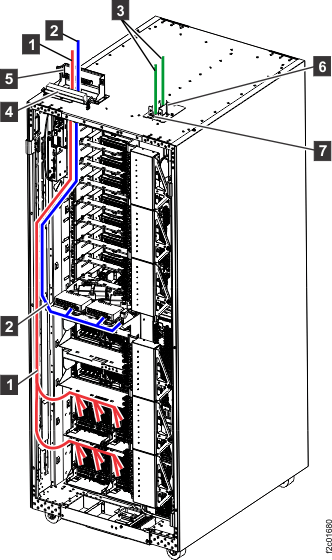
- No, skip this step. Go to the next step.