DS8000 Service Documentation Version 7.5

MAP6010 Displaying the HMC MAC address for the customer connection

Use this procedure to help the customer determine the Media Access Control (MAC) address of the HMC port they will connect to before the physical connection is made.

MAP6010 Section-1

About this task

Find the management console hardware that you have:

MAP6010 Section-2, xSeries 335, 336, or 3550

About this task

The xSeries HMC has a total of four Ethernet ports, two integrated as part of the HMC motherboard, and two additional ports on the PCI Ethernet card. See Figure 1 (x335 server) or Figure 2 (x336 server) or Figure 3 (x3550 server).
  • eth0 - port for DS8000 private network (not displayed)
  • eth1 - port unused
  • eth2 - port for customer connection
  • eth3 - port for DS8000 private network (not displayed)
Figure 1. Ethernet connectors on the rear of the X335 management console server
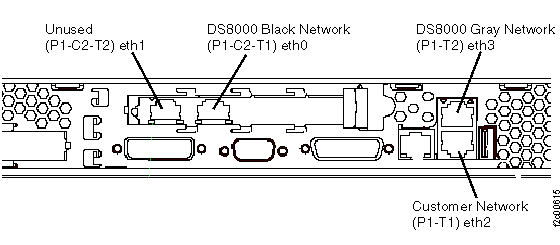
Management console rear view with Ethernet locations
Figure 2. Ethernet connectors on the rear of the X336 management console server
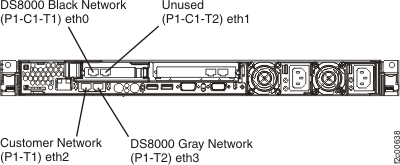
X336 management console Ethernet ports
Figure 3. Ethernet connectors X3550 management console server (rear view)
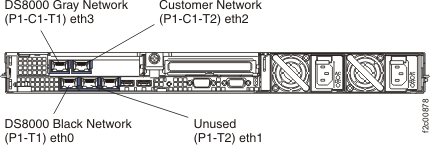
X3550 management console server (front view)

The HMC utility to display the LAN Adapters has been modified to only display the properties for eth1 and eth2. eth0 and eth3 ports are automatically managed by the DS8000® network management processes during install and FRU replacements.
Go to MAP6010 Section-4, Display the MAC address.

MAP6010 Section-3, ThinkPad laptop

About this task

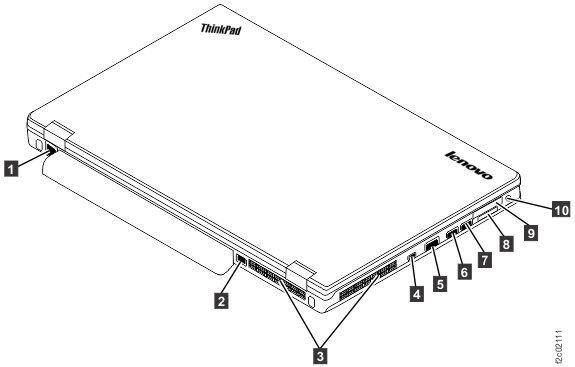
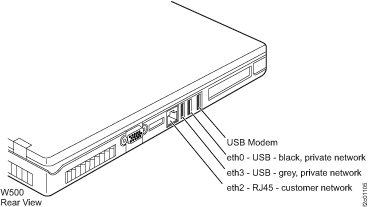
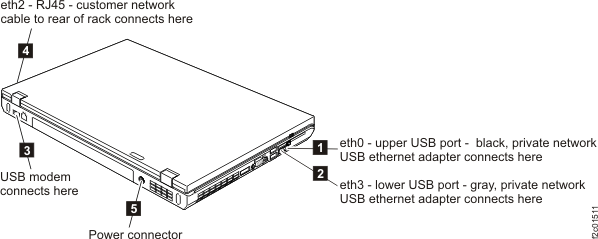
The laptop HMC has three Ethernet ports: two use Ethernet-to-USB converters, and one is integrated in the laptop. For the ThinkPad W500 laptop, see Figure 4. For the ThinkPad T510 laptop or T520 laptop, or T530 laptop, see Figure 5. For the ThinkPad T540 laptop, see Table 1 and Figure 6.
  • eth0 - port for DS8000 private network (not displayed), USB ethernet adapter, USB cable connects to laptop USB port
  • eth2 - port for customer connection, an extender cable runs to the rear of the rack to the customer connector
  • eth3 - port for DS8000 private network (not displayed), USB ethernet adapter, USB cable connects to laptop USB port
Figure 4. ThinkPad W500 laptop network and modem ports
Ethernet connectors for laptop
Figure 5. ThinkPad T510, T520, or T530 laptop network and modem ports
ThinkPad T510 laptop unit cable connections
Table 1. T540 connection locations
Cable label Laptop connection Port Use Refer to
T3 or "MGMT CONSOLE" rear RJ45 Ethernet eth2 customer network Callout label 1 Figure 6
T5 left side, front USB eth0 private network, black Callout label 7 Figure 6
T4 left side, rear USB eth3 private network, gray Callout label 6 Figure 6
Figure 6. ThinkPad T540 laptop unit cable connections (left and rear)
ThinkPad T540 laptop unit cable connections (left and rear)

The HMC utility to display the LAN adapters has been modified to only display the properties for eth1 and eth2. eth0 and eth3 ports are automatically managed by the DS8000 network management processes during install and FRU replacements.

Go to MAP6010 Section-4, Display the MAC address.

MAP6010 Section-4, Display the MAC address

Procedure

Display the MAC address of the port for customer connection.
  1. From the navigation area, click HMC Management.
  2. In the right work area, go to the Operations section and click Change Network Settings. The Customize Network Settings window opens.
  3. Click the LAN Adapters tab. The customer connection is to the eth2 port. Ethernet eth2 xx:xx:xx:xx:xx:xx (yyy.yyy.yyy.yyy)
    • MAC address = xx:xx:xx:xx:xx:xx
    • TCP/IP address = (yyy.yyy.yyy.yyy)
  4. Click Cancel to exit the Customize Network Settings window.