Before you begin
Attention: The actions in this section include setting a time
zone on the HMC. The time zone must be set before powering
on the storage facility for the first time. A valid time zone setting
is critical for proper operation.
Procedure
- At MC 1,
display the existing private network address range.
- Refer to Table 1 to determine the private network address
range that is active. Note: The default address range is 172.16.xx.xx / 172.17.xx.xx. If the customer's network address range conflicts with the default private network address range, then they would have selected one address from the three optional address ranges (Table 1). The customer would have indicated which range on the Management console network settings work sheet from the IBM® DS8870 Introduction and Planning Guide.Figure 1. The Network Topology window (the Current Topology area is shown)
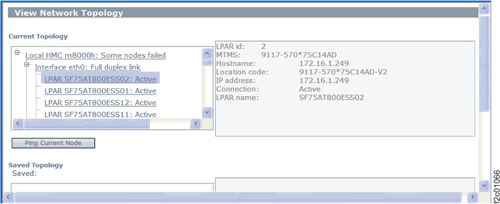
Table 1. Address ranges of the storage facility private network (LIC bundles 65.xx.xx.xx and above) Setting Address range Black network (HMC eth0, LPAR en0) Gray network (HMC eth3, LPAR en1) Default 172.16.0.0 to 172.16.0.100
172.16.1.101 to 172.16.1.112
172.16.2.101 to 172.16.2.112172.17.0.0 to 172.17.0.100
172.17.1.101 to 172.17.1.112
172.17.2.101 to 172.17.2.112Option 1 10.235.0.0 to 10.235.0.100
10.235.1.101 to 10.235.1.112
10.235.2.101 to 10.235.2.11210.236.0.0 to 10.236.0.100
10.236.1.101 to 10.236.1.112
10.236.2.101 to 10.236.2.112Option 2 192.168.160.0 to 192.168.160.100
192.168.161.101 to 192.168.161.112
192.168.162.101 to 192.168.162.112192.168.240.0 to 192.168.240.100
192.168.241.101 to 192.168.241.112
192.168.242.101 to 192.168.242.112Option 3 9.15.0.0 to 9.15.0.100
9.15.1.101 to 9.15.1.112
9.15.2.101 to 9.15.2.1129.16.0.0 to 9.16.0.100
9.16.1.101 to 9.16.1.112
9.16.2.101 to 9.16.2.112
- Refer to Table 1 to determine the private network address
range that is active.
- Refer to the Management console network settings work
sheet you were given for the storage facility you are installing
(Figure 2 shows an example).
Are the private network address ranges for MC 1 and MC 2 the same?
- Yes, go to step 4.
- No, stop this installation. The private network address range for MC 2 must be the same as for MC 1. Ask the customer to update the work sheet as needed and then return to step 1.
Figure 2. Example: Excerpt from management console work sheet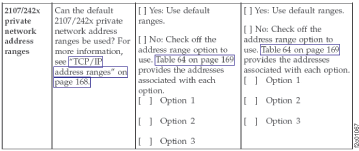
- Use the customization worksheets provided
by the customer to perform the management
console customization
tasks in Table 2.
Additional guidance is available through the IBM DS8870 Introduction and Planning Guide.
Table 2. Management console customization tasks You are here to set the following HMC option HMC Configuration Option Notes Console Date / Time and Timezone Change Date and Time - From the navigation area, click HMC Management. In the right work pane, go to the Operations section.
- Click Change Date and Time.
- Click Customize Console Date and Time tab.
- In the Clock field, ensure that UTC is selected.
- In the Time field, enter the local time.
- In the Date field, set the current date.
- In the Time Zone field, choose a location that has the same time
zone and daylight saving settings as the storage facility location. Note: The date, time, and time zone that you select will be used later by an automated process to update those settings in the storage facility. You must set the time zone before you continue with the installation.
- Click OK to save any changed settings.
- From the panel, "Please reboot the HMC", click OK, but do not reboot until directed later in this procedure.
NTP time server Change Date and Time - Which management console are you checking/updating the NTP settings for?
- Does the customer want to use an external NTP server?
- The customer wants to use an
external NTP server to update time on the primary HMC.
- From the navigation area, click HMC Management. In the right work pane, go to the Operations section.
- Click Change Date and Time.
- Click NTP Configuration tab.
- Ensure the Enable NTP service on this HMC checkbox has a checkmark (enabled).
- Observe the Currently defined time servers in NTP configuration file: table.
- Remove any time server information that no longer applies. This includes 172.16.x.x and/or 172.17.x.x, if present. Select the servers and then click Remove NTP Server.
- Click Add NTP Server to add NTP servers specified in the customer configuration worksheet. Ensure that the NTP version is correct for each time server.
- Click OK and then go to the HMC network settings row in this table.
- The customer does not want to use
an external NTP server to update time on the primary HMC.
- From the navigation area, click HMC Management. In the right work pane, go to the Operations section.
- Click Change Date and Time.
- Click NTP Configuration tab.
- Ensure the Enable NTP service on this HMC checkbox has a checkmark (enabled).
- Click OK and then go to the HMC network settings row in this table.
- The secondary HMC must not use
an external NTP server. It updates the time/date from the primary
HMC.
- From the navigation area, click HMC Management. In the right work pane, go to the Operations section.
- Click Change Date and Time.
- Click NTP Configuration tab.
- Ensure the Enable NTP service on this HMC checkbox has a checkmark (enabled).
- Click OK and then go to the HMC network settings row in this table.
HMC Network Settings Change Network Settings - From the navigation area, click HMC Management. In the right work pane, go to the Operations section.
- Click Change Network Settings.
- Click the Identification tab
- Set the Console or host name, and Domain name per the worksheets.
- Click the LAN Adapters tab.
- Select eth2, click Details.
- Click the Basic Settings tab.
- Under Local Area Network Information
- Select the correct media speed in the Media Speed (ethernet) setting.
- Under DHCP Server
- Do not select (enable) the Enable DHCP server check box.
- Under IPv4 Address, set the IP address and DHCP setting from the
worksheets.
- If a TCP/IP interface address is specified, select the Specify an IP address radio button and enter the interface address and network mask.
- If a TCP/IP interface address is not specified, select the Obtain an IP address automatically (DHCP) radio button.
- Click the IPv6 Settings tab.
- Configure the IPv6 customer network connection from the worksheets.
- Set the Autoconfig Options and Static IP Addresses
- Click OK to save the settings and return to the Customize Network Settings screen.
- Click on the Name Services tab and configure the customer's DNS from the worksheets.
- Select the Use DHCP DNS Settings check box only if the IPV4 Address, Obtain an IP address automatically (DHCP) radio button is selected for the LAN adapter.
- Select the DNS enabled check box and add each DNS and Domain name suffix only if the customer has DNS servers specified.
- Click on the Routing tab and configure the customer's gateway from the
worksheets.
- Do not add a new route.
- Type in the default gateway address.
- Set the gateway device to eth2.
- If the Enable 'routed' check box is present, ensure that it is not selected.
 Network configuration is completed. Do not click OK
now. Go to the next step.
Network configuration is completed. Do not click OK
now. Go to the next step.