DS8000 Service Documentation Version 6.3.3
MAP7001 Using the network topology tool
The network topology tool displays information about the networks that are associated with the storage facility. This MAP provides guidance on using the tool when directed from the maintenance package or next level of support.
MAP7001 Section-1 (Start here)
Procedure
Find your purpose for using this MAP in Table 1.
| Purpose | Go to |
|---|---|
| Invoke the network topology tool | MAP7001 Section-2 (Invoking the network topology tool) |
| See examples of screens that are displayed by the network topology tool | MAP7001 Section-3 (Examples of screens) |
| Analyze the results of the network topology test and repair the network | MAP7001 Section-4 (Analyzing the results and repairing the network) |
MAP7001 Section-2 (Invoking the network topology tool)
Procedure
- From the navigation area, click HMC Management.
- In the right work area, go to the Operations section and click View Network Topology.
- Wait several minutes for the tool to gather and present the results. For examples of the screens that are displayed by the network topology tool, see MAP7001 Section-3 (Examples of screens), and then return here and go to the next step.
- To analyze the results of the information that is displayed by the network topology tool and to repair the network, go to MAP7001 Section-4 (Analyzing the results and repairing the network).
MAP7001 Section-3 (Examples of screens)
Screens that contain information about the network topology are displayed when you invoke the network topology tool.
Procedure
Figure 1 shows
the Network Topology window. The current network
topology is listed at the top of the window; the saved network topology
listed at the bottom. Figure 2 shows
the upper left area of the window. This area looks different depending
on the configuration of the storage facility.
Figure 1. Network Topology window (Current Topology area is shown) 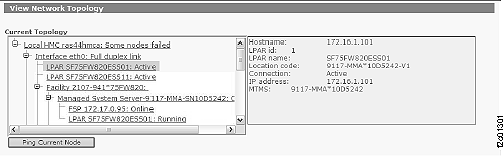
Figure 2. Topology example 9x1 with one
MC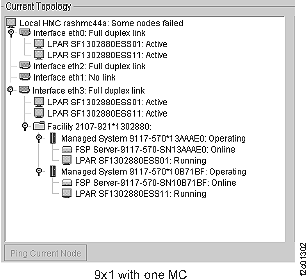
Notes:
- Examples of nodes include:
- Local HMC ports
- HMC ports on a second HMC (if installed)
- Service processor card ports
- LPAR (partition) ports on the CEC enclosure I/O backplane assembly, CEC enclosure VPD pass-through card, or PCI Ethernet card
- The tool provides a hierarchical view of the network from the management console which you logged onto.
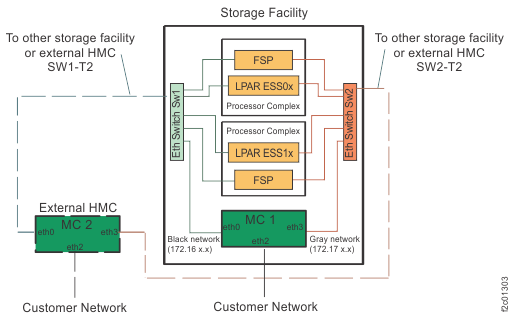
- For a diagram of the network topology (with two MCs), see Figure 3.
- The Current Topology view (upper half of the window) shows the status of detected nodes on each of the two storage facility private networks at the time the tool was invoked or when Refresh was selected.
- The Saved Topology view (lower half of the window) shows the status of nodes when the Save function was last performed. A Save should have been performed during installation of the management console or after a repair to a FRU which is connected to the network. Normally, the saved topology will represent the network status when all nodes on both private networks were fully present and operational.
- To verify connectivity to a failing node, ping the selected node by clicking the Ping Current Node button (Current Topology view) or the Ping Saved Node button (Saved Topology view).
- The service processors (represented by
"FSP Server" in the Network Topology window) are accessed through one
of the two networks, so they will not appear on both. This is normal.
- The service processors are accessed by MC 1 through the GRAY network (172.17.x.x).
- The service processors are accessed by MC 2 through the BLACK network (172.16.x.x).
- The CEC enclosure (or Storage Facility system) status information is displayed along with the associated service processor, so will not appear on both networks. This is normal.
- The LPAR status will be displayed under the CEC enclosure. However, you must ping the LPARs by selecting the icon that is listed separately from the CEC enclosure.
- When you have resolved all network problems, perform a Save for future comparison.
Figure 3. Diagram of network topology (example shows 8-port switches)