DS8000 Service Documentation Version 6.3.3

MAP7042 Private network isolation procedure 42

The Network Topology tool has been used to determine that one or both management consoles have lost connectivity to the service processor on a single CEC enclosure (one of the two processor complexes in a storage facility) through the Gray network (eth3).

MAP7042 Section-1

Before you begin

In MAP7000 Entry point for storage facility private network problems, you verified that power was available to the CEC enclosure and that the service processor was IML'd.

Procedure

  1. Locate Ethernet switch SW2 (Figure 1) in the storage facility that contains the affected service processor. Use Table 1 to determine the locations of the switch port, CEC port, and Ethernet cable that correspond to the failing service processor.
    Table 1. Port locations (Model 941 and 951)
    Service processor card port location SW1 port location SW2 port location
    U789D.001.nnnnnnn-P1-C11-T3 (Upper CEC enclosure) T3
    U789D.001.nnnnnnn-P1-C11-T3 (Lower CEC enclosure) T4
    U789D.001.nnnnnnn-P1-C11-T4 (Upper CEC enclosure) T3
    U789D.001.nnnnnnn-P1-C11-T4 (Lower CEC enclosure) T4
    Figure 1. 8-port Ethernet switch port designations (SW1, SW2-Tx) Model 941 and 951
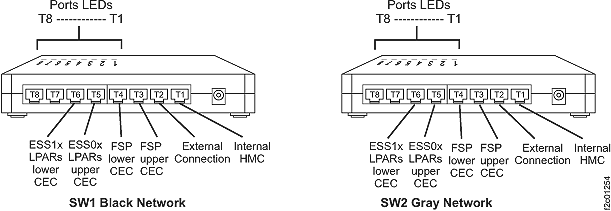
    8-port Ethernet switch port designations (SW1, SW2-Tx)
  2. Check the Ethernet port "link" LED on the switch and CEC Ethernet ports identified in step 1.

    Is the link LED on solid?

    • Yes, go to step 4.
    • No, confirm that the Ethernet plugs are firmly seated at each end. Attempt to reset the link by unplugging and reseating the Ethernet plugs at both ends. If the "link" LED comes on, continue with the next step. If the "link" LED stays out, make a note of this, and go to step 4.
  3. Use the Network topology tool as described in MAP7001 Using the network topology tool to check whether the problem is resolved.

    Is the network problem resolved?

    • Yes, go to MAP1500 Ending a service action to close the serviceable event, save the network topology, and ensure that good subsystem status.
    • No, continue with the next step.
  4. Is there an unused port on the same switch?
    • Yes, go to the next step.
    • No, this can occur only on an 8-port switch. Temporarily unplug the cable from port T8, and then continue at the next step.
      Note: For models 9A2 and 9B2, this might cause a new serviceable event to be opened for Ethernet communications from the second LPAR on this CEC enclosure. After this cable is reconnected in the following step, you can close that serviceable event.
  5. Move the cable plugged into the port located in step 1 to an unused port on the Ethernet switch.
  6. Use the Network topology tool as described in MAP7001 Using the network topology tool to check whether the problem is resolved.
    Is the network problem resolved?
    • Yes, this indicates a faulty port on the Ethernet switch. Go to MAP7042 Section-2.
    • No, continue with the next step.
  7. Move the cables that were swapped in previous steps back to their original position.
  8. Temporarily install a new Ethernet cable in place of the existing cable between the faulty service processor Ethernet port and the Ethernet switch port that was determined earlier.
  9. Use the Network topology tool as described in MAP7001 Using the network topology tool to check whether the problem is resolved.
    Is the network problem resolved?

MAP7042 Section-2

About this task

In this section, the SW2 Ethernet switch will be replaced.

Procedure

  1. Go to Exchanging parts to replace the SW2 Ethernet switch. Return here after you have replaced the Ethernet switch.
  2. Verify the fix using the Network topology tool as described in MAP7001 Using the network topology tool.
    Is the network problem resolved?
    • Yes, go to MAP1500 Ending a service action to close the serviceable event, save the network topology, and ensure good subsystem status.
    • No, if you have other FRUs to replace, continue with the replacement. Otherwise, contact your next level of support.

MAP7042 Section-3

About this task

In this section, the faulty Ethernet cable will be replaced.

Procedure

  1. Replace the faulty Ethernet cable between the Ethernet switch and the service processor.
  2. Verify the fix using the Network topology tool as described in MAP7001 Using the network topology tool.
    Is the network problem resolved?
    • Yes, go to MAP1500 Ending a service action to close the serviceable event, save the network topology, and ensure good subsystem status.
    • No, reseat the cable again and repeat this step. If the problem persists, it appears that you installed a faulty Ethernet cable or you have a problem with the service processor. Replace the cable again. If replacing the cable again does not resolve the problem, go to MAP7042 Section-4 to reset or replace the service processor.

MAP7042 Section-4

About this task

In this section, the service processor will be reset, and the link will be re-tested. If the service processor reset does not resolve the problem, the service processor will be replaced.

Procedure

  1. Go to MAP4810 Resetting the service processor (FSP). Return here after you have completed the action.
  2. Use the Network topology tool as described in MAP7001 Using the network topology tool to check whether communication with the service processor is now working.
    Is communication with the service processor now working?
    • Yes, continue with the next step.
    • No, use Storage Facility Management > storage facility > Exchange Parts to replace the service processor. When you have replaced the service processor, verify the fix using the Network topology tool as described in MAP7001 Using the network topology tool.
  3. Power on the storage facility system.
    1. Use Storage Facility Management > storage facility > Service Utilities > Storage Facility Power Control.
    2. Select Power ON Storage Facility.
  4. Use the Network topology tool as described in MAP7001 Using the network topology tool to check that all communication is now working.
    Is the network problem resolved?