MAP6200 Reloading the management console LIC bundle VRMF 64.2.xxx.xxx or later
Use this MAP to reinstall the licensed internal code (LIC bundle VRMF 64.2.xxx.xxx or later) for the management console.
MAP6200 Section-1
Procedure
- Ensure that you were sent here from MAP6020 Management console problem determination.
- Table 1 lists the three CDs/DVDs that
you need to reload the HMC code. The CDs/DVDs are in the HMC Recovery Kit.
Before continuing with this reload of the HMC, contact your next level of support to confirm you have the correct recovery kit.Notes:- A kit number is on each CD/DVD (below the IBM® logo; for example, KIT: 23R0133). Ensure that all of the CDs/DVDs have the same kit number.
- Your HMC is probably at a higher LIC bundle level than the recovery kit that you have. You will install the recovery kit and then use CDA to update HMC code to the desired level. If you are not sure whether the code level of the managed storage facilities matches the code level of the recovery kit, contact your next level of support.
Table 1. HMC Recovery Kit: CDs/DVDs required to reload the HMC code (LIC bundle VRMF 64.2.xxx.xxx or later) Media disk CD or DVD label Description Installation time (approximate) 1 2107 HMC Recovery DVD
HMC Base 1
Version: xxxxxxxxx
DVD: #1Base operating system and base HMC code 45 minutes 2 HMC Extensions
Version: xxxxxxxxx
CD: #2Unique code support for 2107 4 minutes 3 HMC_ICAT_GUI
Version: xxxxxxxxx
CD: #3DS Storage Manager code (also known as ICAT), the IBM graphical user interface 8 minutes - Is the management console currently running?
- Yes, go to step 5
- No, go to the next step.
- Is this a dual-HMC configuration?
- Display and note the private
address range in use on this management console.
- From the navigation area, click HMC Management.
- In the right work area, go to the Storage Server HMC Tasks section and click Query/Change IP Range.
- In the Query/Change IP Range window, in
the row labeled "Current Private Range," note the address range
in use:
- 9.xx.xx.xx
- 10.xx.xx.xx
- 172.xx.xx.xx (default)
- 192.168.xx.xx
- In the Query/Change IP Range window, click Cancel.
- Shut down and power off the management console. See MAP6640 Shutting down, restarting, and logging off the management console.
- Disconnect the black and gray private network cables from management console Ethernet ports
eth0 and eth3. For laptop management consoles, disconnect the Ethernet cable from the USB adapter.
Do not disconnect the USB adapter from the laptop. See Figure 1, Figure 2,
Figure 3, or Figure 4, depending on the
management console model. Figure 1. Ethernet connectors on the rear of the X335 management console server
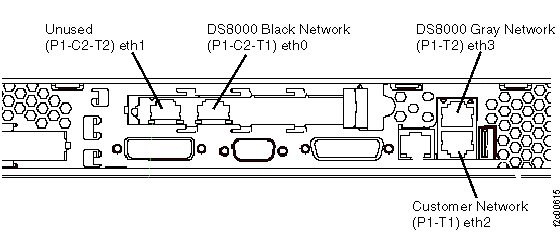 Figure 2. Ethernet connectors on the rear of the X336 management console server
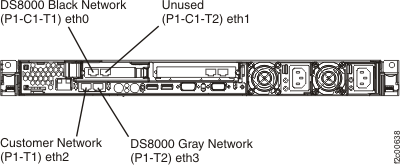 Figure 3. Ethernet connectors X3550 management console server (rear view)
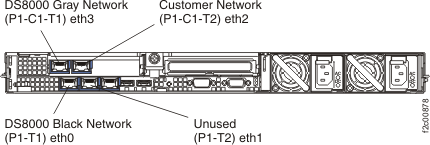 Figure 4. eth0 (black network) and eth3 (gray network) USB Ethernet adapters for Thinkpad W500 (similar for Thinkpad T510, T520)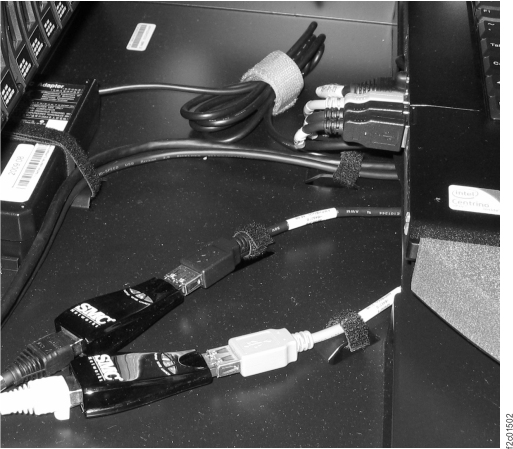
MAP6200 Section-2 Installing a LIC bundle
Procedure
- Power on the management console and immediately insert the HMC Base
Recovery DVD #1. The management console powers on, boots from the DVD, and then displays the
Hardware Management Console - Hard Disk Install / Upgrade screen. This takes
about 2 minutes.
- During powering on, if the console is not booting from the DVD, repeatedly press F12 or F1 key when the initial flash screen shows to invoke a menu on which you can choose a booting device.
- Choose the DVD drive to boot from.
Note: If the DVD does not boot, refer to the appropriate service guide to isolate the problem. The guide is on the DS8000® service documentation CD (the CD is part of the ship group). Refer to MAP6020 Section-1 for a list of the guides. - Select Install from the list of options presented and click Next.
- Select Install from Media and click Next. On the next screen, ensure the operation is "install" and the source is "media", then click Finish.
- In about 20 to
45 minutes, the DVD is ejected and the following screen is displayed.
Please select one of the following options:
1 -- Install additional software from CD media
2 -- Finish the installation at a later time
Please enter your selection:
Type 1 and press Enter. When prompted, insert the HMC Extensions CD #2 and then press Enter.
- In about 4 minutes, the CD is ejected
and the following screen is displayed.
Please select one of the following options:
1 -- Install additional software from CD media
2 -- Finish the installation at a later time
Please enter your selection:
Type 1 and press Enter. When prompted, insert the HMC_ICAT_GUI CD #3 and then press Enter.
- In about 10 to 20 minutes, the following
screen is displayed.
Please select one of the following options:
1 -- Restore critical console data from DVD-RAM media (Install Only)
2 -- Restore upgrade data from DVD-RAM media (upgrade from older Version/Release)
3 -- Finish the installation
Please enter your selection:
Go to the next step to enter your selection.
- Type 3 to finish the installation, and press Enter. The HMC automatically restarts.
- If the keyboard layout configuration menu is displayed, select option 2 (Do not change keyboard layout and do not run this program again on the next system boot) and press Enter.
- If the change locale menu is displayed, select the second option (Exit now and don't prompt for
locale again) and press Enter. Note: If the keyboard layout configuration menu or change locale menu minimizes before a selection is made, you will be prompted again at the next reboot.
- During the HMC boot, a screen
opens and prompts you to select an HMC role.
- Select either Primary for HMC1 or Secondary for HMC2, and press Enter.
- Type "Yes" and press Enter to confirm your selection.
After you confirm your selection, the HMC boot continues.
MAP6200 Section-3 Completing the installation
Procedure
- After the HMC has finished booting, the License Agreement is displayed. Click Accept twice to accept the license agreements.
- After the license agreements are displayed, the Guided Setup Wizard may be displayed. Deselect Show this screen again when I sign on to the HMC and then click No.
- The HMC console application begins initiating. After 3 to 5 minutes, the pre-login HTML page is shown.
- On the HMC pre-login HTML page, click Log on and launch the Hardware Management Console web application. The HMC login page is displayed.
- Log on to the management console with user ID CE and password
serv1cece.
Was the logon successful?
- Yes, go to the next step.
- No, begin problem isolation at Start here.
Notes:- After login, you might receive the following message:
This is normal because critical console data has not yet been restored. Click OK to close the message window.RMC communication could not be established to the LPARs; unable to determine the status of Preloaded code. - Set management console clock, time, date, and time zone:
- From the navigation area, click HMC Management.
- In the right work pane, go to the Operations section.
- Click Change Date and Time.
- Click Customize Console Date and Time tab.
- In the Clock field, ensure that UTC is selected.
- In the Time field, enter the local time.
- In the Date field, set the current date.
- Set the Time zone to a location that has the same time zone and daylight savings settings as the storage facility location.
- Click OK on the Reboot/Restart warning panel, but do not restart at this time.
- If a private address range other than the default
of 172.xx.xx.xx is in use by the storage facility, the management
console must be set up for that address range at this time. Refer
to the following table. Select the first row that applies and
take the action listed for that row.
Is a private address range in use? LIC bundle level Action Do not know Any Contact your next level of support. Yes Below 76.xx.xx.xx Contact your next level of support. Yes, 9.xx.xx.xx on a secondary HMC (model 941) Below 76.10.xx.xx Contact your next level of support. Yes, 9.xx.xx.xx on a secondary HMC (model 951) Below 86.10.xx.xx Contact your next level of support. Yes 76.xx.xx.xx or above Go to step 8 No, the default 172.xx.xx.xx is in use Any Go to step 9 - A
non-default private address range is in use by this storage facility.Activate
the private address range selection menu.
- From the navigation area, click HMC Management.
- In the right work area, go to the Storage Server HMC Tasks section and click Query/Change IP Range.
- In the Query/Change IP Range window, select the Activate Private Range Selection Menu check box, then click OK.
- When the management console is restarted, you are given the opportunity to select the private address range.
- Restart the management console by completing the following steps:
- From the navigation area, click HMC Management.
- In the right work area, go to the Operations section and click Shut Down or Restart. The Shutdown or Restartwindow opens.
- Select Restart HMC. Click OK.
Note: Some HMC rebuild scenarios can produce serviceable events with SRC EA880936. This SRC is expected due to temporary mismatch of code levels between the CEC and HMC during the update. The serviceable event can be closed. Completing the HMC bundle update brings the HMC to a compatible level and prevent this SRC.Example of SRC EA880936 text:
HSCE2358 Managed system 9117-MMA*10FE733 PRIMARY T-side code level 01FM340 not compatible. Recommended HMC level: Version: 7 Release: 340 Service Pack: 3 HMC Build level: 20090709.1. - Reconnect the black private network
cable to management console Ethernet port eth0.
Reconnect the gray private network cable to management console Ethernet port eth3.
See Figure 1, Figure 2, Figure 3, or Figure 4, depending on the management console model. - If you activated the
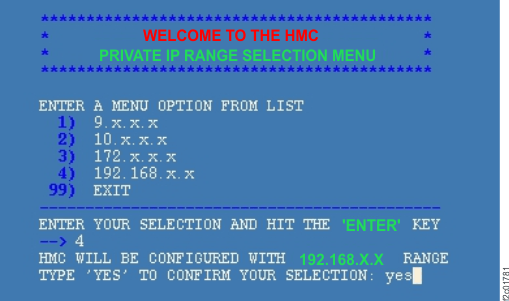
private range selection menu, the menu will display during startup.
Select the desired address range from the list, and then confirm
the selection. See Figure 5. Figure 5. Private address range selection menu
- Use
the CDA process to update the HMC LIC code now.
- Use the Updates > Acquire Code Images... menus to acquire the bundle.
- If using removable media, do not insert the media until prompted.
- For further information, refer to MAP6205 Updating the management console LIC bundle.
- Return to this step when the HMC LIC update is complete.
The HMC must be updated to the exact bundle level it was running, or restore of HMC critical data will fail. The HMC will be rebooted as part of the CDA process.
Note: When logging in after the LIC update, you may receive the following message:
This is normal because critical console data has not yet been restored. Click OK to close the message window.RMC communication could not be established to the LPARs; unable to determine the status of Preloaded code. - If
this is a dual-HMC configuration and you are reloading the primary
management console (HMC1), find managed systems on the primary management
console.
- From the navigation area, click Storage Facility Management.
- From the bottom Tasks area, click Add Managed System.
- In the Add Managed Systems panel, select Find Managed Systems.
- In the Add Managed Systems panel, enter the addresses
from Table 2 in
the Beginning IP Address and Ending IP Address text boxes. Click OK.
Table 2. Beginning and ending IP addresses Address range in use Enter for beginning IP address Enter for ending IP address 9.xx.xx.xx 9.16.0.5 9.16.0.100 10.xx.xx.xx 10.236.0.5 10.236.0.100 172.xx.xx.xx (default) 172.17.0.5 172.17.0.100 192.168.xx.xx 192.168.240.5 192.168.240.100 - In the Add Servers panel, two systems should appear
by IP address.
Select both systems and enter hmc2fsp in the Password text box. Click Continue.Note: If the management console is in a "2x2" configuration (manages two storage facilities), four systems should appear. In this case, select all four systems. - In the Confirm Add panel, the selected systems are displayed.
The operation to add these systems should not take more than a few minutes. Click Add.
- Ensure that both of the DS8000 private network connections (Interface eth0 and Interface eth3) are
working properly. Use the Network Topology Tool to ensure that both LPAR nodes are displayed as
Active from both interfaces. Example:
Interface eth0: Full duplex link
  Partition SF75ABCD0ESS01: Active
  Partition SF75ABCD0ESS11: Active

Interface eth3: Full duplex link
  Partition SF75ABCD0ESS01: Active
  Partition SF75ABCD0ESS11: Active
See MAP7001 Using the network topology tool.
Note: It takes up to 10 minutes for the managed systems (CEC enclosures) to be discovered automatically by the HMC and then the RMC communication to the CEC LPARs to be established. This is a prerequisite before going to the next step.
When reloading the primary management console in a dual-HMC configuration, this 10-minute period starts after the managed systems have been found in step 13. - Are both LPAR nodes displayed
as "Active" from both interfaces?
- Yes, go to MAP6210 Restore HMC Critical Console Data from LPAR, LIC bundle VRMF 64.2.xxx.xxx or later.
- No, contact your next level of support.