This is not a stand-alone procedure. Customer disruption and damage
to the hardware might occur if microcode and power boundaries are
not in the proper conditions for this service action.
If you were sent here by a serviceable event FRU repair, the microcode
and power boundaries have already been set.
If there is no FRU identify indicator or location code, you
were sent here by an isolation MAP or symbolic FRU procedure. Use the information in that procedure
and the figures in this procedure to locate the proper part to exchange.
Most, but not all, FRUs have identify indicators. Use the flashing amber or solid blue FRU identify indicators to ensure that you are working
on the correct enclosure or FRU.
The "light path" identify LEDs are a hierarchy of LEDs that can
identify the rack, enclosure, FRU, and even the FRU connector to which a cable is
connected.
In the right work area, go to the Operations section
and click Shut Down or Restart. The Shutdown
or Restart window opens.
Select Shutdown HMC, then click OK.
Wait for the HMC to
power off then go to the next step.
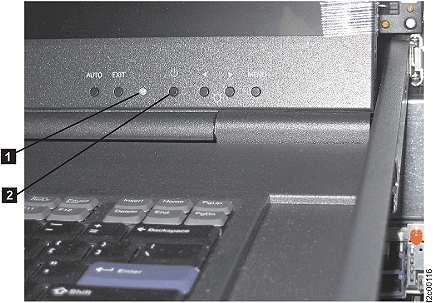
Power off the management
console display,
use the power button . Ensure the power LED is off.
Figure 1. Management Console Power LED and Switch
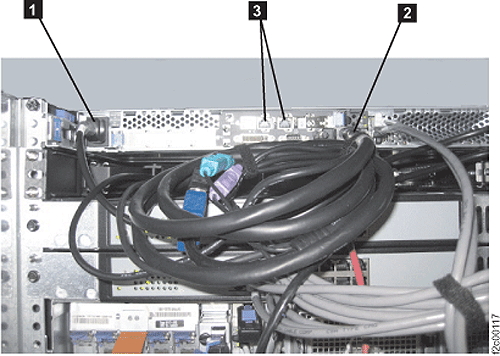
At the rear of the rack, disconnect the management
console server
power cable .
At the rear of the rack, disconnect the management
console keyboard/display
integrated cable from the management
console server.
Figure 2. Management console
rear connectors
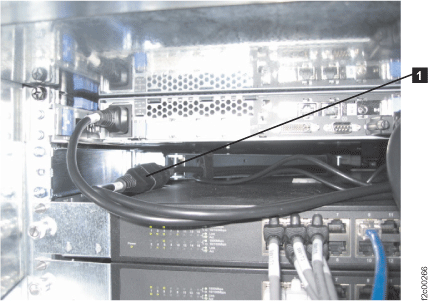
Disconnect the management
console keyboard/display
power cable from the rack power cable.
Figure 3. Management console
keyboard/display power cable
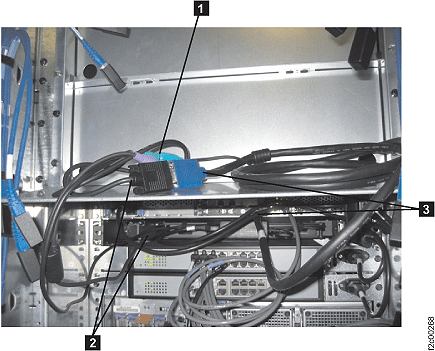
Disconnect the three connectors between the management
console keyboard/display
integrated cable and the management
console keyboard/display
cable . Set the integrated cable aside for now.
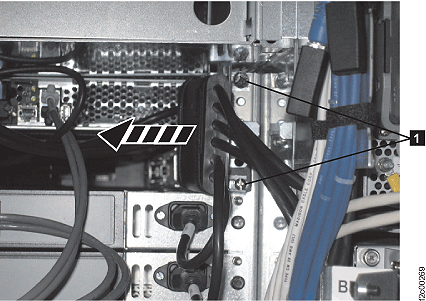
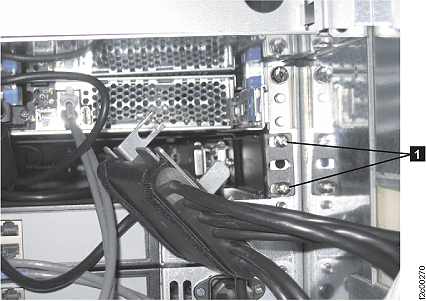
At the rear of the rack, move the 208V multi-cable away from the
right rear rail. Loosen the two screws .
Figure 6. 208VDC multi-cable
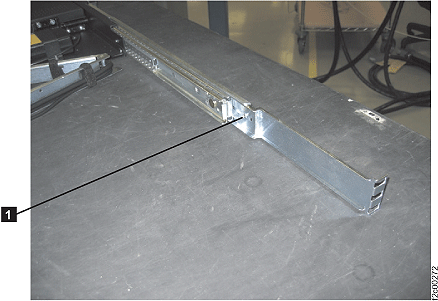
Remove the 4 screws holding the rear rails (right two screws shown).
Figure 7. Management console
rear rail screws
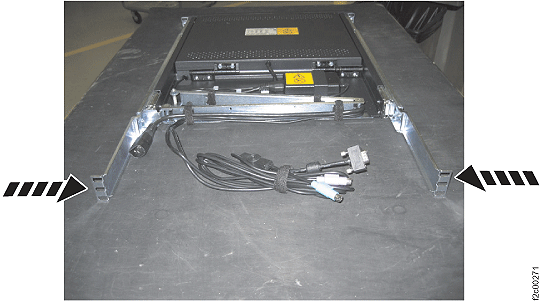
Squeeze the rails towards each other, so they can clear the rack
rails they were fastened to. Then push them in towards the front of the rack
just a little (management
console keyboard/display
shown on table for clarity only).
Figure 8. Management console
rear rails
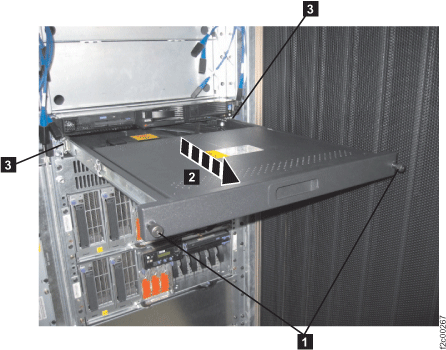
At the front of the rack, slowly pull the keyboard/display tray
out of the rack and set it on a work surface.
As in the previous step, the rails will need to be squeezed
to clear the front rack mounting surface.
Install the management
console display/keyboard
About this task
Note: Ensure the management
console has
been shutdown. Go to step 3 above,
then return here.
Procedure
Set the new management
console keyboard/display
on a work surface. Unscrew the two black thumbscrews at the display end, so
you can pull the display and make the rails full length. See Figure 8.
Loosen, but do not remove, the rail length adjustment screw on each rail. This will allow you in a later step to adjust the length
once it is in the rack.
At the front of the rack, carefully slide the keyboard/display
into its slot.
You may need to squeeze the rails towards each other so they
can go past the vertical rack mount surfaces.
Ensure the cables are not damaged as you do this.
At the rear of the rack, squeeze the rails towards each other so
they can go past the vertical rack mount surfaces.
At the front of the rack, install and tighten the four screws that
fasten the rails to the rack mount surface.
At the rear of the rack, install and tighten the two left screws
and the upper right screw that fasten the rails to the rack mount surface.
Install the right bottom screw but leave it two turns loose.
Install the 208V multi-cable sliding it under the two screws and then tighten the screws. See Figure 6.
Reach in and tighten the rail length adjustment screw on each rail.
Connect the three connectors between the management
console keyboard/display
integrated cable and the management
console keyboard/display
cable . See Figure 4.
Connect the management
console keyboard/display
power cable to the rack power cable The management
console server
will automatically power on. See Figure 3.
At the front of the rack, ensure the keyboard/display tray can
be pushed in and the two black thumbscrews tightened.
Put the keyboard/display in the service position with the display
up. Press the display power key and ensure the power LED is on. See Figure 1.
Exit this service information center parts
exchange procedure and return to the procedure that sent you here.