This is not a stand-alone procedure. Customer disruption and damage
to the hardware might occur if microcode and power boundaries are
not in the proper conditions for this service action.
If you were sent here by a serviceable event FRU repair, the microcode
and power boundaries have already been set.
If there is no FRU identify indicator or location code, you
were sent here by an isolation MAP or symbolic FRU procedure. Use the information in that procedure
and the figures in this procedure to locate the proper part to exchange.
Most, but not all, FRUs have identify indicators. Use the flashing amber or solid blue FRU identify indicators to ensure that you are working
on the correct enclosure or FRU.
The "light path" identify LEDs are a hierarchy of LEDs that can
identify the rack, enclosure, FRU, and even the FRU connector to which a cable is
connected.
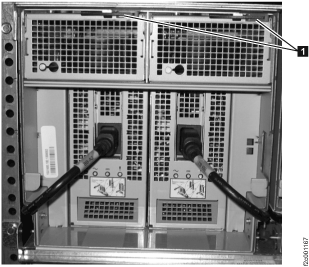
Unlatch the fan release lever in the upper right corner of the fan.
Then, use it to pull the fan assembly straight out from the I/O enclosure.
Figure 4. Removing the I/O enclosure fan
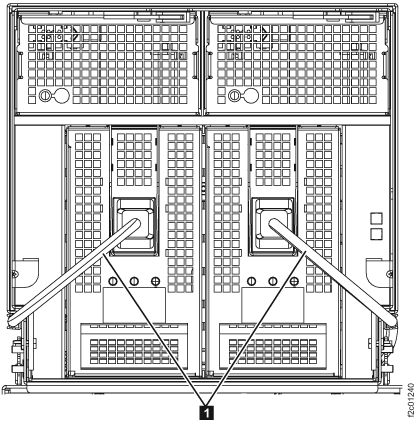
At the rear of the rack, unplug all the cables (RIO, SPCN , ID , FC-AL and customer host ). Ensure that the cables are labeled
so they can be properly replugged. See Figure 5.
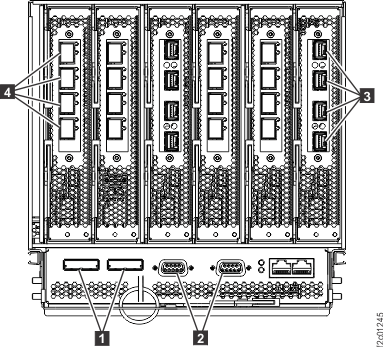
Figure 5. PCIe, SPCN, FC-AL, customer
host cables
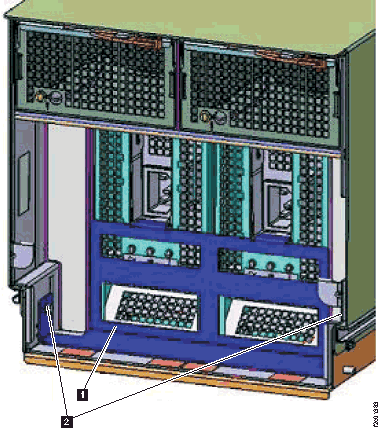
Unplug the two black power cables from the 208 VDC bus
bars. From the rear of the rack (as
shown in Figure 6):
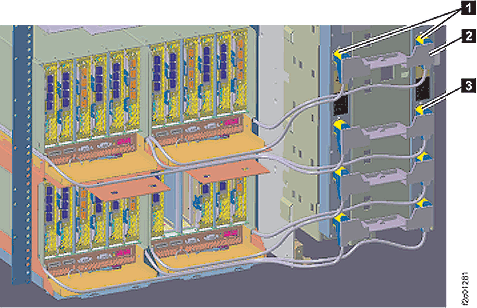
Trace both I/O power
supply cables from the rear of the I/O enclosure
to the 208 VDC secondary bus bars .
Note: There are two power cables that exit between
the rear of the I/O enclosures. You might need to gently pull on
the unplugged cable from the front of the I/O enclosure to ensure
that you know which cable at the rear will be unplugged in the next
substeps.
Gently pull the blue retention bracket and then slide it to the side to allow
the cable to be unplugged.
Unplug the black power cable from the bus bar connector .
Remove any cable retention hardware to allow the cables
to hang free.
Figure 6. I/O with power cables
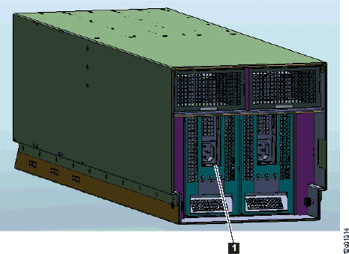
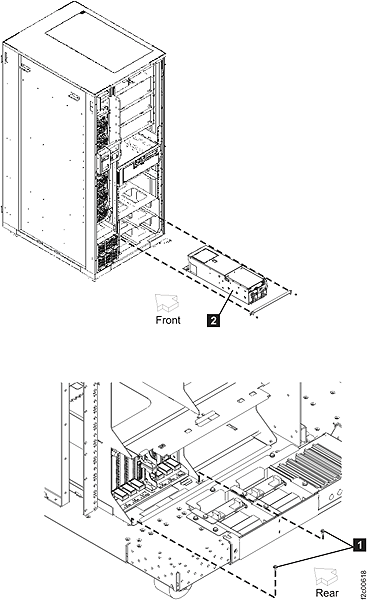
Remove the I/O enclosure chassis from the rack. See Figure 7.
At the rear of the rack, remove the two hold down screws .
Push the I/O enclosure forward towards the front of
the rack .
At the front of the rack, pull the I/O enclosure out
the front being careful to balance it when it is free of the rack.
Place the I/O enclosure on a static free surface.
Figure 7. Remove the I/O enclosure
chassis
Remove the failing power cable.
Install the I/O enclosure power supply to 208 VDC bus bar cable
Procedure
Install the new power cable
alongside the I/O enclosure.
Slide the I/O enclosure back into the rack and install
the two hold down screws.
At the rear of the rack, connect
all the cables to the I/O enclosure.
At the front of the rack install
the two power supplies. Ensure that the red latch beneath the input
power connector is secure.
Reinstall the I/O power supply retention bracket.
Install and latch the two fans.
Connect the two black power
cables to the power supplies.
Route and connect the power cables to the 208 VDC bus bars.
At the bus bars, slide
the blue retention bracket back in position.
Reinstall the cable retention hardware.
Exit this service information center parts
exchange procedure and return to the procedure that sent you here.