DS8000 Service Documentation Version 6.3.3
MAP6580 Customer Ethernet connection problem
Use this procedure to analyze problems with management console (HMC) Ethernet connection to the customer LAN.
About this task
Related tasks:
MAP6580 Section-1
About this task
Find the management console hardware that you have:
- xSeries 335, 336 or 3550, go to MAP6580 Section-2, xSeries 335, 336, or 3550.
- Laptop management console, go to MAP6580 Section-3, Laptop management console.
MAP6580 Section-2, xSeries 335, 336, or 3550
Procedure
- Is the customer able to connect to the HMC through the
customer network?
- Yes, there does not seem to be a basic network connection problem. If the customer is experiencing problems with ESSNI, CLI or other applications then go to MAP6730 Customer access to management console problem.
- No, go to the next step.
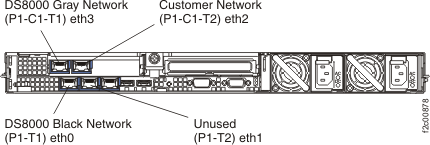
- At the rear of the management console server, verify
that the customer Ethernet cable is properly connected to the customer network connector (eth2). See
Figure 1 (X335 server) or Figure 2 (X336 server) or
Figure 3 (X3550 server).
Did you find and correct the problem with the Ethernet cable?
- Yes, ask the customer to retry the operation. If problems still persist, then go to the next step.
- No, go to the next step.
Figure 1. Ethernet connectors on the rear of the X335 management console server
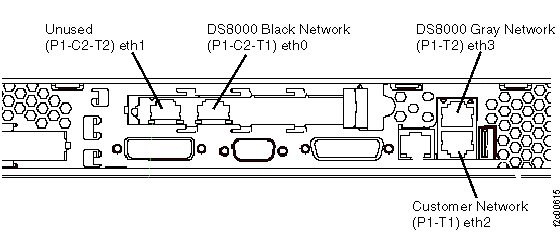
Figure 2. Ethernet connectors on the rear of the X336 management console server
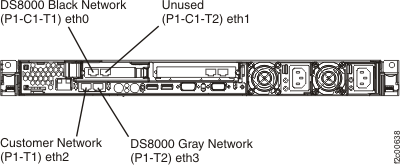
Figure 3. Ethernet connectors X3550 management console server (rear view)
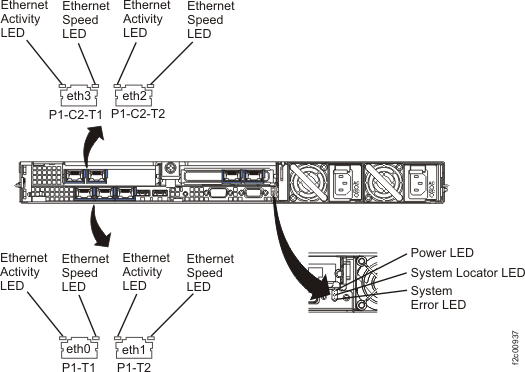
- At the rear of the management console server, observe
the link status LED at the customer network connector (eth2). See Figure 4 (X335 server) or Figure 5 (X336 server)or Figure 6 (X3550 server). The LED is lit when the
Ethernet controller receives a LINK pulse from the hub.
Is the link status LED lit?
- Yes, go to MAP6580 Section-4.
- No, go to the next step.
Figure 4. LEDs on the rear of the X335 management console server
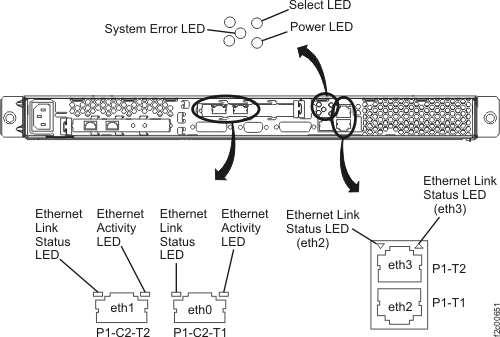
Figure 5. LEDs on the rear of the X336 management console server
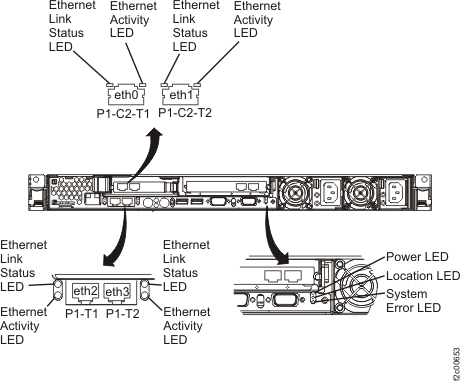
Figure 6. LEDs on the rear of the X3550 management console server
- Move the customer Ethernet cable from connector PI-C1-T1
(eth0) to P1-C2-T2 (eth1). See Figure 1 (X335 server)
or Figure 2 (X336
server) or Figure 3 (X3550 server).
Is the link status LED on P1-C2-T2 (eth1) lit?
- Yes, move the customer Ethernet cable back to P1-C1-T1 (eth0) and go to step 7.
- No, go to the next step.
- Work with the customer to check the following conditions:
- The other end of the Ethernet cable is plugged correctly to the customer-supplied switch or hub.
- The switch or hub is functioning correctly.
- The port on the hub is working correctly. (Ask the customer to move the cable to a different port and retry the operation.)
- The customer supplied Ethernet cable is working correctly. (Swap the cable and verify whether the problem still exists.)
- Did you resolve the problem with the customer network or
cable?
- Yes, ask the customer to retry the operation. If the customer test still fails, go to MAP6580 Section-4.
- No, go to MAP6580 Section-5.
- Reset the customer Ethernet port on the HMC. Changes to network settings take effect immediately; therefore, the network does not need to be restarted. A logon screen appears, and the HMC requires the CE to log in again.
- Observe the link status LED at the customer network port
(eth2). See Figure 4 (X335
server) or Figure 5 (X336
server) or Figure 6 (X3550 server).
Is the link status LED lit?
- Yes, ask the customer to retry the operation. If problems still persist, then go to MAP6580 Section-4.
- No, go to MAP6580 Section-5.
MAP6580 Section-3, Laptop management console
Procedure
- Can the customer connect to the HMC through the customer
network?
- Yes, there does not seem to be a basic network connection problem. If the customer is experiencing problems with ESSNI, CLI, or other applications, go to MAP6730 Customer access to management console problem.
- No, go to the next step.
- Ensure that the customer network cable is properly connected to the customer network connector
at the rear of the rack. See Figure 7. Figure 7. ThinkPad laptop customer modem and Ethernet connectors, rear of rack
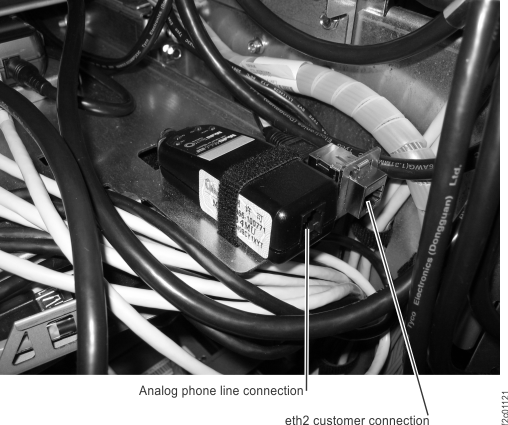
Note: Ethernet connector and modem connector might be reversed on some racks. Both connectors are at the rear of the rack, to the right of the Ethernet switches, below the bottom storage enclosure air baffle. - Ensure the built-in Ethernet extender cable from the rear
of rack is properly connected to the customer Ethernet connector
(eth2) on the laptop.
- W500: eth2 is on left side of laptop. See Figure 8.
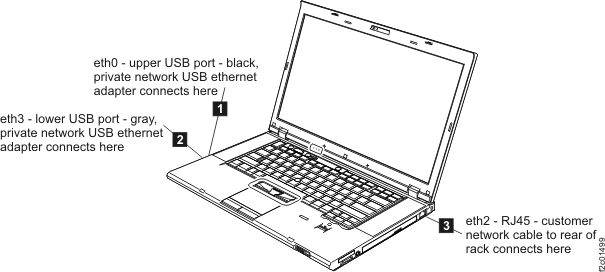
- T510, T520: eth2 is on right side of laptop. See Figure 9.
Figure 8. Customer eth2 Ethernet connector on laptop (rear view)
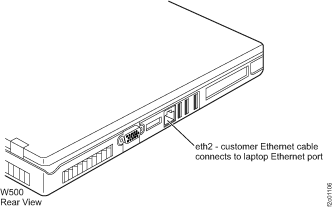
Figure 9. ThinkPad T510, T520 USB and RJ45 network connection ports
Did you find and correct the problem with the Ethernet extender cable between the rear of the rack and the laptop?
- Yes, ask the customer to retry the operation. If problems still persist, then go to the next step.
- No, go to the next step.
- Observe the amber link status LED next to the customer's
network connector (eth2). The LED is lit when the Ethernet controller
receives a LINK pulse from the hub.
Is the link status LED lit?
- Yes, go to MAP6580 Section-4.
- No, go to the next step.
- Work with the customer to check the following conditions:
- The other end of the Ethernet cable is plugged correctly to the customer-supplied switch or hub.
- The switch or hub is functioning correctly.
- The port on the hub is working correctly. (Ask the customer to move the cable to a different port and retry the operation.)
- The customer-supplied Ethernet cable is working correctly. (Swap the cable and verify whether the problem still exists.)
- Did you resolve the problem with the customer's network
or cable?
- Yes, ask the customer to retry the operation. If the customer test still fails, go to MAP6580 Section-4.
- No, go to .MAP6580 Section-5
- Reset the customer's Ethernet port on the HMC:
- From the navigation area, click HMC Management.
- In the right work area, go to the Operations section and click Change Network Settings. The Change Network Settings window opens.
- Click on the LAN adapters tab and select eth2.
- Click on Details to verify the settings.
- Click on OK when the Request returns.
- Observe the link status LED at the customer network port
(eth2). Is the link status LED lit?
- Yes, ask the customer to retry the operation. If the customer test still fails, go to MAP6580 Section-4.
- No, go to MAP6580 Section-5.
MAP6580 Section-4
Procedure
- Reset the customer Ethernet port on the HMC. Changes to network settings take effect immediately; therefore, the network does not need to be restarted. A logon screen appears, and the HMC requires the CE to log in again.
- Ask the customer to retry the operation. Does the problem
still occur?
- Yes, go to the next step.
- No, the problem is resolved.
- Verify that the network settings are correct.
- On the HMC, select: HMC Management > Operations > Change Network Settings.
- Use the customer supplied customization worksheets to check that the settings are correct for eth2.
CAUTION:Do not change network settings for the other Ethernet ports. - Did you find the problem with the network settings?
- Yes, change the settings to the desired values and ask the customer to retry the operation. If problems still persist, then go to the next step. Note: This change requires that the HMC is restarted. Ensure that the customer is not accessing the management console through the ESSNI interface.
- No, go to the next step.
- Test the connectivity from the HMC to the customer network.
- Ask the customer to supply an IP address for a working device that can be contacted on their network. (If the HMC is connected through a gateway or firewall, try that first.)
- On the HMC, select: HMC Management > Operations > Test Network Connectivity.
- Enter the customer supplied IP address in the pop-up window for the ping utility and click OK.
- Allow 10 seconds and then click on Stop.
- Successful communication results in a series of messages to indicate that data was received.
- Unsuccessful communication results in no data being received or a timeout message.
- Was the communication test successful?
- Yes, go to the next step.
- No, go to MAP6580 Section-5.
- Ask the customer to attempt to 'ping' the HMC IP address from a computer on their network. If
the HMC connects through a gateway or firewall, then attempt to ping the HMC from a device on the
same side of the gateway as the HMC. Was the 'ping' successful?
- Yes, go to step 9.
- No, go to the next step.
- Verify the following conditions:
- The network settings were correct on the customization worksheets.
- If a gateway or firewall is being used, then ensure that the ping test still fails on the HMC side of the gateway.
- If not problem was identified, then go to MAP6580 Section-5.
- Ask the customer to 'ping' the HMC host
name. Was the 'ping' test successful?
- Yes, there does not appear to be an HMC network connectivity problem.
- If the customer is experiencing problems with ESSNI, CLI, or other applications, go to Start here and look for the symptoms described.
- Refer to the ThinkPad® T500 and W500 (15.4-inch widescreen) Hardware Maintenance Manual on the IBM® DS8000 series Service Documents CDROM to test the Ethernet controller for eth2.
- In the appropriate maintenance manual for the management console server, refer to the Ethernet
controller troubleshooting chart. The manual is on the IBM
DS8000 series Service Documents
CDROM:
- xSeries 335 Type 8676, Type 8830 Hardware Maintenance Manual and Troubleshooting Guide
- xSeries 336 Type 1879 and Type 8837 Hardware Maintenance Manual and Troubleshooting Guide
- IBM System x3550 Type 7978 and 1913 Problem Determination and Service Guide
- ThinkPad® T500 and W500 (15.4-inch widescreen) Hardware Maintenance Manual
- ThinkPad T510, T510i, and W510 Hardware Maintenance Manual
- Hardware Maintenance Manual ThinkPad® T520, T520i, and W520
- If the customer is still experiencing problems in accessing the HMC, contact your next level of support for assistance.
- No, there appears to be a problem with resolution of the HMC host
name.
- Verify that the host name was entered correctly in step 3.
- Ask the customer to check that their DNS server is configured and working correctly.
- Yes, there does not appear to be an HMC network connectivity problem.
MAP6580 Section-5
Procedure
- Run the Ethernet diagnostics. Go to MAP6530 Testing the management console. Return here when the
test is completed. Notes:
- This task requires that the HMC is restarted. Ensure that the customer is not accessing the HMC through the ESSNI interface.
- A wrap plug (FRU 60G3981) is used with the diagnostic tests.
- Did the MAP6530 Testing the management console diagnostics
find an error with the Ethernet controller?
- Yes, go to MAP6580 Section-6.
- No, apparently there is a network problem that is external to the HMC. Work with the customer or next level of support to resolve the problem.
MAP6580 Section-6
Procedure
- If the management console is an xSeries, replace the system board (HMC planar) in the
management console server. Refer to the service replaceable units in the appropriate maintenance
manual for the management console server. The manual is on the IBM
DS8000 series Service Documents
CDROM:
- xSeries 335 Type 8676, Type 8830 Hardware Maintenance Manual and Troubleshooting Guide
- xSeries 336 Type 1879 and Type 8837 Hardware Maintenance Manual and Troubleshooting Guide
- IBM System x3550 Type 7978 and 1913 Problem Determination and Service Guide
- If the management console is a laptop, replace the laptop. See Exchange the laptop unit (T510, T520).
- Ask the customer to retry the operation. If problems still persist, contact your next level of support.