The steps in this procedure power-on and logically install each I/O enclosure pair. The lower pair will be logically installed first followed by the upper pair.
Procedure
- View the storage
facility status. If any of the system check results display as FAILED,
view the details and refer to MAP1100 View storage facility state (end of call). Before you continue
the installation, all status fields should display as PASSED.
- From the bottom Task area, click . A window displays
the status (passed/failed) of 25 or more system checks. The following
is an example. Figure 1. Window: View Storage Facility State
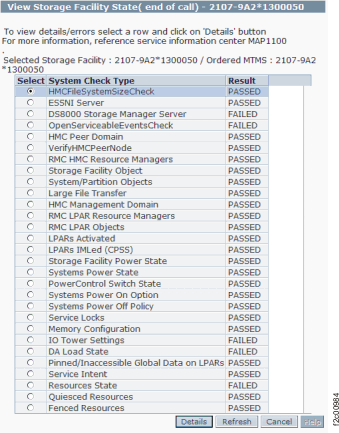 Note: If the status for Large File Transfer (the tenth System Check Type status from the top) displays as FAILED, the remaining System Check Types below it cannot be displayed.
- From the bottom Task area, click . A window displays
the status (passed/failed) of 25 or more system checks. The following
is an example.
- Select the condition that
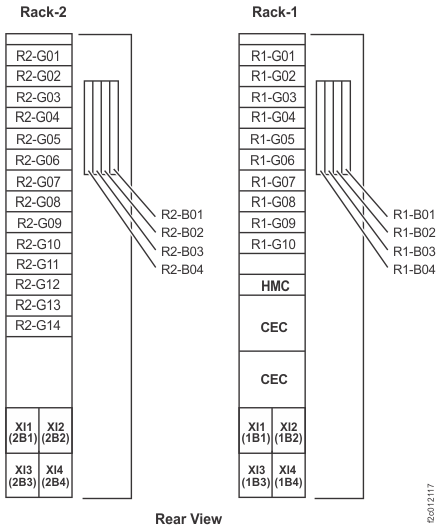
applies and corresponding action to take. Refer to Table 1, Figure 2, and Figure 3.
Table 1. Rack-2 contents and actions Rack-2 contains these items Action to take 2 or more storage enclosures in locations R2-G01 through R2-G14
1 or more DA pairs in I/O enclosure slots R2-XIx-C3 and C6
0 or more high-performance flash enclosures in locations R2-B01 through R2-B04Go to Installing and testing the Rack-2 I/O enclosure device adapter card pairs 2 or more storage enclosures in locations R2-G01 through R2-G14
0 DA pairs in I/O enclosure slots R2-XIx-C3 and C6
0 or more high-performance flash enclosures in locations R2-B01 through R2-B04(DS8870 business class only)
Go to Installing and testing the storage enclosures 0 storage enclosures in locations R2-G01 through R2-G14
0 DA pairs in I/O enclosure slots R2-XIx-C3 and C6
1 or more high-performance flash enclosures in locations R2-B01 through R2-B04Go to Installing and testing the Rack-2 high-performance flash enclosures 0 storage enclosures in locations R2-G01 through R2-G14
0 DA pairs in I/O enclosure slots R2-XIx-C3 and C6
0 high-performance flash enclosures in locations R2-B01 through R2-B04
1 or more host adapters in I/O enclosure slots R2-XIx-C1 or C4Go to Installing and testing the Rack-2 I/O enclosures host adapter cards Figure 2. I/O enclosure locations and adapter card slot locations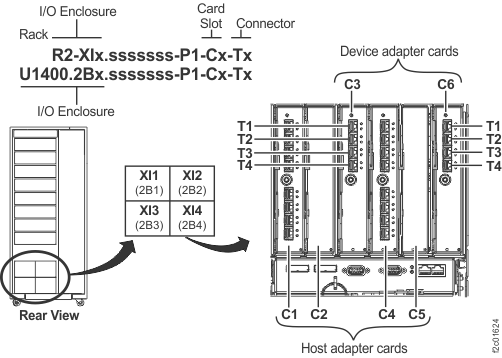 Figure 3. Rack 1-2 storage enclosure (30 SSD slots, 12 and 24 DDM slots) and I/O enclosure location codes (Models 960, 961) (rear view)