You are here to install one or more pairs of storage enclosures
in Rack-4.
Procedure
- Begin the installation of the Rack-4 storage enclosures
at the HMC.
- From the navigation area, click .
- From the bottom Task area, click . For earlier versions, the menu item
is Install Storage Enclosure or DDMs.
- The Install window opens
and asks if you were sent from the installation or MES instructions.
Click Yes.
- The Single Choice Message Box window
opens and prompts "Select the component or enclosure you would like
to install." Select Install Storage Enclosures and
then click Submit.
- Another Single Choice Message Box window
opens and prompts "Select the component you would like to install." Select Install
FC-AL Storage Enclosures and then click Submit.
- Another Single
Choice Message Box window opens and prompts "Select the
Storage Facility Image you want to assign the storage enclosures to." Select
the storage facility image that is shown and then click Submit.
- The cabling
configuration window opens. Confirm
that the window indicates standard cabling, then click Yes.
Note: If the window indicates business
class cabling, confirm that you are using the correct section of these
instructions, or contact your next level of support.
- Storage enclosures on multiple DA
pairs can be installed at the same time. Complete the following steps:
- If the informational DaPairsPanel displays,
click OK.
- The Select Device Adapter Pair window displays a list
of DA pairs available for additional storage enclosures on the selected
storage facility image.
- At the rear of Rack-4, find all the storage enclosures
that you have not yet cabled and installed.
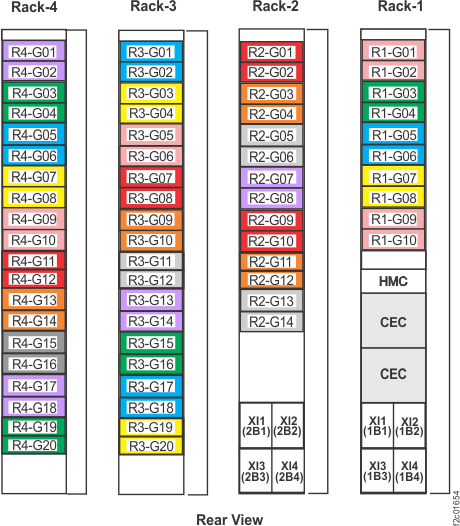
- Use Figure 1 to
determine their Rack-4 storage enclosure location codes (ex: R4-G11).
Figure 1. Rack 1-4 storage enclosure
and I/O location codes (rear view)
- Use Figure 1 and Table 1 to determine
the DA Pair IDs the storage enclosures connect to.
Table 1. Rack-4 storage enclosure pairs and DA pair
IDs| If Rack-4 storage enclosure: |
If Rack-4 storage enclosure: |
They connect to DA Pair ID: |
|---|
| R4-G01 has drives |
R4-G02 has drives |
5 (in Rack-2) |
| R4-G17 has drives |
R4-G18 has drives |
| |
| R4-G03 has drives |
R4-G04 has drives |
1 (in Rack-1) |
| R4-G19 has drives |
R4-G20 has drives |
| |
| R4-G05 has drives |
R4-G06 has drives |
3 (in Rack-1) |
| |
| R4-G07 has drives |
R4-G08 has drives |
0 (in Rack-1) |
| |
|
|
| R4-G09 has drives |
R4-G10 has drives |
2 (in Rack-1) |
| |
|
|
| R4-G11 has drives |
R4-G12 has drives |
7 (in Rack-2) |
| |
|
|
| R4-G13 has drives |
R4-G14 has drives |
4 (in Rack-2) |
| |
|
|
| R4-G15 has drives |
R4-G16 has drives |
6 (in Rack-2) |
- At the HMC screen, select all the DA Pair IDs that will
have storage enclosures installed and click OK.
- The Select Storage Enclosure Pairs window displays the
status of the storage enclosure positions available for install for
each DA pair ID.
- Multi-select
each storage enclosure position you will install. Each of those positions
should display the enclosure status "Available for Install".
Then click OK.
Note: If
a position to be installed does not display "Available for
Install," it may already be installed. If it is not already
installed, stop and contact next level of support.
- An Action Panel window displays the physical location
codes of the storage enclosures to be connected. If the location codes
are correct, click OK.
- Wait for the TextandNextButtonBean window
to display.
- The HMC displays the Rack-4 storage enclosure physical
location codes to be installed for each DA pair ID.
- DO NOT click Next until
directed in a later step.
- Using the HMC-displayed physical location code, see Figure 1 to
determine the location of each storage enclosure being installed in
the rack.
- Go to the next step.
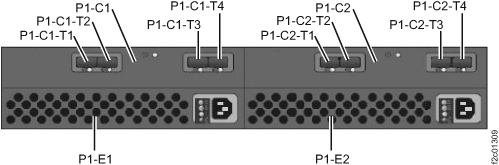
- For each Rack-4 storage enclosure physical
location code displayed by the HMC, ensure the four FC-AL cables are
still connected to the T1 & T2 connectors (labeled J1 & J2
on the sheet metal) on both FCICs in the Rack-4 storage enclosure
being installed. See Figure 2.
Attention: Ensure each FC-AL cable is connected to
the correct enclosure and port. Incorrect connections during this
installation could result in a loss of access when additional storage
is added to the affected DA pair.
Note: These cable ends
should not have been disconnected as part of this installation procedure.
Figure 2. Storage enclosure connectors location
codes
- For each Rack-4 physical location code
displayed by the HMC, find that location code in the first column
of Table 2,
or Table 3.
Then use the information in the second and third columns to connect
the FC-AL cable to the FCIC card.
Attention: Ensure each FC-AL cable is connected to
the correct enclosure and port. Incorrect connections during this
installation could result in a loss of access when additional storage
is added to the affected DA pair.
Table 2. FC-AL cable connections for Rack-3 storage
enclosures to Rack-2 storage enclosures| Rack-4 storage enclosure
location code displayed on HMC: |
Rack-3
physical location to connect the four FC-AL cables to Rack-3: |
|---|
| Storage enclosure |
Connector |
|---|
| R4-G05 |
R3-G01 |
T3 &
T4 on both FCIC cards |
| R4-G06 |
R3-G02 |
| R4-G07 |
R3-G03 |
| R4-G08 |
R3-G04 |
| R4-G09 |
R3-G05 |
| R4-G10 |
R3-G06 |
| R4-G11 |
R3-G07 |
| R4-G12 |
R3-G08 |
| R4-G13 |
R3-G09 |
| R4-G14 |
R3-G10 |
| R4-G15 |
R3-G11 |
| R4-G16 |
R3-G12 |
| R4-G17 |
R3-G13 |
| R4-G18 |
R3-G14 |
| R4-G19 |
R3-G15 |
| R4-G20 |
R3-G16 |
Table 3. FC-AL cable connections:
Rack-4 storage enclosures to Rack-4 storage enclosures| Rack-4 storage enclosure
location code displayed on HMC: |
Rack-4
physical location to connect the four FC-AL cables to Rack-4: |
|---|
| Storage enclosure |
Connector |
|---|
| R4-G01 |
R4-G17 |
T3 &
T4 on both FCIC cards |
| R4-G02 |
R4-G18 |
| R4-G03 |
R4-G19 |
| R4-G04 |
R4-G20 |
- You have already selected all the storage enclosures to
be installed at one time. Return to the HMC and click Next.
- The
HMC automatically initializes the storage facility image the storage
enclosures are being installed to.
Note: The
times that are listed are for a fully populated rack.
The HMC displays some or all of the following messages:
Task in Progress...Powering on the FRU(s)
Task in Progress... Verifying the FRU power-on
Verification Progress...Verification progress:
Working
Task in Progress...Activating the system (maximum of 40 minutes)
Working...
Task in Progress...Verifying system
Verification Progress...Verification progress: (maximum of 35 minutes)
Working
Task in Progress...Activating applications (maximum of 45 minutes)
Verification progress... Verifying applications
Verification progress... Verification progress:
Working
- A window might open indicating that the drives that
are involved in this service action are now being formatted in the
background. Click Next.
Note: The
actual drive state might be formatting, initializing,
or certifying depending on the drive
type and size. Monitor completion of the certify process later in
this procedure, in the section "Finish installation and cleanup."
- A completion window opens that indicates:
Installation has completed successfully
Return to the MES or installation instructions.
Click Next.
When the
HMC is finished, it displays:
Service action is ending...
The
window closes. Go to the next step.
- Have all the FC-AL storage
enclosures in Rack-4 been
installed?
- Yes, to go the next step.
- No, return to step 2 to install
the remaining storage enclosures.
- Display and repair any related open serviceable events.
- View the storage facility
state, refer to MAP1100 View storage facility state (end of call).
- From the navigation area, click .
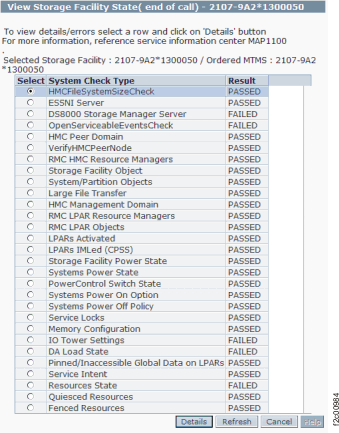
- From the bottom Task area, click . A window displays the status (passed/failed)
of 25 or more system checks. Figure 3 is
an example.
- All status fields should display as PASSED
except for the following.
- If the Resources State result is "Failed",
select it and then click Details. If the Drive state
is "5 (Certifying)",
this is normal and you should go to the next step.
- If other checks are failed, select it and then click Details.
They should be fixed before going to the next step. If needed, call
the next level of support.
Note: If the Large File Transfer (the tenth System Check Type status from the
top) displays as FAILED, the remaining System Check Types below
it cannot be displayed. Contact the next level of support.
Figure 3. Window: View Storage Facility
State
- Are you installing a Rack-2
on this storage facility as part of this installation activity?