DS8000 Service Documentation Version 7.5

MAP7070 Recover USB Ethernet adapter running at low speed

Network surveillance detected that a USB Ethernet adapter is not running at the expected speed on either the black network (eth0) or the gray network (eth3).

Before you begin

Read this entire procedure first before you perform any of the steps. You will be required to shut down the management console. You must then view this MAP from another source such as another management console or the service documents CDROM.

MAP7070 Section-1

Procedure

  1. Note the affected network (black or gray) in the serviceable event that sent you here. Locate the affected USB Ethernet adapter and cable. For T540, see Figure 1, Figure 3, and Table 1. For other models, see Figure 1 and Figure 2.
    Figure 1. eth0 (black network) and eth3 (gray network) USB Ethernet adapters for Thinkpad W500 (similar for Thinkpad T510, T520, T530, T540)
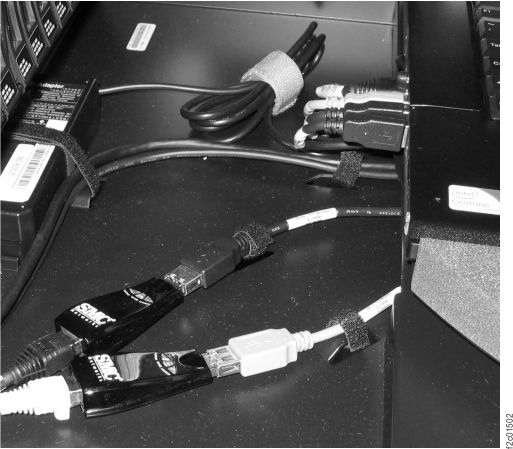
    eth0 (black network) and eth3 (gray network) USB Ethernet adapters for Thinkpad W500 (similar for Thinkpad T510)
    Figure 2. ThinkPad T510, T520, or T530 laptop network and modem ports
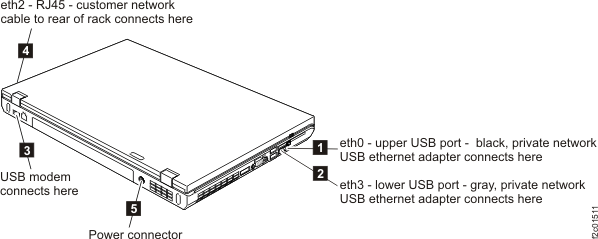
    ThinkPad T510 laptop unit cable connections
    Table 1. T540 connection locations
    Cable label Laptop connection Port Use Refer to
    T3 or "MGMT CONSOLE" rear RJ45 Ethernet eth2 customer network Callout label 1 Figure 3
    T5 left side, front USB eth0 private network, black Callout label 7 Figure 3
    T4 left side, rear USB eth3 private network, gray Callout label 6 Figure 3
    Figure 3. ThinkPad T540 laptop unit cable connections (left and rear)
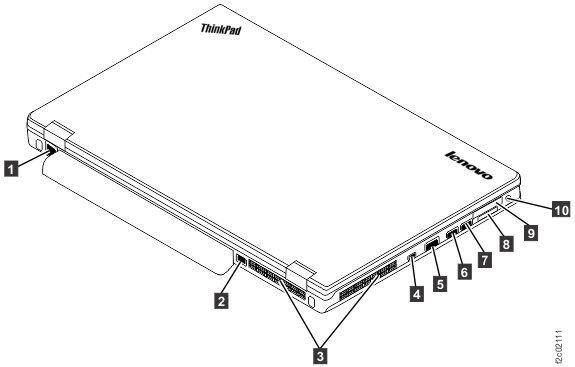
    ThinkPad T540 laptop unit cable connections (left and rear)
  2. Shut down the management console.
    1. Ensure that the customer is not currently accessing the management console to perform configuration or copy services functions.
    2. Close or cancel any tasks or windows that are currently open.
    3. From the navigation area, click HMC Management.
    4. In the right work area, go to the Operations section and click Shut Down or Restart. The Shutdown or Restart window opens.
    5. Select Shutdown HMC and click OK.
  3. Unplug and reseat the failing USB Ethernet adapter into the USB cable. See Figure 1.
  4. Unplug and reseat the affected USB cable into the laptop USB port. For T540, see Figure 3 and Table 1. For other models, see Figure 2.
  5. Press the power button to start the management console.
  6. Login to the management console.
  7. Run the Verify USB Network Adapter Speed test.
    1. From the navigation area, click HMC Management.
    2. In the right work area, go to the Operations section and click Verify USB Network Adapter Speed.
  8. Did the Verify USB Network Adapter Speed test complete successfully?

MAP7070 Section-2

A reseat of the affected USB Ethernet adapter did not resolve the speed problem. The adapter is not running at the expected speed and will be replaced.

Procedure

  1. Shut down the management console.
    1. Ensure that the customer is not currently accessing the management console to perform configuration or copy services functions.
    2. Close or cancel any tasks or windows that are currently open.
    3. From the navigation area, click HMC Management.
    4. In the right work area, go to the Operations section and click Shut Down or Restart. The Shutdown or Restart window opens.
    5. Select Shutdown HMC and click OK.
  2. Replace the failing USB Ethernet adapter. See Figure 1.
  3. Press the power button to start the management console.
  4. Login to the management console.
  5. Run the Verify USB Network Adapter Speed test.
    1. From the navigation area, click HMC Management.
    2. In the right work area, go to the Operations section and click Verify USB Network Adapter Speed.
  6. Did the Verify USB Network Adapter Speed test complete successfully?
    • Yes: Go to MAP1500 Ending a service action to close the serviceable event, save the network topology, and ensure good subsystem status.
    • No: Contact your next level of support.