Perform the following steps to configure a primary management
console (MC 1) in Rack-1.
Procedure
- Select the following that applies to the management
console being installed:
- X335, X336, or X3550 server, go to the next step.
- ThinkPad W500 laptop, go to step 5.
- ThinkPad T510, T520 laptop, go to step 6.
- At the front of Rack-1, above
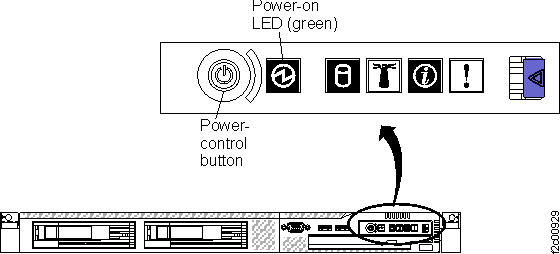
the CEC enclosures, observe the power LED on the front of the management
console server.
See Figure 1 (X335
server), Figure 2 (X336 server) or Figure 3 (X3550 server).
Is the LED indicator off?
Figure 1. X335 management console server (front view)
Figure 2. X336 management
console server (front view)
Figure 3. X3550 management console server
- operator control panel (front view)
- Is the power LED indicator flashing?
- Yes, push in the Power control button and then continue with
the next step.
- No, the LED indicator is on solid. Continue with
the next step.
- Slide the management
console keyboard
and display drawer out to the service position and raise the display
panel. If necessary, press the power on button to turn on the display,
then go to step 7.
- At
the front of Rack-1 above the CEC enclosures, unscrew the captive
screws at the left and right ends and then slide the management
console ThinkPad
laptop drawer out to the service position and raise the display panel.
If the laptop is not already powered on, press the power on button
and then go to step 7.
Note: As the management
console boots,
a list of processes will be displayed along with their status. It
is normal for some of the processes to indicate a failure. Not all
the processes are needed for this management
console to function
properly.
- At
the front of Rack-1 above the CEC enclosures, unscrew the captive
screws at the left and right ends and then slide the management console
ThinkPad laptop drawer out to the service position. At the rear of
the laptop lift the laptop release knob and then rotate the laptop
so it faces the front of the rack. Raise the display panel. If the
laptop is not already powered on, press the power on button and then
go to step 7.
Note: As the management console boots, a list of processes will
be displayed along with their status. It is normal for some of the
processes to indicate a failure. Not all the processes are needed
for this management console to function properly.
- When the keyboard layout configuration screen is displayed (as
shown below), type 2 and press Enter.
If you are using a non English US keyboard, you can choose to change your
keyboard layout configuration.  You can make your selection by pressing a number
key then press enter.  If you don't press any key within 30 seconds, this
program will terminate automatically.

1 -- Do not change keyboard layout and run this program again on the next
        system boot.
2 -- Do not change keyboard layout and do not run this program again on
       the next system boot.
3 -- Change to a new keyboard layout.

Your selection is:
- When the change locale
screen is displayed, you will have 20 seconds to make a selection.
Select the second option, "Exit now and don't prompt for locale again".
You can change the locale now in order to run the HMC in a
different locale. If you do not make a selection in 20 seconds,
the dialog exits. Enter your selection.

* Change Locale
* Exit now and don't prompt for locale again.
* Exit now and prompt again for it.
- Wait a maximum of 5 minutes for the HMC
ROLE SELECTION MENU to be displayed. For example:
*****************************************************
*                WELCOME TO THE                     *
*            HMC ROLE SELECTION MENU                *
*****************************************************

ENTER A MENU OPTION FROM THE LIST
1)   ASSIGN HMC AS PRIMARY
2)   ASSIGN HMC AS SECONDARY
99)  EXIT

ENTER YOUR SELECTION AND HIT THE "ENTER" KEY
--> __
Is the HMC ROLE SELECTION MENU displayed?
- Yes, continue with the next step.
- No, this indicates that either the HMC Role has already been assigned
(HMC login screen is displayed) or that the management
console is not
booting correctly.
Important: To reset all the
HMC code objects to prepare for the installation, the HMC role must
transition from Primary to Secondary or Secondary to Primary at
least once. If the role does not transition, the code objects will
not be reset.
- If the management
console login
screen is displayed, then go to MAP6090 HMC Role selection not displayed as expected. You
must launch the service information center from the IBM® DS8000® series
Service Documents CDROM in
the ship group and then manually navigate to the MAP isolation procedure.
Return here and continue when you correct the problem.
- If the management
console login
screen is not displayed, go to MAP6020 Management console problem determination.
You must launch the service information center from the IBM DS8000 series
Service Documents CDROM in
the ship group and then manually navigate to the MAP isolation procedure.
Return here and continue when you correct the problem.
- Assign this management
console as the
primary management
console.
Attention: When installing a single
storage facility (not adding a new storage facility to an existing
complex), you must assign the management console as primary.
Failure to do this will result in a prolonged recovery before the
storage facility can be installed.
- Type 1 and press Enter.
- Type Yes and press Enter to confirm
the selection.
- Check the HMC label located on the front of the management
console keyboard tray or laptop drawer.
If it does not indicate MC 1, then locate
the label in the ship group and attach it.
- If any "License Agreement" pop-up panels
are displayed, accept the agreements.
- Wait a maximum of 5 minutes for the HMC
configuration to be updated, and the HMC prelogin screen to display.
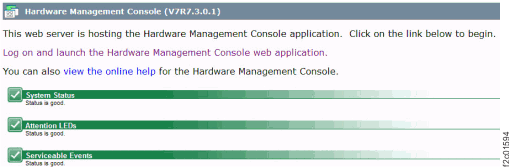
Is the management console prelogin screen displayed
including the status at the bottom, as shown in
Figure 4?
Figure 4. HMC login screen
- Yes, click on Log
on and launch the Hardware Management Console web application and continue
with the next step.
- No, go to MAP6020 Management console problem determination.
You must launch the service information center from the IBM DS8000 series
Service Documents CDROM in
the ship group and then manually navigate to the MAP isolation procedure.
Return here and continue when you correct the problem.
- The management
console is shipped
with predefined user IDs and passwords. The user IDs and passwords
are case-sensitive. Enter the user ID and password as shown below.
ID: CE
Password: serv1cece
- If a Tip of the Day screen is displayed, uncheck the option
to display it and then close the screen.
- Continue with Setting the date, time, and customer network connection.
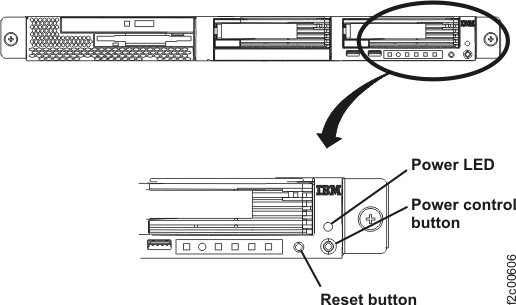 Figure 2. X336 management console server (front view)
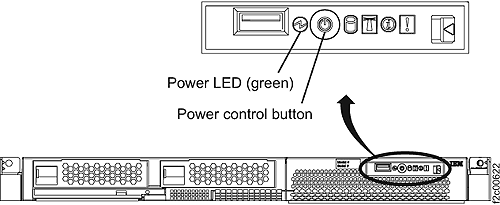 Figure 3. X3550 management console server - operator control panel (front view)