DS8000 Service Documentation Version 6.3.3
MAP7060 Replacing the Ethernet switch
MAP7060 Section-1
About this task
Notes:
- The replacement of the Ethernet switch is a manual process. There is no HMC GUI code driven process to manage the resource and help guide you through the repair.
- There are two private networks: one is known as "Gray" and the other as "Black." One of the two networks must always be functional to all connected nodes.
- The private networks are automatically checked every few minutes by a microcode driven "heartbeat" communication process that checks HMC-to-LPAR as well as HMC-to-HMC communications. A serviceable event is opened if a problem is found.
- There is an HMC GUI network topology tool that displays the nodes and their "health" status. Running it does not cause a serviceable event to be created.
Procedure
- Were you directed to this MAP from a serviceable event FRU list that had MAP7060 as the first
FRU?
- Yes, use the serviceable event FRU location information to determine which Ethernet switch
to replace. See figures, then go to step 7.
- Models 94x, 95x, 96x, see Figure 1.
- No, go to step 3.
Figure 1. "SW1 (left) black" and "SW2 (right) gray"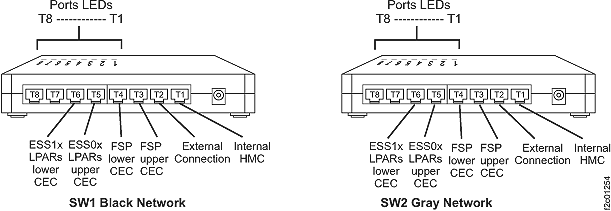
- Yes, use the serviceable event FRU location information to determine which Ethernet switch
to replace. See figures, then go to step 7.
MAP7060 Section-2 (16-port switch Model 941)
Procedure
- At the rear of the rack:
- Disconnect the rack power cord
 from the Ethernet switch assembly.
See Figure 2.
from the Ethernet switch assembly.
See Figure 2. - Disconnect the Ethernet cables
 . Figure 2. Ethernet switch with cables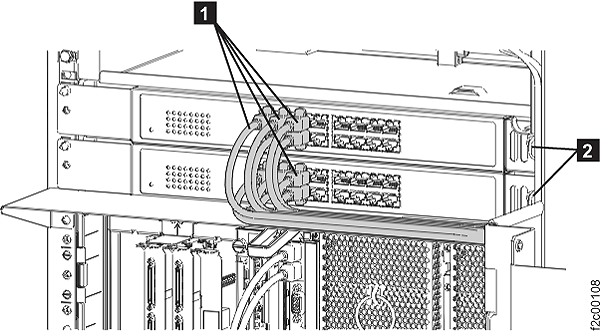
- Disconnect the rack power cord
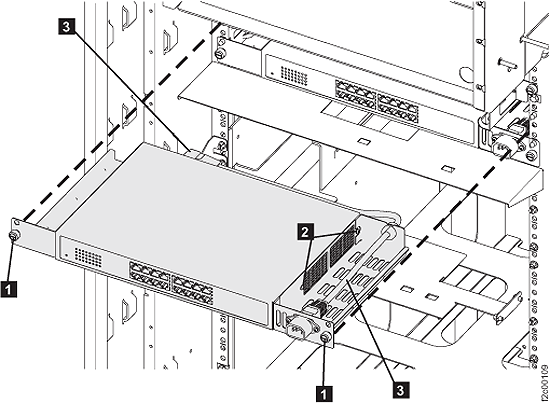
- Unscrew the two captive thumbscrews , as shown in Figure 3, and remove the Ethernet
switch from the rack. Figure 3. Ethernet switch (removed)
- Unplug the power cable
 from the Ethernet switch.
 - Remove the four screws that attach the left and right sheet
metal brackets.
- Install the left and right sheet metal brackets with two
screws each.
- Connect the power cable to the Ethernet switch.
- At the rear of the rack, install the Ethernet switch assembly in the rack and secure it with
the two captive thumbscrews , as shown in Figure 3.
MAP7060 Section-3 (8-port switch Model 941)
Procedure
- At the rear of the rack:
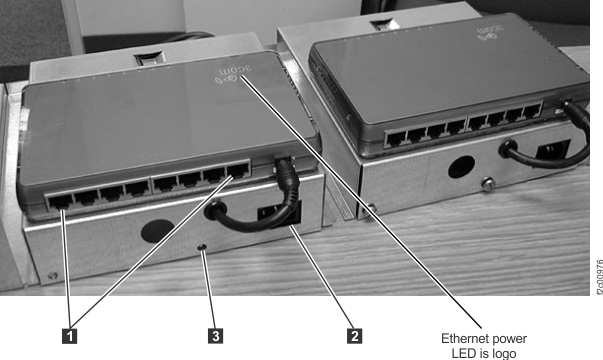
- Disconnect the rack power cord from the Ethernet switch assembly.
See Figure 4.
- Disconnect the Ethernet cables .
- Remove screw . Figure 4. 8-port Ethernet switches
- Disconnect the rack power cord
- Remove the Ethernet switch assembly.
- The Ethernet switch FRU is the assembly that includes the switch, the sheet metal enclosure it is mounted on, and the power adapter inside the enclosure.
- The switch enclosure slides to the rear of the rack to so that you can see the port LED indicators on the top surface of the switch.
- There is one tab at each rear corner of the enclosure
that engages the slots in the sheet metal tray that supports
both switch enclosures. See Figure 5.
- If you do not lift the rear of the switch enclosure, the tabs stay engaged, and the enclosure slides forward to the service position and then stops.
- Instead, if you slide it to the rear a little and then lift the rear of the enclosure, the tabs disengage from the slot, and you can fully remove the enclosure.
Figure 5. Rear enclosure tab and sheet metal tray slot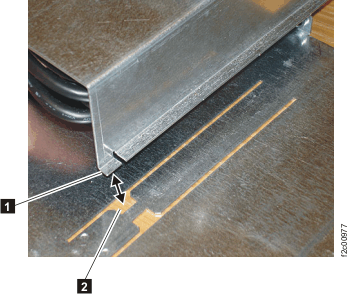
MAP7060 Section-4 (8-port Model 951)
Procedure
- At the rear of the rack, remove the air baffle above the Ethernet switch tray, as
shown in Figure 6.
- Remove the two mounting screws .
- Pivot the two mounting tabs inward so they do not interfere with
the cables upon removal.
- Carefully remove the air baffle plate to not damage any cables.
Figure 6. Ethernet switch tray air baffle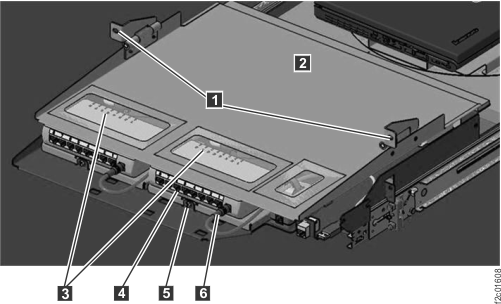
- Remove the two mounting screws
- At the rear of the rack (see Figure 6):
- Disconnect the rack power cord
 from the Ethernet switch assembly.
 - Disconnect the Ethernet cables
 .
. - Remove screw
 .
.
- Disconnect the rack power cord