MAP6540 Keyboard/display problem
Use this procedure to resolve problems with the keyboard or display.
MAP6540 Section-1
Procedure
MAP6540 Section-2
Procedure
MAP6540 Section-3
Use the monitor's self-test feature to check whether it is functioning properly.
About this task
If your monitor and computer system are properly connected but the monitor screen remains dark and the power indicator is blinking, run the monitor self-test by performing the following steps.
Procedure
- Turn off both your computer system and monitor.
- Unplug the video cable from the back of the computer system.
- Turn on the monitor. If the monitor is functioning properly, you will see message No Input Signal. Check connection. This message also displays during normal operation if the video cable becomes disconnected or damaged.
- Turn off your monitor and reconnect the video cable. Turn on both your computer system and the monitor. If your monitor screen remains blank after using the previous procedures, check your video controller and computer system because your monitor is functioning properly.
MAP6540 Section-4
When you open the On-Screen Menu, make adjustments and then leave the adjustment window for 3 seconds. These changes are automatically saved in a user area in the monitor.
Procedure
MAP6540 Section-5
The features described here can be accessed quickly, at the touch of one button. Once you finish making adjustments to a feature, press the EXIT button to switch off the menu, or simply allow the On-Screen Menu to time out and disappear automatically.
Auto adjustment
Even though your computer system can recognize your new monitor, the auto adjustment function will optimize the display settings for use with your computer system.
Procedure
- For Auto Adjustment to function correctly, the monitor must display a full screen, colored image such as the Windows desktop.
- Even though Auto Adjustment sets most image adjustments automatically, distortions may remain depending on the video board performance. After using Auto Adjustment, it is recommended that you perfect the image by using the On-Screen Menu functions.
Brightness
Use the brightness button to adjust the brightness of the monitor's display.
Procedure
- With the menu off, push the +- or -+ button to display the brightness screen, as described in MAP6540 Section-8.
- Push the -+ button to increase the brightness; push the +- button to decrease the brightness.
MAP6540 Section-6
Use the following sections to access and adjust the On-Screen menu system.
On-screen menu functions and adjustments
Procedure
| Icon | Menus and Sub-menus | Function Descriptions | |
|---|---|---|---|
| <--- | ---> | ||
 |
PC Menu | ||
 |
Brightness | Decreases brightness. | Increases brightness. |
 |
Contrast | Decreases color difference between foreground and background, and between colors. | Increases color difference between foreground and background, and between colors. |
 |
Phase | Decreases the horizontal frequency. | Increases the horizontal frequency. |
 |
Frequency | Decreases the vertical frequency. | Increases the vertical frequency. |
 |
H-Position | Moves the screen image left. | Moves the screen image right. |
 |
V-Position | Moves the screen image downwards. | Moves the screen image upwards. |
 |
Sharpness | Makes image sharper. | Makes image softer. |
 |
Color Temperature | Press --> key to choose color temperature. | |
Press MENU to select colors:
|
Decreases the selected color temperature. No |
Increases the selected color temperature. Yes |
|
| Icon | Menus and Sub-menus | Function Descriptions | |
|---|---|---|---|
| <--- | ---> | ||
 |
OSD Menu | ||
|
H-Position | Moves OSD menu left. | Moves OSD menu right. |
|
V-Position | Moves OSD menu downwards. | Moves OSD menu upwards. |
 |
OSD Time-out | Decreases the number of seconds the OSD menu remains on screen. | Increases the number of seconds the OSD menu remains on screen. |
 |
Language | Selects the OSD menu language. | |
| Icon | Menus and Sub-menus | Function Descriptions | |
|---|---|---|---|
| <--- | ---> | ||
 |
Utility Menu | ||
 |
Dynamic brightness | Off by default. | |
 |
Information | Displays frequency and resolution information. | |
 |
Reset | No | Yes - Resets the display. |
 |
Half tone | Off - Displays normal colors. | On - Displays half tone colors. |
 |
Automatically configures the display for the detected resolution. | ||
MAP6540 Section-7
If the signal from the monitor equals the standard signal mode, the screen is adjusted automatically.
Procedure
| Mode | Resolution | Total | Horizontal Frequency | Polarity | Vertical Frequency | Polarity | Pixel Clock |
|---|---|---|---|---|---|---|---|
| VGA | 720 x 400 | 900 x 449 | 31.47 KHz | N | 70.0Hz | P | 28.322MHz |
| 640 x 480 | 800 x 525 | 31.47 KHz | N | 60.0Hz | N | 25.175MHz | |
| 640 x 480 | 864 x 525 | 35.00KHz | N | 66.7Hz | N | 30.240MHz | |
| 640 x 480 | 832 x 520 | 37.86KHz | N | 72.8Hz | N | 31.500Mhz | |
| 640 x 480 | 840 x 500 | 37.50KHz | N | 75.0Hz | N | 31.500Mhz | |
| 640 x 480 | 832 x 509 | 43.27 KHz | N | 85.0Hz | N | 36.000Mhz | |
| SVGA | 800 x 600 | 1024 x 625 | 35.16Khz | N/P | 56.3Hz | N/P | 36.000Mhz |
| 800 x 600 | 1056 x 628 | 37.88Khz | P | 60.3Hz | P | 40.000Mhz | |
| 800 x 600 | 1040 x 666 | 48.08Khz | P | 72.2Hz | P | 50.000Mhz | |
| 800 x 600 | 1056 x 625 | 46.87Khz | P | 75.0Hz | P | 49.50Mhz | |
| 800 x 600 | 1048 x 631 | 53.67Khz | P | 85.1Hz | P | 56.250Mhz | |
| 832 x 600 | 1152 x 667 | 49.73Khz | N | 74.6Hz | N | 57.284Mhz | |
| XGA | 1024 x 768 | 1344 x 806 | 48.36Khz | N | 60.0Hz | N | 65.000Mhz |
| 1024 x 768 | 1328 x 806 | 56.48Khz | N | 70.1Hz | N | 75.000Mhz | |
| 1024 x 768 | 1312 x 800 | 60.02Khz | P | 75.0Hz | P | 78.750Mhz | |
| 1024 x 768 | 1376 x 808 | 68.67Khz | P | 85.0Hz | P | 94.500Mhz | |
| SXGA | 1280 x 1024 | 1708 x 1056 | 64.00Khz | N | 60.0Hz | N | 108.000Mhz |
MAP6540 Section-8
Procedure
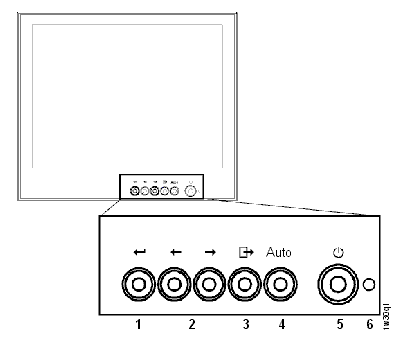
While you use these buttons, an On-screen Menu system shows you the numeric values of the various parameters.
| No. | Name | Description |
|---|---|---|
| 1 | MENU |
|
| 2 | <-- and --> Brightness |
|
| 3 | EXIT |
|
| 4 | AUTO |
|
| 5 | Power button |
|
| 6 | Power indicator |
|
MAP6540 Section-9
The monitor has a built-in power management system called PowerSaver. This saves energy by switching your monitor into a low-power mode when it has not been used for a certain amount of time. The available modes are "Normal Operation," "Standby," "Sleep," and "Deep Sleep.".
Procedure
| State | Normal Operation | Power-Saving Function mode (EPA/NUTEK) | ||
|---|---|---|---|---|
| Power Off State | Sleep Mode Position A1 | Deep Sleep Mode Position A2 | ||
| Horizontal Sync | Active | Inactive | Action | Inactive |
| Vertical Sync | Active | Active | Inactive | Inactive |
| Video | Active | Blanked | Blanked | Blanked |
| Power Indicator | Green | Green | Green Blinking (0.5 sec interval) | Green Blinking (1 sec interval) |
| Power Consumption | 25W (Norm.) | Fewer than 3W | Fewer than 3W | Fewer than 3W |