DS8000 Service Documentation Version 6.3.3
Cabling and connecting the management console to the customer network and phone line
Procedure
- Route and connect the customer Ethernet
cable.
- Connect the cable to the customer Ethernet port (eth2). See:
- For X335 server, see Figure 1
- For X336 server, see Figure 2
- For X3550 server, see Figure 3
- For ThinkPad laptop, see Figure 4.
Note: If the customer requests the Media Access Control (MAC) address of the HMC port they will connect to, refer to MAP6010 Displaying the HMC MAC address for the customer connection.Figure 1. eth2 connector on the rear of the X335 management console server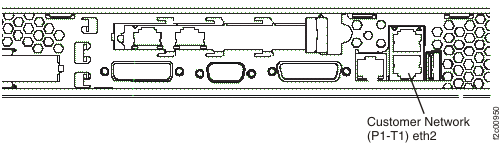 Figure 2. eth2 connector on the rear of the X336 management console server
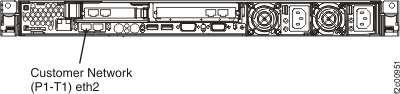 Figure 3. eth2 connector on the rear of the X3550 management console server
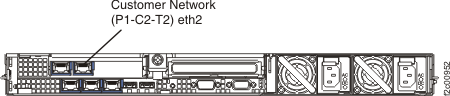 Figure 4. ThinkPad laptop customer modem and Ethernet connectors, rear of rack
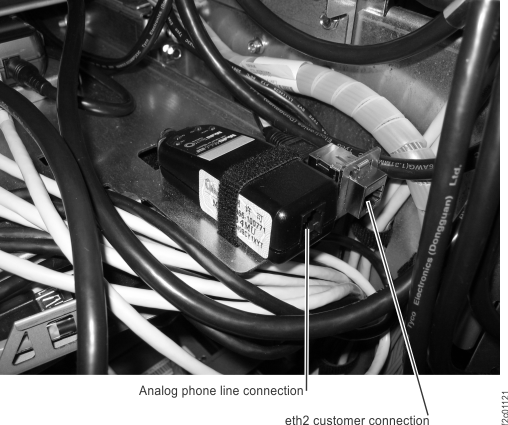 Note: Ethernet connector and modem connector might be reversed on some racks. Both connectors are at the rear of the rack, to the right of the Ethernet switches, below the bottom storage enclosure air baffle.
- Connect the cable to the customer Ethernet port (eth2). See:
- Route and connect the customer's phone
line cable by performing the following steps: Figure 5. The modem connector (RJ-11 phone line) on the rear of the X335 management console server
 Figure 6. The modem connector (RJ-11 phone line) on the rear of the X336 management console server
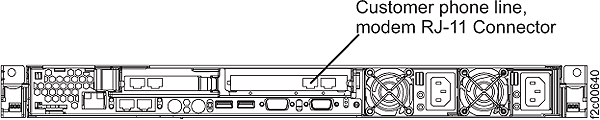 Figure 7. X3550 management console server RJ-11 connector