DS8000 Service Documentation Version 7.5

Verifying the rack ID of the expansion rack

Procedure

  1. Is the expansion rack that is being installed new from IBM manufacturing?
    Note: New racks from manufacturing will have a flyer that is similar to one of the following taped to the rack operator panel under the front cover. See the following examples:
  2. Has this expansion rack been previously installed on a different storage facility?
    • Yes, go to the next step.
    • No, go to step 4.
  3. Has the rack position feature code of this expansion rack changed?
    Note: Changing the rack position feature code in the field is rare and requires an RPQ/MES. The rack position feature code customizes an expansion rack to have the proper rack-to-rack cable group, cable labels, and operator panel rack label for a specific position in the storage facility. For example, an expansion rack with the Rack-3 position feature code cannot be installed in the Rack-2, Rack-4, or Rack-5 position; the cables, labels, and rack ID would be incorrect.
  4. The FCIC cards can have an incorrect rack ID setting because of a timing issue during the first power up of the expansion rack. An incorrect rack ID setting causes the installation of the storage enclosures to fail. Each FCIC card requires a power-on reset to update the rack ID value to match the position of the rack that is being installed. Later in this procedure, you will be directed to remove and restore power to each FCIC card by undocking the card.
  5. Has the expansion rack being installed been powered on for at least 10 minutes?
    • Yes, go to the next step.
    • No, wait until the expansion rack has been powered on for at least 10 minutes and then go to the next step.
  6. At the front and rear of the expansion rack being installed, undock both FCIC cards in each storage enclosure.
    Important:
    • Do not connect or disconnect any blue FC-AL cables to the cards. Leave them as they are.
    • Do not remove the card from its slot.
    1. Loosen the thumb screws and pull the card levers away from each other. This undocks the FCIC card. See Figure 1.
    2. Slide the card out about 1 inch or 2.5 centimeters so that the FCIC card LED indicators turn off.
    Figure 1. Removing the FCIC card (1 of 2)
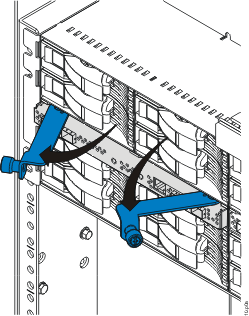
    Remove the FCIC card
  7. At the front and rear of the expansion rack, reinstall every FCIC card by completing the following steps:
    1. Push the card levers toward each other to seat the card fully in its slot and gently tighten the thumbscrews.
    2. Ensure that the FCIC card LEDs are lit.
  8. Wait (5 minutes maximum) until all the front and rear storage enclosure DDM LEDs are lit.
  9. Is there a second management console (MC 2) already installed in this storage complex?
    Note: The secondary management console should be labeled MC 2 on the front of the HMC laptop tray. You can verify the management console role (primary or secondary) by using the Query/Activate HMC Role Selection menu option. See MAP60A0 Display the HMC role selection.