There must be no unrepaired serviceable events prior to beginning the installation.
Procedure
- At the primary management console (MC 1), view
the storage facility status (end of call). If any of the system check
results display as FAILED, view the details and refer to "MAP1100
View storage facility (end of call)." Before you continue the installation,
all status fields should display as PASSED.
- From the bottom Task area, click . A window displays
the status (passed/failed) of 25 or more system checks. The following
is an example. Figure 1. Window: View Storage Facility State
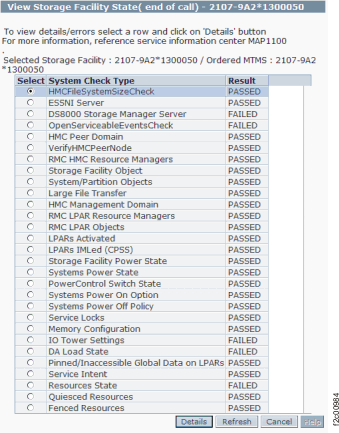 Note: If the status for Large File Transfer (the tenth System Check Type status from the top) displays as FAILED, the remaining System Check Types below it cannot be displayed.
- From the bottom Task area, click . A window displays
the status (passed/failed) of 25 or more system checks. The following
is an example.