DS8000 Service Documentation Version 7.5
MAP7060 Replacing the Ethernet switch
MAP7060 Section-1
About this task
Notes: - The replacement of the Ethernet switch is a manual process. There
is no HMC GUI code driven process to manage the resource and help
guide you through the repair.
- There are two private networks, one is known as "Gray" and the
other as "Black." One of the two networks must always be functional
to all connected nodes.
- The private networks are automatically checked every few minutes
by a microcode driven "heartbeat" communication process that checks
HMC-to-LPAR as well as HMC-to-HMC communications. A serviceable event is opened
if a problem is found.
- There is an HMC GUI network topology tool that will display the
nodes and their "health" status. Running it will not cause a serviceable event to be
created.
Procedure
- Were you directed to this MAP
from a serviceable event FRU list that had MAP7060 as the first FRU?
- - Yes, use the serviceable event FRU location information
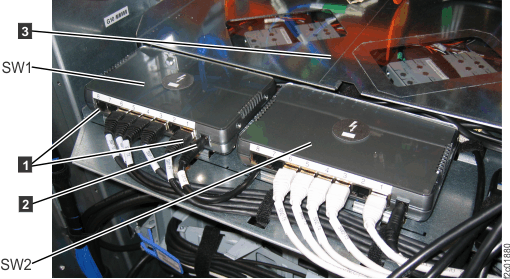
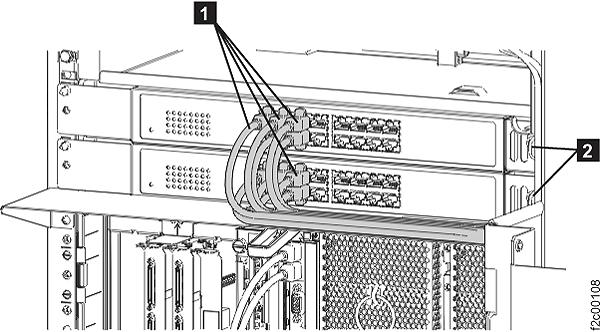
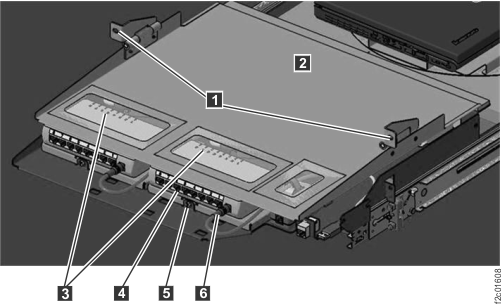
to determine which Ethernet switch will be replaced. See Figure 1.
Then go to step 6.
- - No, go to step 2.
Figure 1. "SW1 (left) black" and
"SW2 (right) gray"
- Display open serviceable events. Look
for those that could be related to private network problems.
- Observe the SRC definition
and also look for the following FRUs:
- For Models 941, 951:
- CEC enclosure I/O
planar assembly
- CEC enclosure VPD pass-through card
- CEC enclosure service
processor card
- For Model 961:
- CEC enclosure system
backplane
- CEC enclosure Ethernet
four-port 1 Gb copper card
- Are there any open serviceable events related
to the private networks?
- Yes, exit this MAP and repair the related serviceable event.
- No, go to the next step.
- Run the private network topology utility to view the state
of the network. Refer to MAP7001 Using the network topology tool.
Did you find any network problems?
- Select the following option that applies:
MAP7060 Section-2 (16-port switch
Model 941)
MAP7060 Section-3 (8-port switch
Model 941)
MAP7060 Section-4 (8-port Model 951)
MAP7060 Section-5 (Checking the switch)
Procedure
- Ensure that at least one Ethernet switch LED indicator
is lit, indicating it is powered on.
- Display open serviceable events.
The replacement of the switch may have caused at least one serviceable event to be
opened for the loss of the private network connectivity.
- Display the serviceable event details
and ensure that it is related to the private network you just affected
with the switch replacement and then close it.
- Run the network topology tool to check the status of the
private network nodes. See MAP7001 Section-4 (Analyzing the results and repairing the network).
- Exit this procedure.
MAP7060 Section-6 (8-port Model 961)
Procedure
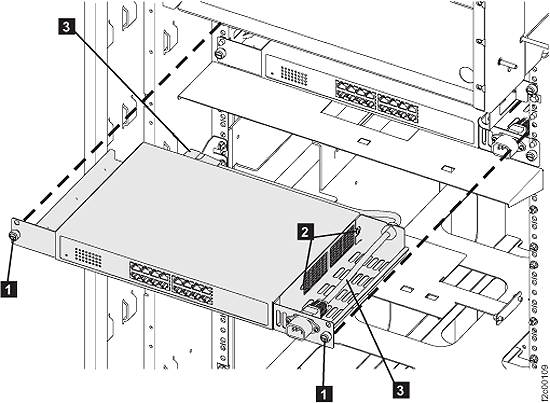
- At the rear of the rack, remove the Ethernet switch (see Figure 7):
- Disconnect the rack power cable
 and Ethernet cables
  from the Ethernet switch.
- Do not remove the Ethernet tray sheet metal air baffle
 .
.
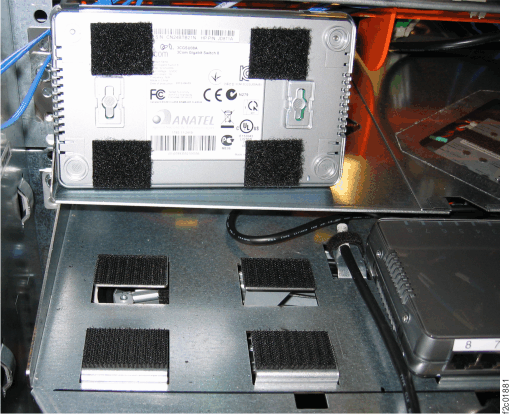
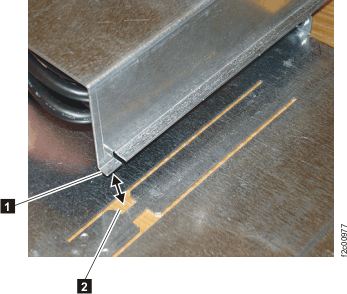
- The Ethernet switch is held to the sheet metal tray
by four hook-and-loop fasteners. See Figure 8.
- Beginning at one corner, lift the Ethernet switch off
the tray.
Figure 7. Ethernet switches SW1 and SW2
(Model 961), rack version 1 shown, rack version 2 similar
Figure 8. Four hook-and-loop fasteners for each Ethernet
switch
- There are three possible Ethernet switch FRUs, depending
on which FRU P/N is ordered.
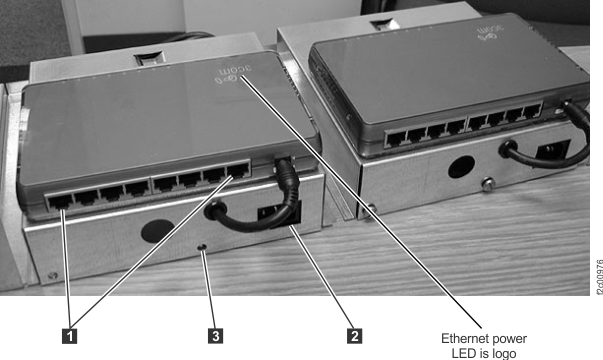
- Version 1 Ethernet switch fastened to a sheet metal bracket.
Go to step 3.
- Version 2 Ethernet switch with power cable(s). Go to step 4.
- Version 2 Ethernet switch with no power cable(s). Go to step 4.
- For Version 1, do the following:
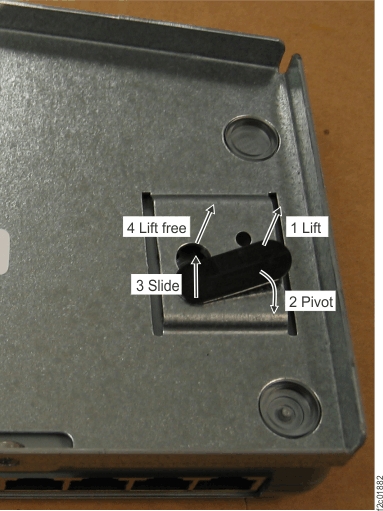
- Remove the two black plastic latches that fasten the
new Ethernet switch to the sheet metal bracket. See Figure 9.
- Discard the latches and sheet metal bracket.
- Locate the four hook-and-loop fasteners in the FRU kit
and place one squarely on each Ethernet tray hook-and-loop fastener.
- Peel the backing off each hook-and-loop fastener to
expose the adhesive surface.
- Align the Ethernet switch with the partner Ethernet
switch and push down firmly. Gently lift up to ensure it is properly
fastened.
- Properly connect the power and Ethernet cables; refer
to the cable location labels.
- Go to MAP7060 Section-5 (Checking the switch).
Figure 9. Release Ethernet switch from the sheet metal
bracket
- For Version 2, do the following:
- Set the new Ethernet switch on top of the tray so it
aligns evenly with the partner Ethernet switch. See Figure 7. Push down firmly and
then gently lift up to ensure it is fastened to the Ethernet switch
tray.
- Connect the Ethernet cables.
- Connect the power cable.
If the existing
power cable does not properly plug into the new Version 2 Ethernet
switch, use the power-cable installation instructions in the FRU kit
to install the proper cable.
- Go to MAP7060 Section-5 (Checking the switch).
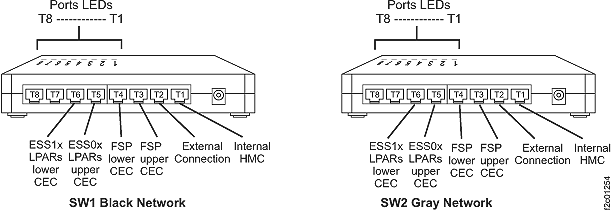
 from the Ethernet switch assembly.
  .
.  .
.