From the navigation area, click Storage Facility Management > storage
facility.
From the bottom Task area, click Service Utilities > View Hardware Topology.
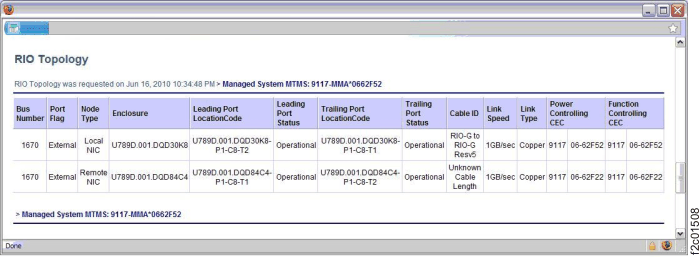
The RIO Topology window is displayed. See Figure 1.
Note:
The upper half of the window displays the Current RIO Topology.
The lower half of the window displays the last Valid RIO Topology.
Figure 1. Window: RIO topology
Check the
LeadingPort Status and TrailingPort Status columns to determine the
state of each RIO interface port/node (connection).
Note:
A port status of Operational is normal.
A port status other than Operational indicates a problem that
needs to be repaired.
A repair that causes a CEC enclosure to be powered
off will, of course, power off those RIO nodes and non-operational
status would be expected. After repairs are complete, check the port
status again.
If no repairs are in progress and the port status is not Operational,
continue at the next step.
Does the tool indicate an
open RIO loop?
Yes, observe the RIO loop cables and connections. If a RIO
cable is found unplugged, misplugged or damaged, correct that now
and then return to step 3 above.
The RIO cable can be hot plugged without using a guided service procedure.
If no visual symptom is found, continue at the next step.
No, continue with the next step.
A serviceable event should
have been created. Repair that serviceable event now. If there are
no related serviceable events, contact your next level of support.