Before you begin
DANGER
An
electrical outlet that is not correctly wired could place hazardous
voltage on the metal parts of the system or the devices that attach
to the system. It is the responsibility of the customer to ensure
that the outlet is correctly wired and grounded to prevent an electrical
shock. (D004)
About this task
Attention: If you will be installing more than one new storage
facility to an existing storage facility complex, completely install
one storage facility at a time.
Procedure
- Route the black and gray Ethernet cables between the two
storage facilities.
For racks with overhead cable management (top exit) for host and data cables, use step 4b. For racks with standard tailgates, use step 4a.
- At the rear of each Rack-1 with
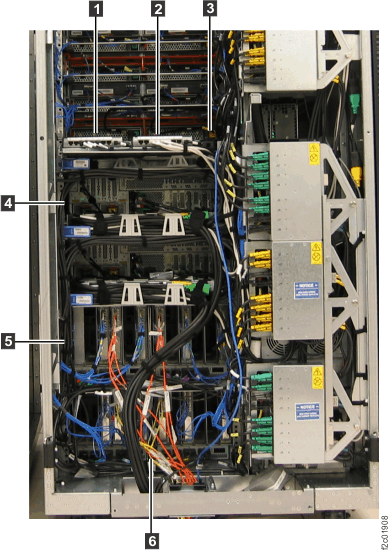
standard tailgate, route the Ethernet cables through the tailgate 6 ,
up the left side of the rack alongside the
FC-AL cables and then to the rear of the Ethernet switches 1 and 2 .
Use cable ties 4 and 5 to
secure the cable to the left side of the rack. See Figure 1. Figure 1. Routing customer and private Ethernet cables
- At the rear of each Rack-1 with overhead
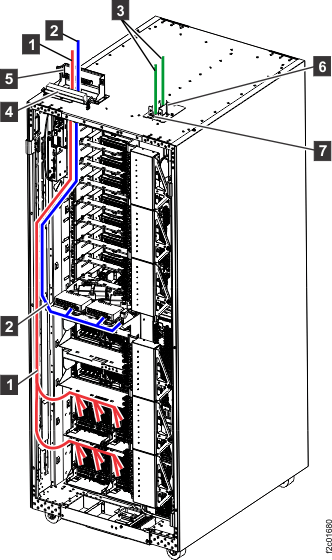
cable management, route the Ethernet cables down through the top tailgate.
Carefully route the cable ( 2 , Figure 2) through
the channel in the left rear of the rack and across to the rear of
the Ethernet switches. See Figure 2. For DS8870 All Flash, there
is no channel. Use the supplied hook and loop fasteners to route
the cable along the left rear of the rack, using the path shown in Figure 2. Figure 2. Overhead cable management (top exit) for Fibre Channel, communication, and power cables
- At the rear of each Rack-1 with
standard tailgate, route the Ethernet cables through the tailgate 6 ,
up the left side of the rack alongside the
FC-AL cables and then to the rear of the Ethernet switches 1 and 2 .
Use cable ties 4 and 5 to
secure the cable to the left side of the rack. See Figure 1.
- At the rear of the new Rack-1 you are installing, connect
the black Ethernet cable as follows:
- For 8-port Ethernet switches,
connect the black Ethernet cable to left Ethernet switch (SW1) port
T2. See Figure 3. Figure 3. Ethernet cable (Black) to left 8-port Ethernet switch (SW1)

- For 8-port Ethernet switches,
connect the black Ethernet cable to left Ethernet switch (SW1) port
T2. See Figure 3.
- At the rear of the new Rack-1 you are installing, connect
the gray Ethernet cable as follows:
- For 8-port Ethernet switches,
connect the gray Ethernet cable to the right Ethernet switch (SW2)
port T2. See Figure 4. Figure 4. Ethernet cable (Gray) to right 8-port Ethernet switch (SW2)

- For 8-port Ethernet switches,
connect the gray Ethernet cable to the right Ethernet switch (SW2)
port T2. See Figure 4.
- At rear of the existing Rack -1 in
SF1, do the following:
- For 8-port Ethernet switches,
connect the black Ethernet cable to left Ethernet switch (SW1) port
T2. See Figure 5. Figure 5. Ethernet cable (Black) to left 8-port Ethernet switch (SW1)
- For 8-port Ethernet switches,
connect the black Ethernet cable to left Ethernet switch (SW1) port
T2. See Figure 5.