Procedure
- Determine the model of Rack-1 and the expansion rack being
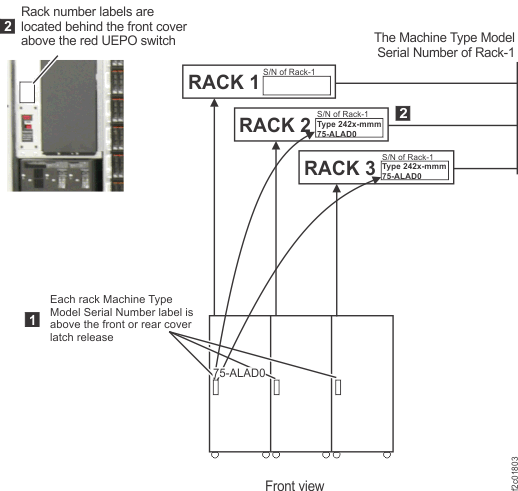
installed. The model number is on the machine type and model serial
number (MTMS) label. The MTMS label 1 is
on the front cover above the door latch release. See Figure 1. Figure 1. Rack serial number and rack number labels (Models 961, 96E) (Rack-4 not shown)
- At the rear of Rack-1, observe the P1-C8 slot
(to the far right) in both CEC enclosures.
Do both CEC enclosures have a PCIe three-port card in the P1-C8 slot?
- Yes, go to the next step.
- No, stop the installation. Call the next level of support. Rack-1 does not have the feature installed to support expansion racks.
Figure 2. Location codes for the CEC enclosure (rear view) (Model 961)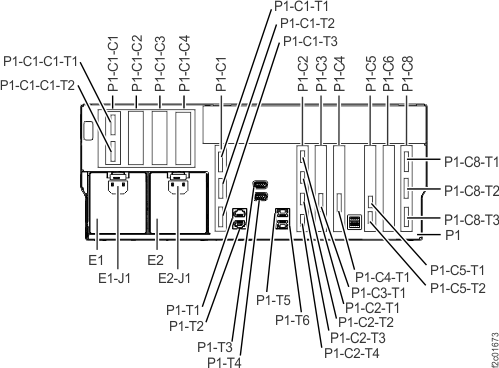
- Does the front side of the
expansion rack you are installing have the same number of battery
service module (BSM) sets as Rack-1? Note: Each BSM set is one primary module (E1) and three secondary modules (E2, E3, E4). See Figure 3.
- Yes, go to the next step.
- No, stop the installation. All racks in this storage facility must have the same number of BSM sets. Otherwise, a mismatch is detected and the installation fails.
Figure 3. Battery service module (BSM) set locations (front)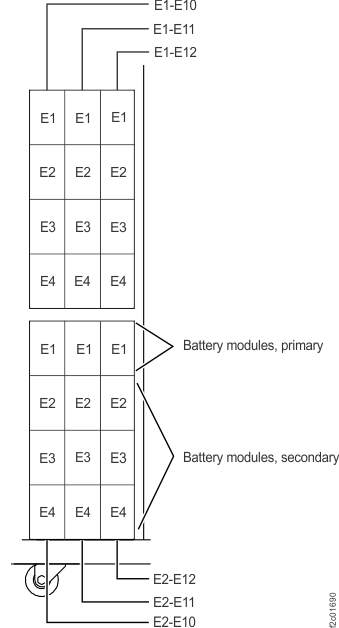
- All racks in this storage facility must have
the same customer power type.
- The customer power type label
 is located on the mainline
power cable DC-UPS connector. See Figure 4.
is located on the mainline
power cable DC-UPS connector. See Figure 4.
Do the mainline power cable label colors for Rack-1 and the expansion racks match?
- Yes, continue at the next step.
- No, stop the installation and call next level of support.
Figure 4. Mainline power cable connector power type label location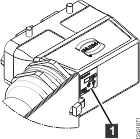 Figure 5. Mainline power cable connector, power type labels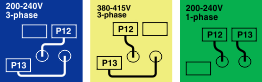
Table 1. Power label colors according to power type Customer power type Mainline power cable label and DC-UPS label Single-phase (200 - 240 V) 200 - 240 V 1-phase (green) Three-phase low voltage (200 - 240 V) 200 - 240 V 3-phase (blue) Three-phase high voltage (380 - 415 V) 380 - 415 V 3-phase (yellow) - The customer power type label
- Observe the rear of Rack-2. Note which storage enclosures are
present in locations R2-G01 through R2-G14. Use Table 2, Figure 6,
and Figure 7 to
determine if the Rack-2 has enough DA cards installed. Note: A complete diagram of device adapter pair IDs for storage enclosures has been included at the end of this section. See Figure 8 and Figure 9.
Table 2. Determining if Rack-2 contains the necessary DA card pairs to support Rack-2 storage enclosures If the rear of Rack-2 has a storage enclosure in location:
(See Figure 6)The rear of Rack-2 must have a DA card pair in I/O enclosure locations:
(See Figure 6)R2-G07 R2-XI1 Slot C6
R2-XI2 Slot C3
(DA pair 5)R2-G09 R2-XI3 Slot C6
R2-XI4 Slot C3
(DA pair 7)R2-G11 R2-XI1 Slot C3
R2-XI2 Slot C6
(DA pair 4)R2-G13 R2-XI3 Slot C3
R2-XI4 Slot C6
(DA pair 6)zero storage enclosures in locations R2-G01 through R2-G14 no DA card pairs required in Rack-2
Does Rack-2 have the necessary DA cards?- Yes, continue with Inspecting for shipping damage.
- No, stop the installation. To install the existing storage enclosures in Rack-2, you must first install the MESs to add the necessary DA cards. It is possible to continue the installation without installing the MESs, but you will not be able to install the affected Rack-2 storage enclosures. Work with your customer and next level of support to decide how to proceed. If the decision is to proceed, continue with Inspecting for shipping damage.
Figure 6. Rack 1-4 storage enclosure and I/O location codes (rear view)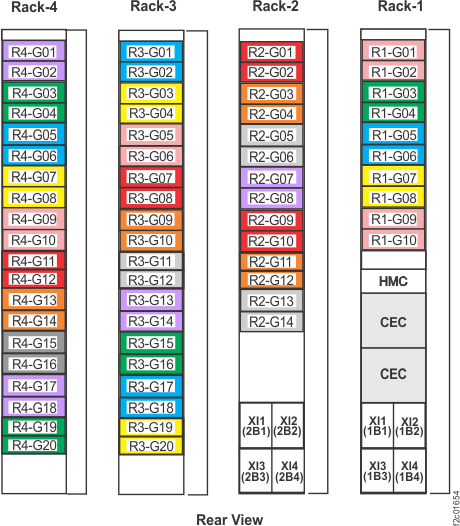 Figure 7. I/O enclosure locations and device adapter card slot locations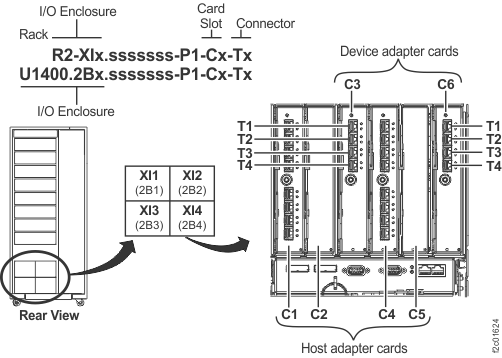
- You are installing
Rack-4. Observe the front of Rack-3. Use Table 4 and Figure 6 to
determine if Rack-3 has the specific storage enclosures to connect
the FC-AL cables from Rack-4 storage enclosures.
Table 4. Determining if Rack-4 storage enclosures can be cabled to Rack-3 storage enclosures If the front of Rack-4 has a storage enclosure in location:
(see Figure 6)The front of Rack-3 must have a storage enclosure in location:
(see Figure 6)R4-G06 R3-G02 R4-G08 R3-G04 R4-G10 R3-G06 R4-G12 R3-G08 R4-G14 R3-G10 R4-G16 R3-G12 R4-G18 R3-G14 R4-G20 R3-G16 Does Rack-3 have the necessary storage enclosures to install Rack-4?
- Yes, continue with Inspecting for shipping damage.
- No, stop the installation. To install all storage enclosures in Rack-4, you must install the MESs to add the necessary storage enclosures to Rack-3. It is possible to continue the installation without installing the MESs but you will not be able to install all the Rack-4 storage enclosures. Work with your customer and next level of support to decide how to proceed. If the decision is to proceed, continue with Inspecting for shipping damage
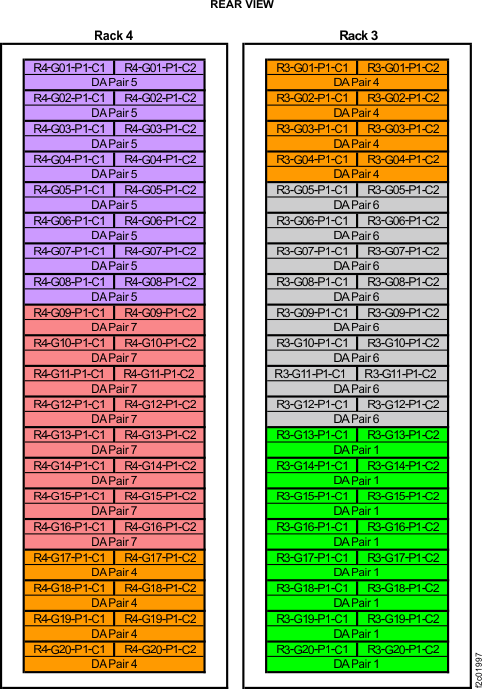
Figure 8. Device adapter pair IDs for storage enclosures (Models 961, 96E) (rear view, racks 1 and 2)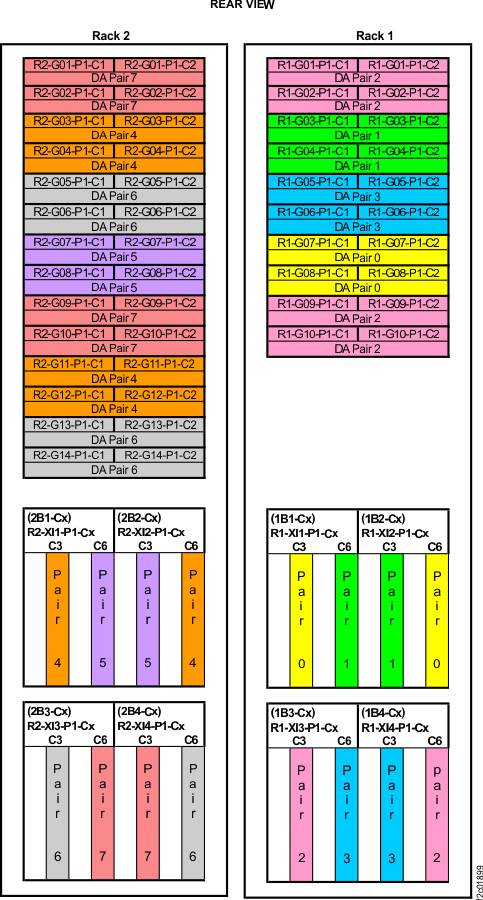 Figure 9. Device adapter pair IDs for storage enclosures (Models 961, 96E) (rear view, racks 3 and 4)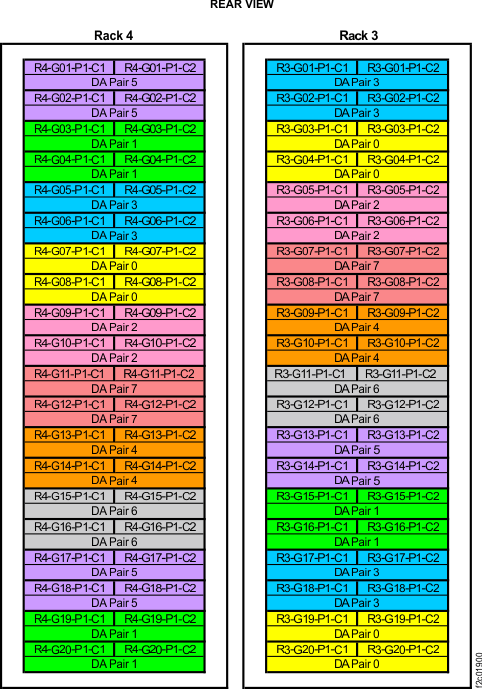
- Determine if the existing racks have the correct storage
enclosures and DA cards to support the new rack. Refer to Table 6, Figure 10,
and Figure 11. Note: A complete diagram of device adapter pair IDs for storage enclosures has been included at the end of this section. See Figure 12 and Figure 13.
Table 6. Business class: DA card pairs and corresponding storage enclosures for new expansion rack storage enclosures If new expansion rack has a storage enclosure in location: Existing rack must have a storage enclosure in location: Rack-2 must have a DA card pair in I/O enclosure locations: Rack-1 must have a DA card pair in I/O enclosure locations: (see Figure 10) (see Figure 11) R2-G08 - - R1-XI3 Slot C6
R1-XI4 Slot C3
(DA pair 3)R2-G14 R1-G02 - zero storage enclosures in Rack-2 locations R2-G01 through R2-G14 - - - R3-G04 - R2-XI1 Slot C3
R2-XI2 Slot C6
(DA pair 4)- R3-G12 - R2-XI3 Slot C3
R2-XI4 Slot C6
(DA pair 6)- R3-G20 - - R1-XI1 Slot C6
R1-XI2 Slot C3
(DA pair 1)R4-G08 - R2-XI1 Slot C6
R2-XI2 Slot C3
(DA pair 5)- R4-G16 - R2-XI3 Slot C6
R2-XI4 Slot C3
(DA pair 7)- R4-G20 R3-G02 - - Do the existing racks have the necessary storage enclosure and DA cards as shown in Table 6?- Yes, continue with Inspecting for shipping damage.
- No, stop the installation. To install all storage enclosures in the new rack, you must use an MES procedure to add the necessary storage enclosures and DA cards to the existing racks. It is possible to continue the installation without completing the MES installation procedure, but you will not be able to install all the storage enclosures in the new rack. Work with your customer and next level of support to decide how to proceed. If the decision is to proceed, continue with Inspecting for shipping damage.
Figure 10. Rack 1-4 storage enclosure and I/O location codes (Models 961, 96E; business class) (rear view)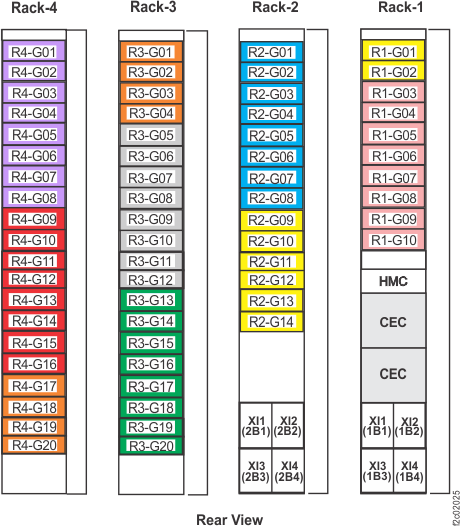 Figure 11. I/O enclosure locations and device adapter card slot locationsFigure 12. Device adapter pair IDs for storage enclosures (Models 961, 96E) (business class) (rear view, racks 1 and 2)
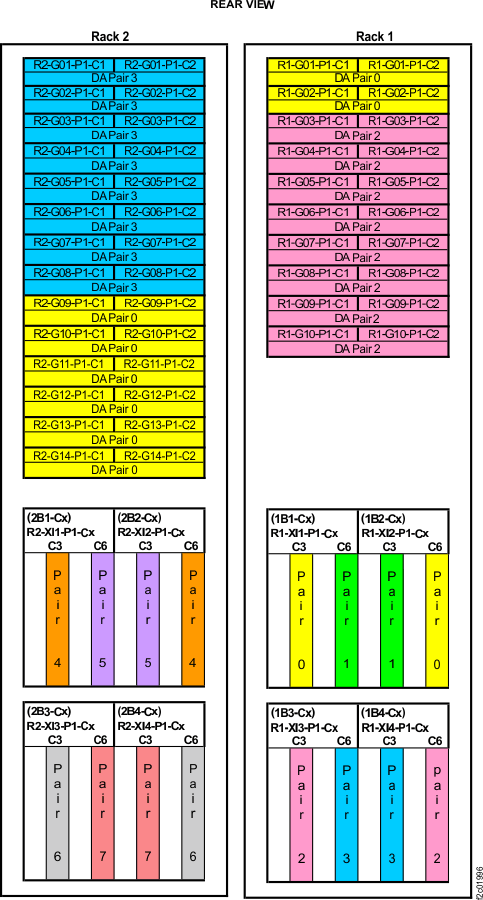 Figure 13. Device adapter pair IDs for storage enclosures (Models 961, 96E) (business class) (rear view, racks 3 and 4)