DS8000 Service Documentation Version 6.3.3

Installing and testing the Rack-2 I/O enclosures

Procedure

  1. At the front of Rack-2, ensure the power input cables to the I/O enclosure power supplies at the bottom of the rack are disconnected. This should have been completed in the Disconnecting Rack-2 I/O enclosure power section.
  2. This step shows an overview of the Rack-2 to Rack-1 PCIe and SPCN cable routing. Do not route or connect the cables until directed in later steps.
    • On a raised floor, the cables are routed down through the tile cutouts and underneath the floor.
    • On a non-raised floor, the cables are routed beneath the racks.
    Figure 1. Mechanical routing of the PCIe and SPCN cables (rack-to-rack)
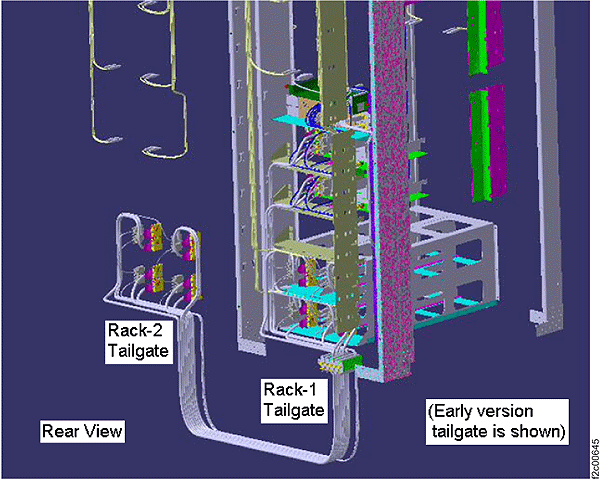
    Mechanical routing of the RIO and SPCN cables (rack-to-rack)
  3. At the rear of Rack-2, locate the thick PCIe cables that are coiled near the tailgate and uncoil them.
  4. At the loose end of each PCIe cable, find the location code destination label. The location code defines which Rack-1 CEC enclosure the cable will be connected to. Refer to Figure 2 and Figure 3.
    Figure 2. CEC enclosure locations on cable labels (rear view)
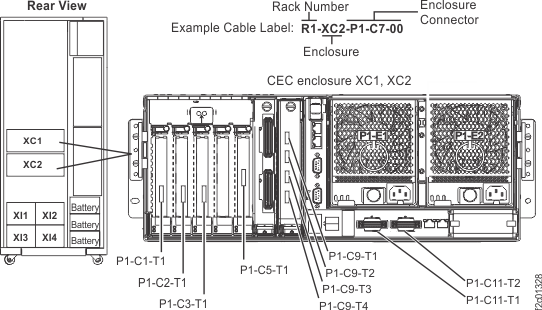
    CEC enclosure locations on cable labels (rear view)
    Figure 3. I/O enclosure locations on cable labels
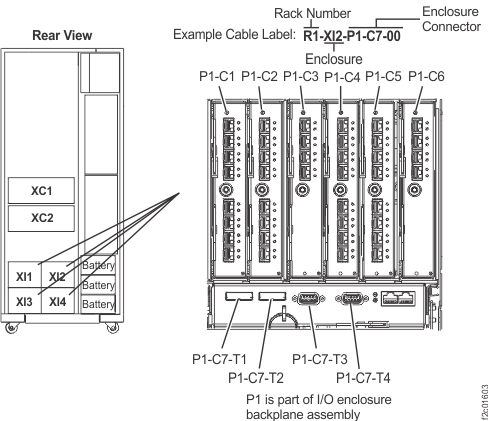
    I/O enclosure locations on cable labels
  5. Route the Rack-2 PCIe cables to Rack-1, but do not connect them.
    1. Route the Rack-2 PCIe cables as shown in Figure 4 down through a tailgate slot that will properly clamp the cable. Figure 4 does not show the tailgate hardware installed.
      Figure 4. PCIe and SPCN cable routing through Rack-2 tailgate
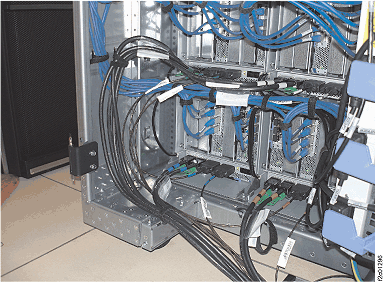
      PCIe and SPCN cable routing through Rack-2 tailgate
    2. Route the PCIe cables from Rack-2 up through the Rack-1 tailgate slot that will properly clamp the cable as shown in Figure 5.
      Figure 5. PCIe and SPCN cable routing through the Rack-1 tailgate
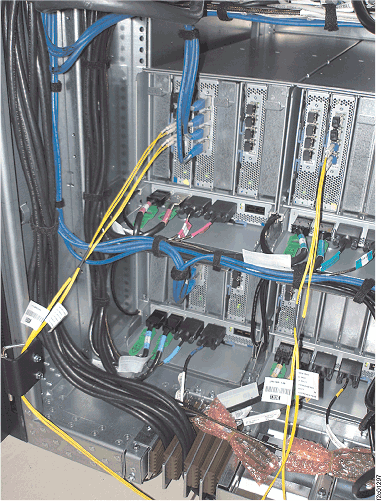
      PCIe and SPCN cable routing through the Rack-1 tailgate
  6. Complete the following steps to connect each Rack-2 PCIe cable to the Rack-1 CEC enclosure PCIe card connector location that is specified on the destination label.
    Note: The four PCIe connectors on the P1-C9 card that the expansion rack PCIe cables connect to are turned 180 degrees from the connectors on the P1-C1, C2, C3 and C5 cards that the Rack-1 PCIe cables connect to.
    1. Read the destination label on the Rack-2 cable that will be connected.
    2. Use Table 1, Figure 2, and Figure 3 to find the Rack-1 location that the Rack-2 cable will be connected to.
    3. Connect the Rack-2 cable.
      Note: If you have any question about the point-to-point PCIe cabling, refer to Figure 6 and Table 1.
    4. Repeat the previous steps for each remaining Rack-2 PCIe cable until they are all connected.
    5. Fasten the Rack-2 PCIe cables in Rack-1 and Rack-2 using the existing cable retention straps.
    Figure 6. Point-to-point PCIe cable routing (Model 951, 8 I/O enclosures, Rack-1 & Rack-2)
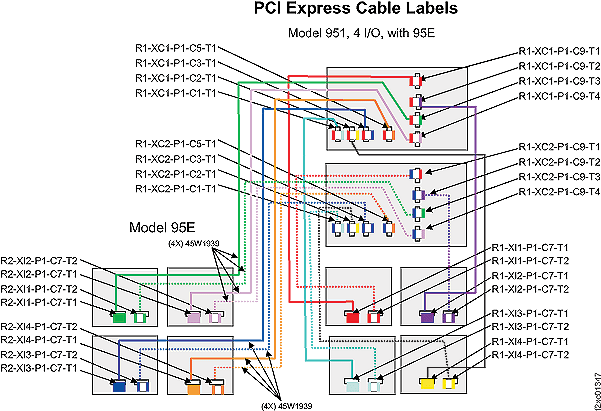
    PCIe cable labels, Model 951 with eight I/O enclosures
    Table 1. PCIe Cabling (Model 951, from Rack-1 CEC enclosures to Rack-2 I/O enclosures)
    From CEC R1-XC1 To Rack-2 I/O Enclosure From CEC R1-XC2 To Rack-2 I/O Enclosure
    R1-XC1-P1-C9-T3 (2B1) R2-XI1-P1-C7-T1 R1-XC2-P1-C9-T3 (2B1) R2-XI1-P1-C7-T2
    R1-XC1-P1-C9-T4 (2B2) R2-XI2-P1-C7-T1 R1-XC2-P1-C9-T4 (2B2) R2-XI2-P1-C7-T2
    R1-XC1-P1-C3-T1 (2B3) R2-XI3-P1-C7-T1 R1-XC2-P1-C3-T1 (2B3) R2-XI3-P1-C7-T2
    R1-XC1-P1-C5-T1 (2B4) R2-XI4-P1-C7-T1 R1-XC2-P1-C5-T1 (2B4) R2-XI4-P1-C7-T2
  7. Locate the thin SPCN cables that are coiled near the Rack-2 tailgate and uncoil them.
  8. At the loose end of each SPCN cable, find the location code destination label. The location code defines which Rack-1 CEC enclosure or I/O enclosure the cable will be connected to. Refer to Figure 2 and Figure 3.
  9. Route the Rack-2 thin SPCN cables to Rack-1, but DO NOT connect them.
    1. Route the Rack-2 SPCN cables as shown in Figure 4 down through a tailgate slot that will properly clamp the cable.
    2. Route the SPCN cables from Rack-2 up through the Rack-1 tailgate slot that will properly clamp the cable as shown in Figure 5.
  10. Complete the following steps to connect each Rack-2 SPCN cable to the Rack-1 connector location that is specified on the destination label. See Table 2, Figure 2, Figure 3, and Figure 7.
    Note: Two existing SPCN cables from Rack-1 will be removed to open each SPCN loop so Rack-2 SPCN cables can be connected to extend the loops to Rack-2.
    1. Disconnect and remove the Rack-1 SPCN cable between R1-XC1-P1-C11-T2 (upper CEC enclosure) and (1B3) R1-XI3-P1-C7-T4 (lower left I/O enclosure).
      Trace the cable end to end before disconnecting it.
    2. Locate the two Rack-2 SPCN cables with the following location codes and connect them to the Rack-1 connectors that are now available.
            R1-XC1-P1-C11-T2
      (1B3) R1-XI3-P1-C7-T4
    3. Disconnect and remove the Rack-1 SPCN cable between R1-XC2-P1-C11-T2 (lower CEC enclosure) and (1B4) R1-XI4-P1-C7-T4 (lower right I/O enclosure).
      Trace the cable end to end before disconnecting it.
    4. Locate the two Rack-2 SPCN cables with the following location codes and connect them to Rack-1.
            R1-XC2-P1-C11-T2
      (1B4) R1-XI4-P1-C7-T4
    5. Store the two SPCN cables that are removed from Rack-1 in the Rack-1 document enclosure in the front upper left of the rack. These SPCN cables must be reinstalled if Rack-2 is ever permanently removed.
    6. Fasten the SPCN cables in both racks using the existing cable retention straps.
    Figure 7. Point-to-point SPCN cable routing (Model 951, 8 I/O enclosures, Rack-1 & Rack-2)
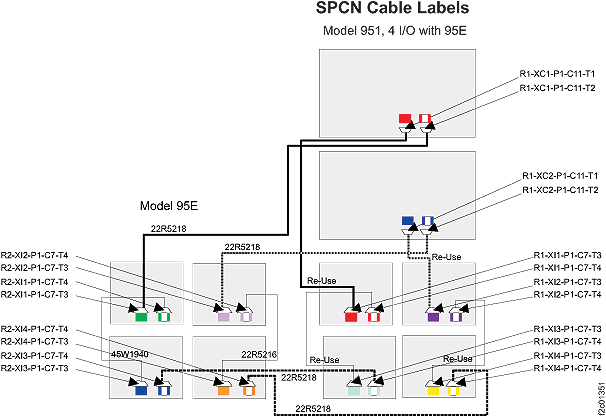
    Model 951 SPCN cable labels with eight I/O enclosures
    Table 2. SPCN Cabling (Model 951 with eight I/O enclosures, Rack-1 and Rack-2)
    SPCN Loop Controlled by Upper CEC SPCN Loop Controlled by Lower CEC
    From To From To
    R1-XC1-P1-C11-T1 (1B1) R1-XI1-P1-C7-T3 R1-XC2-P1-C11-T1 (1B2) R1-XI2-P1-C7-T3
    (1B1) R1-XI1-P1-C7-T4 (1B3) R1-XI3-P1-C7-T3 (1B2) R1-XI2-P1-C7-T4 (1B4) R1-XI4-P1-C7-T3
    (1B3) R1-XI3-P1-C7-T4 (2B3) R2-XI3-P1-C7-T4 (1B4) R1-XI4-P1-C7-T4 (2B4) R2-XI4-P1-C7-T4
    (2B3) R2-XI3-P1-C7-T3 (2B1) R2-XI1-P1-C7-T4 (2B4) R2-XI4-P1-C7-T3 (2B2) R2-XI2-P1-C7-T4
    (2B1) R2-XI1-P1-C7-T3 R1-XC1-P1-C11-T2 (2B2) R2-XI2-P1-C7-T3 R1-XC2-P1-C11-T2
    Notes:
    1. The four cables that are labeled "reuse" are not disconnected as part of the Rack-2 installation.
    2. The remaining six cables are new for the two-rack configuration.
  11. Reinstall the tailgate cable retention clamps to secure the PCIe and SPCN cables in the tailgate.
  12. Display open serviceable events. Are there any with SRC = 10009102 or 10009135?
    • Yes, this is expected, close the serviceable event without repairing it. Then, go to the next step.
    • No, go to the next step.
  13. The following steps power-on and logically install each I/O enclosure pair. The lower pair is logically installed first, followed by the upper pair.
  14. At the front of Rack-2, connect the four DC power cables to the four power supplies of the bottom I/O enclosure pair. The bottom two I/O enclosures will power on.
    Figure 8. Rack-2 power cables to lower I/O enclosure pairs (front view)
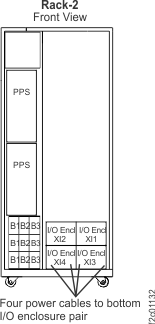
    Rack-2 I/O enclosures front view
  15. For the bottom pair of I/O enclosures only, perform the logical installation and verification steps.
    1. From the navigation area, click Storage Facility Management > storage facility.
    2. From the bottom Task area, click MES Install/Remove > Install I/O Enclosure or Components. A Single Choice Message Box window opens.
    3. Select Install I/O Enclosures and click Submit.
    4. Follow the guided process to complete the logical installation and verification for this pair of I/O enclosures.
    5. Return here and go to the next step when the logical installation and verification for this pair is complete.
  16. Display and repair any related open serviceable events.
  17. View the storage facility status. If any of the system check results display as FAILED, view the details and refer to MAP1100 View storage facility state (end of call). Before you continue the installation, all status fields should display as PASSED.
    1. From the navigation area, click Storage Facility Management > storage facility.
    2. From the bottom Task area, click Service Utilities > View Storage Facility State. A window displays the status (passed/failed) of 25 or more system checks. The following is an example.
      Figure 9. Window: View Storage Facility State
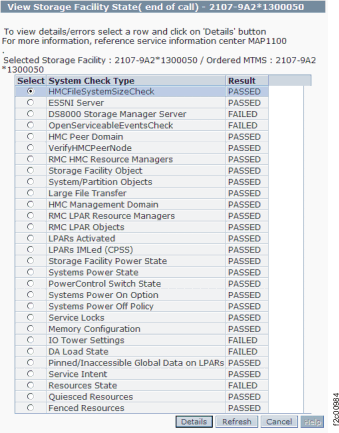
      Window: View Storage Facility State
      Note: If the status for Large File Transfer (the tenth System Check Type status from the top) displays as FAILED, the remaining System Check Types below it cannot be displayed.
    3. To display further details, select a row and click Details.
  18. Does Rack-2 have an upper I/O enclosure pair?
  19. At the front of Rack-2, connect the four DC power cables to the four power supplies of the upper I/O enclosure pair. The upper two I/O enclosures will power on.
    Figure 10. Rack-2 power cables to upper I/O enclosure pairs (front view)
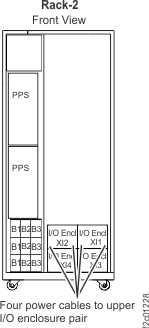
    Rack-2 four power cables to upper I/O enclosure pairs
  20. For the upper pair of I/O enclosures only, perform the logical installation and verification steps.
    1. From the navigation area, click Storage Facility Management > storage facility.
    2. From the bottom Task area, click MES Install/Remove > Install I/O Enclosure or Components. A Single Choice Message Box window opens.
    3. Select Install I/O Enclosures and click Submit.
    4. Follow the guided process to complete the logical installation and verification for this pair of I/O enclosures.
    5. Return here and go to the next step when the logical installation and verification for this pair is complete.
  21. Display and repair open serviceable events.
  22. View the storage facility status. If any of the system check results display as FAILED, view the details and refer to MAP1100 View storage facility state (end of call). Before you continue the installation, all status fields should display as PASSED.
  23. Continue at the next section.