DS8000 Service Documentation Version 6.3.3
Installing and testing the Rack-2 I/O enclosures
Procedure
- This step shows an overview of the Rack-2 to Rack-1 PCIe
and SPCN cable routing. Do not route or connect the cables until directed
in later steps. Figure 1. Mechanical routing of the PCIe and SPCN cables (rack-to-rack)
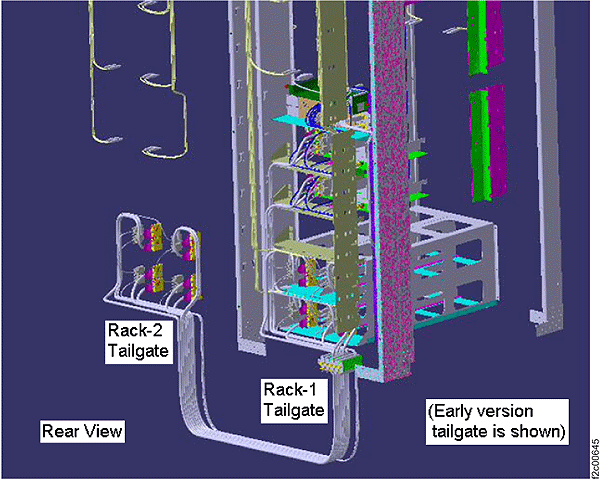
- On a raised floor, the cables are routed down through the tile cutouts and underneath the floor.
- On a non-raised floor, the cables are routed beneath the racks.
Figure 2. Physical location codes (Rack-1)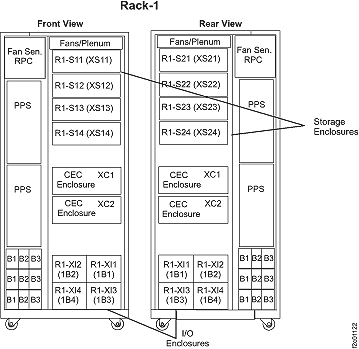 Figure 3. Physical location codes (expansion rack-2)
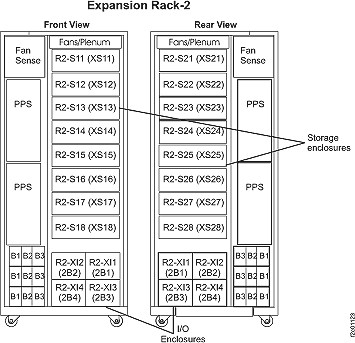 Figure 4. Point-to-point SPCN cable routing (Four I/O enclosures, Rack-1 only)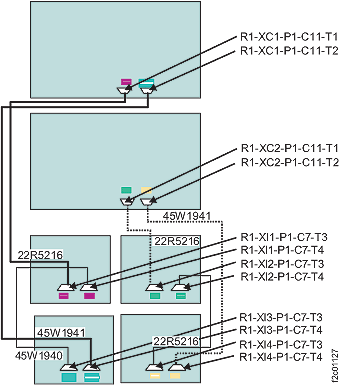
Table 1. SPCN Cabling (Model 941 with four I/O enclosures Rack-1 only) SPCN Loop Controlled by Upper CEC SPCN Loop Controlled by Lower CEC From To From To R1-XC1-P1-C11-T1 (1B1) R1-XI1-P1-C7-T3 R1-XC2-P1-C11-T1 (1B2) R1-XI2-P1-C7-T3 (1B1) R1-XI1-P1-C7-T4 (1B3) R1-XI3-P1-C7-T3 (1B2) R1-XI2-P1-C7-T4 (1B4) R1-XI4-P1-C7-T3 (1B3) R1-XI3-P1-C7-T4 R1-XC1-P1-C11-T2 (1B4) R1-XI4-P1-C7-T4 R1-XC2-P1-C11-T2 Figure 5. Point-to-point SPCN cable routing (Eight I/O enclosures, Rack-1 & Rack-2)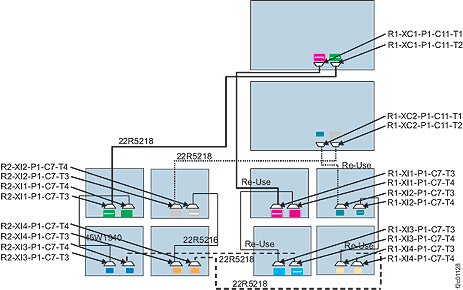 Notes:
- The four cables that are labeled "reuse" are not disconnected as part of the Rack-2 installation.
- The remaining six cables are new for the two-rack configuration.
Table 2. SPCN Cabling (Model 941 with eight I/O enclosures, Rack-1 and Rack-2) SPCN Loop Controlled by Upper CEC SPCN Loop Controlled by Lower CEC From To From To R1-XC1-P1-C11-T1 (1B1) R1-XI1-P1-C7-T3 R1-XC2-P1-C11-T1 (1B2) R1-XI2-P1-C7-T3 (1B1) R1-XI1-P1-C7-T4 (1B3) R1-XI3-P1-C7-T3 (1B2) R1-XI2-P1-C7-T4 (1B4) R1-XI4-P1-C7-T3 (1B3) R1-XI3-P1-C7-T4 (2B3) R2-XI3-P1-C7-T4 (1B4) R1-XI4-P1-C7-T4 (2B4) R2-XI4-P1-C7-T4 (2B3) R2-XI3-P1-C7-T3 (2B1) R2-XI1-P1-C7-T4 (2B4) R2-XI4-P1-C7-T3 (2B2) R2-XI2-P1-C7-T4 (2B1) R2-XI1-P1-C7-T3 R1-XC1-P1-C11-T2 (2B2) R2-XI2-P1-C7-T3 R1-XC2-P1-C11-T2 Figure 6. Point-to-point PCIe cable routing (Eight I/O enclosures, Rack-1 & Rack-2)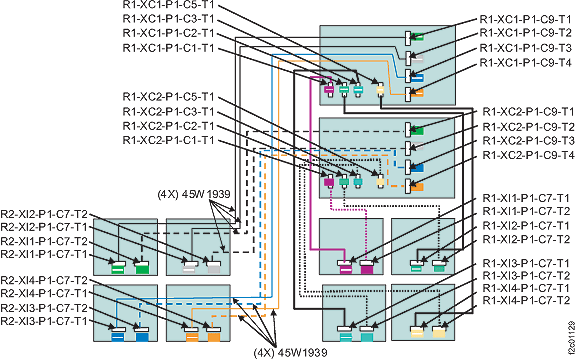
Table 3. PCIe Cabling (from Rack-1 CEC enclosures to Rack-1 I/O enclosures) From CEC R1-XC1 To Rack-1 I/O Enclosure From CEC R1-XC2 To Rack-1 I/O Enclosure R1-XC1-P1-C1-T1 (1B1) R1-XI1-P1-C7-T1 R1-XC2-P1-C1-T1 (1B1) R1-XI1-P1-C7-T2 R1-XC1-P1-C2-T1 (1B2) R1-XI2-P1-C7-T1 R1-XC2-P1-C2-T1 (1B2) R1-XI2-P1-C7-T2 R1-XC1-P1-C3-T1 (1B3) R1-XI3-P1-C7-T1 R1-XC2-P1-C3-T1 (1B3) R1-XI3-P1-C7-T2 R1-XC1-P1-C5-T1 (1B4) R1-XI4-P1-C7-T1 R1-XC2-P1-C5-T1 (1B4) R1-XI4-P1-C7-T2 Table 4. PCIe Cabling (from Rack-1 CEC enclosures to Rack-2 I/O enclosures) From CEC R1-XC1 To Rack-2 I/O Enclosure From CEC R1-XC2 To Rack-2 I/O Enclosure R1-XC1-P1-C9-T1 (2B1) R2-XI1-P1-C7-T1 R1-XC2-P1-C9-T1 (2B1) R2-XI1-P1-C7-T2 R1-XC1-P1-C9-T2 (2B2) R2-XI2-P1-C7-T1 R1-XC2-P1-C9-T2 (2B2) R2-XI2-P1-C7-T2 R1-XC1-P1-C9-T3 (2B3) R2-XI3-P1-C7-T1 R1-XC2-P1-C9-T3 (2B3) R2-XI3-P1-C7-T2 R1-XC1-P1-C9-T4 (2B4) R2-XI4-P1-C7-T1 R1-XC2-P1-C9-T4 (2B4) R2-XI4-P1-C7-T2 - At the rear of Rack-2, locate the thick PCIe cables that
will be coiled near the tailgate and uncoil them. Locate the destination
labels that are attached to the cables and identify which Rack-1 CEC
enclosure the cables must be routed to. Refer to Figure 7 and Figure 8. Figure 7. CEC enclosure locations on cable labels (rear view)
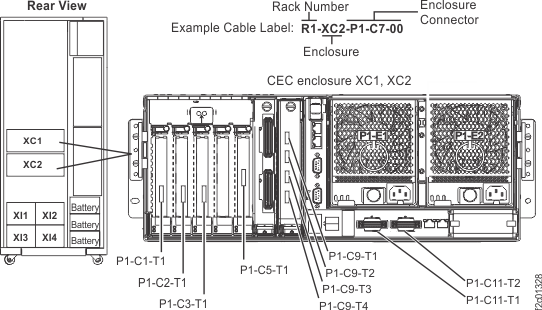 Figure 8. I/O enclosure locations on cable labels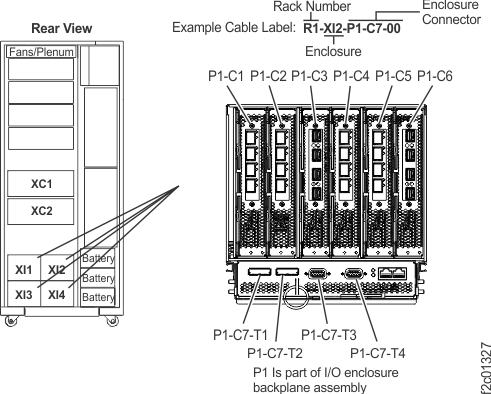
- Route the Rack-2 PCIe cables to Rack-1, but do not connect
them.
- Route the Rack-2 PCIe cables as shown in Figure 9 down through a tailgate
slot that will properly clamp the cable. Figure 9 does not show the
tailgate hardware installed. Figure 9. PCIe and SPCN cable routing through Rack-2 tailgate
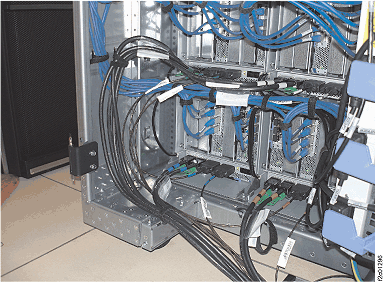
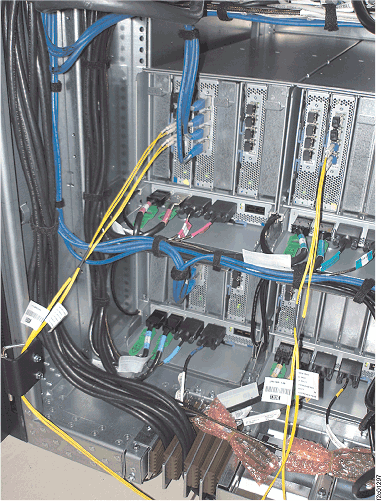
- Route the PCIe cables from Rack-2 up through the Rack-1
tailgate slot that will properly clamp the cable as shown in Figure 10. Figure 10. PCIe and SPCN cable routing through the Rack-1 tailgate
- Route the Rack-2 PCIe cables as shown in Figure 9 down through a tailgate
slot that will properly clamp the cable. Figure 9 does not show the
tailgate hardware installed.
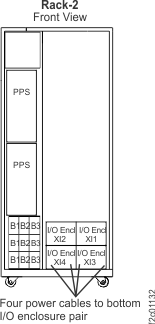
- At the front of Rack-2, connect the four DC power cables
to the four power supplies of the bottom I/O enclosure pair. The bottom
two I/O enclosures will power on. Figure 11. Rack-2 power cables to lower I/O enclosure pairs (front view)
- View the storage
facility status. If any of the system check results display as FAILED,
view the details and refer to MAP1100 View storage facility state (end of call). Before you continue
the installation, all status fields should display as PASSED.
- From the bottom Task area, click . A window displays
the status (passed/failed) of 25 or more system checks. The following
is an example. Figure 12. Window: View Storage Facility State
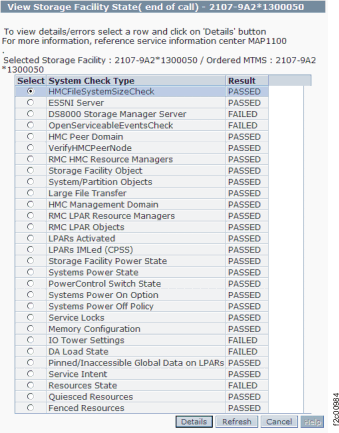 Note: If the status for Large File Transfer (the tenth System Check Type status from the top) displays as FAILED, the remaining System Check Types below it cannot be displayed.
- From the bottom Task area, click . A window displays
the status (passed/failed) of 25 or more system checks. The following
is an example.
- At the front of Rack-2, connect the four DC power cables
to the four power supplies of the upper I/O enclosure pair. The upper
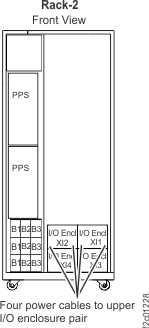
two I/O enclosures will power on. Figure 13. Rack-2 power cables to upper I/O enclosure pairs (front view)