DS8000 Service Documentation Version 6.3.3
MAP4100 Repairing a service processor (FSP)
problem
This is not a standalone procedure. It must only be used
if you were sent here from elsewhere in maintenance package. This
MAP will assist you to diagnose and repair a service processor problem.
MAP4100 Section-1
Procedure
- Use to
check if you have a serviceable event to repair
for the failing storage facility. Did you find a service processor to repair?
- Yes, repair the problem using the serviceable event. Return
to this MAP if you still have a service processor problem
following the repair.
- No, continue with the next step.
- Observe the CEC enclosure control
panel. Is there a system reference code (SRC) displayed on the panel.
- Verify that the CEC enclosure which contains
the failing service processor has
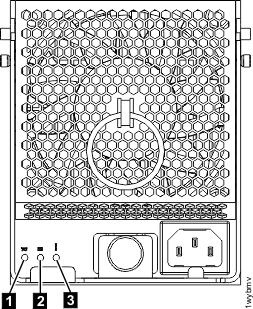
power available. Check the LEDs on the rear of the CEC enclosure power supplies.
Note: The DC good LED

might be on or flashing. This
does not affect
service processor power.
See
Figure 1.
Is the input power good LED  lit solid on at least one of the power supplies for the CEC enclosure?
- Yes, continue with the next step. This will take you through a
power cycle of the CEC to reset the service processor.
- No, this problem should not normally occur on a single CEC enclosure. Do the following:
- Check that all power distribution cables are plugged.
- Check that the rack operator panel UEPO switch assembly is enabled.
- Check that customer AC input is available - look for 'AC Input Good' LED on the rear of the
primary power supplies.
- If no problem is found, then contact your next level of support.
Figure 1. CEC enclosure
power supply LEDs
- Quiesce the LPARs on the CEC
enclosure that requires the service processor reset.
Perform the following steps to select the CEC enclosure:
Note: Repeat
the following steps for each Storage Facility Image (SFI) (one or
more) that runs on the CEC enclosure.
- From the navigation area, click .
- From the right work area, select the LPAR.
- From the bottom Task area, click
- Click Yes to confirm the action.
- Shut down the LPARs on the CEC enclosure that requires the FSP reset. Perform the following
steps to select the CEC enclosure:
Note: Repeat the following steps for each SFI (one or more) that runs on the CEC enclosure.
- From the navigation area, click .
- From the right work area, select the LPAR.
- From the bottom Task area, click .
- Click Yes to confirm the action.
- Attempt to power off the CEC
enclosure using the Service Utilities. Perform the following steps
to select the CEC enclosure:
Note: If there is a communication
problem between the HMC and the service processor, this
step might not work.
- From the navigation area,
click .
- From the bottom Task area, click .
- Click Power Off System and confirm
the action.
- Verify that the power-off completed. At the rear of the storage facility, check the DC GOOD
(output power) LEDs on both CEC enclosure power supplies (LED in Figure 1). Are both DC GOOD LEDs flashing?
- Yes, power off completed (output power is standby). Continue with step 10.
- No, continue with the next step.
- Power off
the CEC enclosure using the CEC enclosure control panel. Perform the
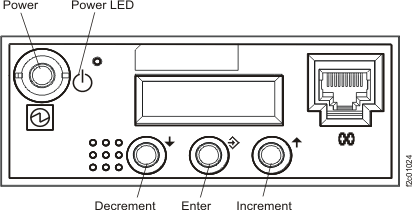
following steps while referring to Figure 2.
- Press the Increment button until
02 is displayed on the display.
- Press Enter. Display will show:
- Press Enter. The panel
displays [N<] as shown:
- Press the Increment button.
The panel displays [M<] as shown:
- Press Enter. The panel
displays [V<] as shown:
- Press Enter. The panel
displays [P<] as shown:
- Press Enter. Display will show 02 only.
- Press the Power button and hold it until you see the power down sequence start.
- Wait until the CEC enclosure has powered
down (Power On light will be flashing).
- Reset the CEC enclosure to Normal
mode.
- Press the Increment button until 02 is
shown on the display.
- Press Enter. Display will show:
- Press Enter. The '<' moves
from [A<] to [N<] as shown:
- Press the Increment button. The
[N<] changes to [M<] as shown:
- Press Enter three more times.
The display will show 02.
- Continue with the next step.
Figure 2. CEC enclosure control panel
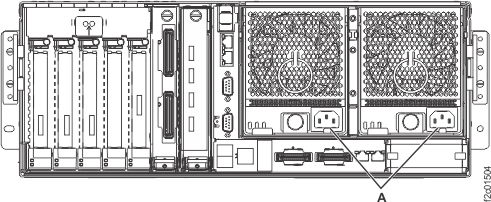
- Remove all power from the CEC enclosure. At the rear of the CEC
enclosure, disconnect the power input cables
 to both
CEC enclosure power supplies. At the CEC enclosure control
panel, observe the green Power Present icon, beneath the white Power button.
to both
CEC enclosure power supplies. At the CEC enclosure control
panel, observe the green Power Present icon, beneath the white Power button. - If it is slow flashing, the CEC enclosure is still in the power off state. DO NOT CONTINUE.
Ensure that you have unplugged the power cables.
- If it is off, go to the next step.
Figure 3. CEC enclosure (rear)
- Wait 2 minutes, then connect
the power input cables to both CEC enclosure power supplies.
- Ensure that the CEC enclosure is in power off state before continuing. At the CEC enclosure
control panel, wait for the green Power Present Icon beneath the white Power button to slow flash.
- Attempt to power on the CEC
enclosure using the Service Utilities. Perform the following steps
to select the CEC enclosure:
Note: If there is a communication
problem between the HMC and the service processor, this
step might not work.
- From the navigation area,
click .
- From the bottom Task area, click .
- Click Power On System to Ready and
confirm the action.
Did the managed system (CEC) power-on?
- Yes, continue with the next step.
- No, go to step 17.
- Activate the LPARs on the CEC
enclosure.
Note: Repeat the following steps for each
SFI (one or more) that runs on the CEC enclosure.
- From the navigation area, click .
- From the right work area, select the LPAR.
- From the bottom Task area, click .
- Click Yes to confirm the action.
- Resume the LPAR(s) on the
CEC enclosure:
Note: Repeat the following steps for
each Storage Facility Image (SFI) (one or more) that runs on the CEC
enclosure.
- From the navigation area, click .
- From the right work area, select the LPAR.
- From the bottom Task area, click .
- Click Yes to confirm the action.
- Return to the MAP or procedure that sent you here to verify whether the problem is resolved.
Return here if the service processor is still
failing.
- Use to replace the following parts in sequence until the problem is resolved:
- Service processor in location U789D.001.xxxxxxx-P1-C11
- CEC enclosure I/O backplane in location U789D.001.xxxxxxx-P1
If the problem remains, contact your next level of support.