DS8000 Service Documentation Version 6.3.3

MAP4070 CEC memory problem

CEC memory has been detected as not being fully available.

MAP4070 Section-1

Procedure

  1. Are you in the middle of a memory upgrade MES that changes the amount of memory in the CEC enclosures?
    • Yes, go to the next step.
    • No, go to step 4.
  2. Have you just finished upgrading the memory in the first CEC enclosure?
    • Yes, go to the next step.
    • No, go to step 4.
  3. The memory size in the first CEC has been upgraded and the memory size in the second CEC has not. There is a memory mismatch between the two CECs.
    Find the SRC in the serviceable event that sent you here.
    • Read the MES to determine if a memory mismatch error is expected and should be ignored.
    • Read the SRC definition to see if it says there is a memory mismatch. This may be normal.
    • Display open serviceable events to see if there are any other serviceable events that include memory DIMMs or a system processor card in the FRU list. If there are, use that serviceable event to repair the problem.
    • Call the next level of support for help.
  4. Go to MAP4070 Section-2.

MAP4070 Section-2

Procedure

  1. Display open serviceable events for the CEC enclosure. Other than the serviceable event that sent you to this MAP, is there any other related open serviceable event that lists the memory DIMMs or system processor cards as FRUs?
    • Yes, exit this MAP and repair the related serviceable event. If the repair is successful, remember to close the serviceable event that sent you here. If you were doing a memory upgrade MES, exit this MAP and continue the MES now.
    • No, go to the next step.
  2. Does the serviceable event FRU list that sent you here include one or more memory DIMM locations to be replaced?
    • Yes, exit this MAP and return to the FRU list. Replace the listed memory DIMMs. If it still fails, return here and continue to the next step.
    • No, go to the next step.
  3. Log in to the ASM menu for the failing CEC enclosure. Type admin in the User ID field and admin2107 in the Password field. If the login fails, log in as admin with a password of admin210. See MAP6F10 Accessing the ASMI using the management console.
  4. Display the error and event logs to determine any related problems.
    1. Select System Service Aids > Error/Event logs.
    2. Display the log details and look for information that is related to memory DIMM errors or locations.
    3. Are there any logs that identify a failing memory DIMM or system processor card?
    • Yes, if you can determine the failing DIMMs, exit this MAP and use Storage Facility Management > storage facility > Exchange Parts to replace the DIMMs.
    • No, go to the next step.
  5. Display the memory deconfiguration status.
    1. Select System Configuration > Hardware Deconfiguration > Memory Deconfiguration. The total memory, configured memory, and deconfigured memory is displayed.
    2. Is there any deconfigured memory?
    • Yes, go to step 7.
    • No, it is possible to have no deconfigured memory and not have missing memory capacity. For example, if one or more memory DIMMs were left unplugged and the CEC was powered on, there might not be configured memory, but the total memory and configured memory capacities would be less than normal. The CEC does not know how much memory capacity it should have and only displays what it finds during power on. Go to the next step.
  6. Compare the total memory and configured memory capacities for the failing CEC enclosure to the working CEC enclosure.
    Are there any differences between the capacities of the CEC enclosures?
    • Yes, go to the next step.
    • No, exit this MAP and contact your next level of support. The serviceable event that sent you here indicates if a memory problem was detected, yet all memory appears to be available.
  7. Display the details.
    1. Click the radio button of the Processing Unit with the deconfigured memory.
    2. Click Continue. The status for each memory bank is displayed.
  8. See Table 1 for an example of the deconfigured memory details screen.
    Table 1. Deconfigured memory details (example)
    Memory bank Location code Size State Error type Change settings
    0 U789D.001.000096A-P2-C1-C1 2048 MB Configured None (0) Configured
  9. Are any memory banks deconfigured?
    • Yes, go to the next step.
    • No, exit this MAP and contact your next level of support. The serviceable event that sent you here indicates that a memory problem was detected, yet all memory appears to be available.
  10. Replace the memory DIMM FRUs for the location codes that are listed for the deconfigured memory banks. See Figure 1 and Figure 2.
    Figure 1. Memory module locations on the processor card (Un-P2-Cx)
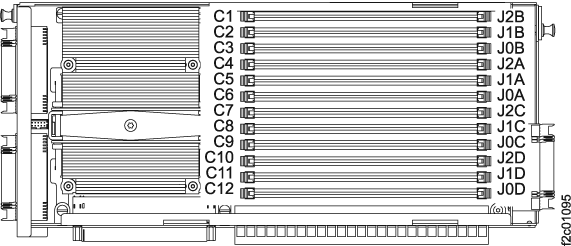
    CEC memory DIMM card locations
    Memory module location is P2-Cx-Cy, where:

    x = System processor card slot 1 or slot 2
    y = Memory DIMM slot 1 thru 12, as shown

    Notes:
    • The first quad of memory modules is plugged into memory module slots P2-Cx-C3, P2-Cx-C6, P2-Cx-C9, and P2-Cx-C12.
    • The second quad of memory modules is plugged into memory module slots P2-Cx-C2, P2-Cx-C5, P2-Cx-C8, and P2-Cx-C11.
    • The third quad of memory modules is plugged into memory module slots P2-Cx-C1, P2-Cx-C4, P2-Cx-C7, and P2-Cx-C10.
    Figure 2. CEC enclosure locations (front overview)
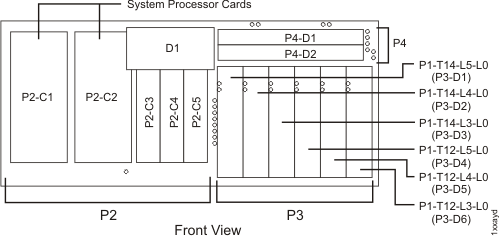
    CEC overview
  11. The possible failing FRUs are the memory DIMMs or the system processor card.
    Is the FRU to be replaced listed in the serviceable event FRU list?
    1. Click Storage Facility Management > storage facility > Exchange Parts.
      Note: It is not recommended that you set the state of memory capacity back to Configured or to attempt a pseudo repair. For example, do not leave the original failing FRU installed. If you choose to do this to further isolate the failure, you must move the memory DIMM in the slots that are deconfigured to a different slot. On power up, the firmware checks the serial number of the DIMM in each slot and does not configure it if the serial number has not changed.