DS8000 Service Documentation Version 6.3.3
MAP2470 Powering off and on the storage facility from the management console
Use this MAP for instructions on how to power off and power on a storage facility using the management console.
MAP2470 Section-1 Power off or power on the storage facility
Procedure
- To power off the storage facility, go to MAP2470 Section-2 Power off the storage facility.
- To power on the storage facility, go to MAP2470 Section-3 Power on the storage facility.
MAP2470 Section-2 Power off the storage facility
Procedure
- Ensure that the Local/Remote switch that is located on the local remote or System z® local remote switch card is set to
Remote. For Model 941, see Figure 1. For Model
951, see Figure 2.
Figure 1. Local/Remote switch, Model 941
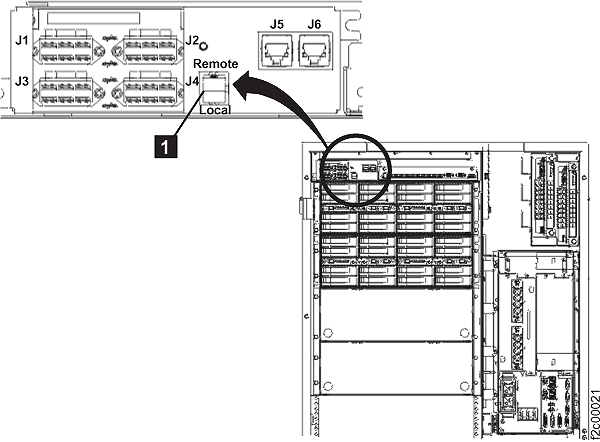 Figure 2. Local/Remote switch, Model 951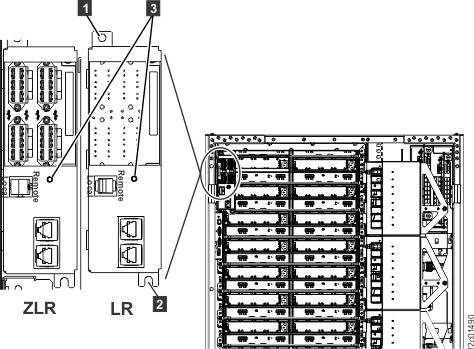
- Power off the storage facility.
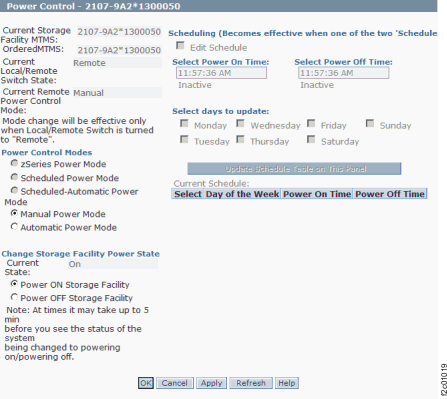
- From the bottom Task area, click . The Power Control window
opens. Figure 3. Window: Power Control
- From the bottom Task area, click . The Power Control window
opens.
- At the rear of
each rack in the storage facility, switch
off the mainline power CB00
 (Figure 4) on both primary power
supplies (PPS). Figure 4. Rear view of PPS showing CB00
(Figure 4) on both primary power
supplies (PPS). Figure 4. Rear view of PPS showing CB00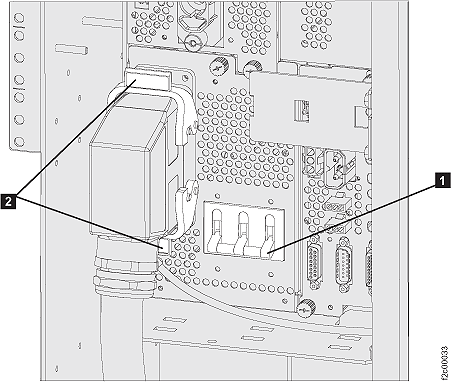
- Verify that all input power has been removed from each
rack. At the front of both PPSs in each rack, ensure the
 AC INPUT GOOD LED indicator is off. Note: If the LED is lit, CB00 is not switched off.In Figure 5, the Model 941/94E is shown; the Model 951/95E is similar.Figure 5. LEDs on the PPS (front)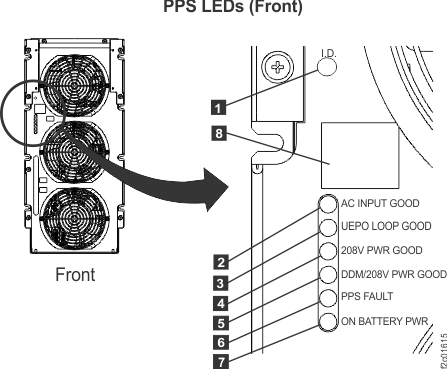
MAP2470 Section-3 Power on the storage facility
Procedure
- Observe the front of each rack in the
storage facility. Are the LEDs for AC INPUT GOOD and UEPO LOOP GOOD
 on each PPS lit solid? See Figure 5.
 - Yes, go to the next step.
- No. A rack can power on successfully with only one of the
two redundant PPSs operational. However, it is best to have both PPSs
in each rack operational before you power on the storage facility.
Do the following:
- At the rear of the rack, ensure that the mainline power cables are connected to the PPS and also to the customer power source.
- Ensure that the customer circuit breaker for each mainline power cable source is set to on.
- At the rear of each PPS, ensure that each mainline power CB00 is switched to on (up).
- If you cannot find the problem and only one PPS in the rack is not operational, wait and fix it after the storage facility is powered on. There should be an open serviceable event for the problem.
- Power on the storage facility.
- From the bottom Task area, click . The Power Control window
opens. Figure 6. Window: Power Control
- From the bottom Task area, click . The Power Control window
opens.