DS8000 Service Documentation Version 6.3.3

MAP2112 Activating or Deactivating CEC or I/O enclosure indicators

About this task

You can test CEC and I/O enclosure indicators (LEDs) by using the ASMI menus.

MAP2112 Section-1

Procedure

  1. To find the identity indicators, expand the service Information Center section LED indicators, and then select CEC enclosure LED indicators.
  2. To test or display the status for:
    Figure 1. The Identify/Attention indicator (LED) on a CEC enclosure (front view)
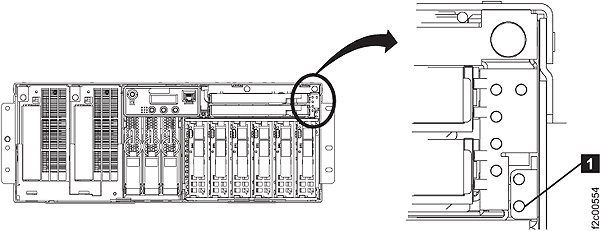
    The Identify/Attention LED on a CEC enclosure

MAP2112 Section-2

About this task

Procedure

  1. Log in to the ASMI menus. Refer to MAP6F10 Accessing the ASMI using the management console.
  2. Expand System Configuration, select Service Indicators, select System Attention Indicator.
  3. Is the system attention indicator status displayed as On?
    • Yes, click the Turn off the system attention indicator button below the displayed status; then go to the next step.
    • No, contact your next level of support. The possible failing FRUs are the service processor card, CEC enclosure I/O backplane assembly, and media backplane assembly.
  4. Is the system attention indicator LED now off?
    • Yes, log out of the ASMI, exit this MAP, and return to the procedure that sent you here.
    • No, go to the next step.
    Note: When the state is on, the indicator is on solid. This causes the rack operator panel attention indicator to be on solid unless the indicator is already flashing because of an identify condition elsewhere in the rack.
  5. Try this alternative method to turn off the indicator.
    1. From the navigation area, click Storage Facility Management > storage facility.
    2. From the bottom Task area, click Service Utilities > View/Reset Attention Indicators.
    3. The LED state is displayed. Click Turn Off All Attention LEDs.
    4. If the indicator is still lit, contact your next level of support.

MAP2112 Section-3

Procedure

  1. Log in to the ASMI menus. Refer to MAP6F10 Accessing the ASMI using the management console.
  2. Expand System Configuration, select Service Indicators, select Enclosure Indicators.
  3. Select the enclosure from the displayed list and click Continue. Find the location code that contains the identity indicator and select the relevant condition. Click Save Settings to activate the settings. Use Turn off all indicators as needed.
    Note: Activating any identity indicator activates that enclosure identity indicator, which in turn activates the rack operator panel identity indicator if everything is working properly.

MAP2112 Section-4

Procedure

  1. Log in to the ASMI menus. Refer to MAP6F10 Accessing the ASMI using the management console.
  2. Expand System Configuration, select Service Indicators, select Indicators by Location code.
  3. Select the enclosure from the displayed list and click Continue. Find the location code that contains the identity indicator and select the relevant condition. Click Save Settings to activate the settings. Use Turn off all indicators as needed.
    Note: Activating any identity indicator activates that enclosure identity indicator, which in turn activates the rack operator panel identity indicator if everything is working properly.

MAP2112 Section-5

Procedure

  1. Log in to the ASMI menus. Refer to MAP6F10 Accessing the ASMI using the management console.
  2. Expand System Configuration, select Service Indicators, select Lamp test.
  3. All CEC and I/O enclosure indicators light for 4 minutes and then automatically turn off.