DS8000 Service Documentation Version 6.3.3
Routing and connecting customer cables to the storage facility
Procedure
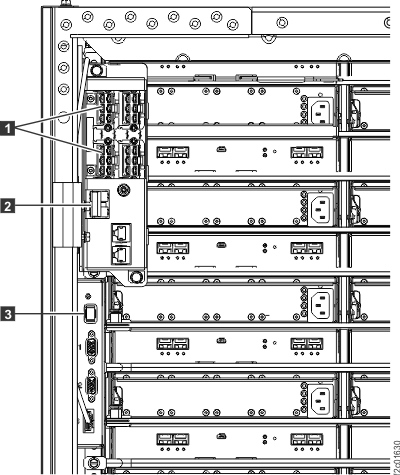
- Route the remote power control cables from each host up
through the tailgate. The customer cables go on the left side to the
four ZLR remote power control card connectors.� Use cable ties to
fasten the cable to the frame. See Figure 1. For racks with overhead cable management
(top exit) for host and data cables, route the remote power control
cables down through the top tailgate and cable channel. Figure 1. Remote power control cables from host to ZLR card
 Attention: The remote power control feature will be enabled in the next step. Remind your customers that they must test it.
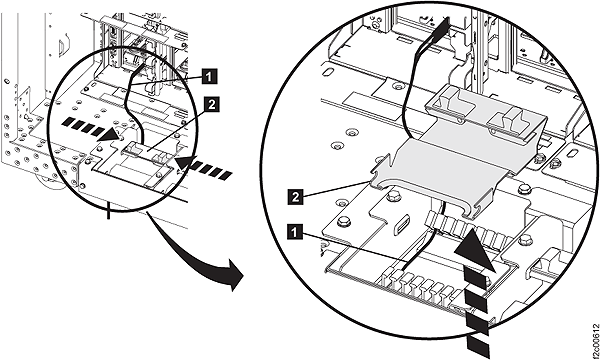
 - In the tailgate (for racks
with standard tailgates), squeeze the black release levers 2 ,
pivot the retention bracket up, and then remove it, as shown in Figure 2. Figure 2. Tailgate cable and Fibre Channel cable retention
 For racks with overhead cable management (top exit) for host and data cables, open the top tailgate (if not open). Unfasten the top tailgate retention bracket, and rotate it open. See Figure 3.Figure 3. Top tailgate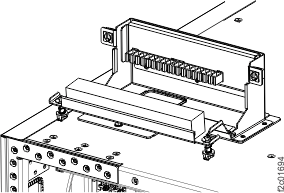
- This step provides information
useful for connecting customer host cables to the I/O enclosure host
adapter card ports. Figure 4. DS Storage Manager HA card port ID and location code
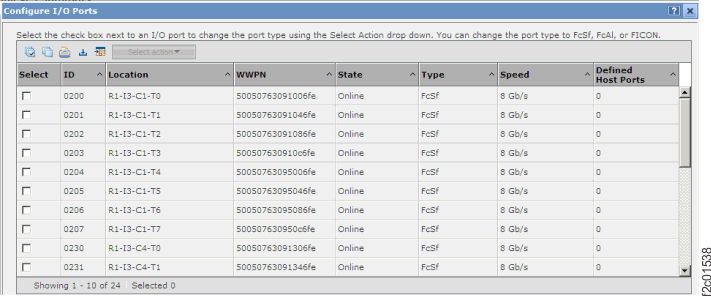 Figure 5. DSCLI Host adapter card port ID
dscli> lsioport -dev IBM.2107-75RA271 Date/Time: July 13, 2010 2:40:33 PM PDT IBM DSCLI Version: 5.4.2.460 DS: IBM.2107-75RA271 ID WWPN State Type topo portgrp =============================================================== I0200 50050763091006FE Online Fibre Channel-SW SCSI-FCP 0 I0201 50050763091046FE Online Fibre Channel-SW SCSI-FCP 0Figure 6. Location codes for device adapter and host adapter cards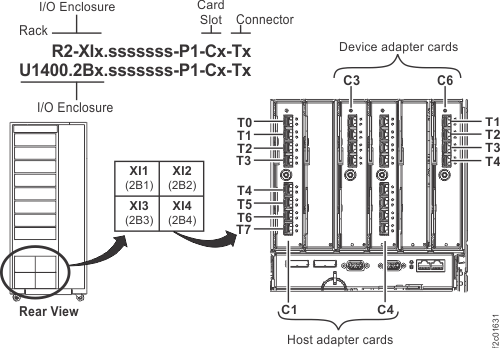
Table 1. Rack-1 rear view of I/O enclosure HA Port locations and IOPORT numbers R1-XI1 I/O Enclosure R1-XI2 I/O Enclosure HA Card Slot C1 Slot C2 DA Card Slot C3 HA Card Slot C4 Slot C5 DA Card Slot C6 HA Card Slot C1 Slot C2 DA Card Slot C3 HA Card Slot C4 Slot C5 DA Card Slot C6 C1-T0
I0000C4-T0
I0030C1-T0
I0100C4-T0
I0130C1-T1
I0001C4-T1
I0031C1-T1
10I01C4-T1
I0131C1-T2
I0002C4-T2
I0032C1-T2
I0102C4-T2
I0132C1-T3
I0003C4-T3
I0033C1-T3
I0103C4-T3
I0133C1-T4
I0004C4-T4
I0034C1-T4
I0104C4-T4
I0134C1-T5
I0005C4-T5
I0035C1-T5
I0105C4-T5
I0135C1-T6
I0006C4-T6
I0036C1-T6
I0106C4-T6
I0136C1-T7
I0007C4-T7
I0037C1-T7
I0107C4-T7
I0137R1-XI3 I/O Enclosure R1-XI4 I/O Enclosure HA Card Slot C1 Slot C2 DA Card Slot C3 HA Card Slot C4 Slot C5 DA Card Slot C6 HA Card Slot C1 Slot C2 DA Card Slot C3 HA Card Slot C4 Slot C5 DA Card Slot C6 C1-T0
I0200C4-T0
I0230C1-T0
I0300C4-T0
I0330C1-T1
I0201C4-T1
I0231C1-T1
I0301C4-T1
I0331C1-T2
I0202C4-T2
I0232C1-T2
I0302C4-T2
I0332C1-T3
I0203C4-T3
I0233C1-T3
I0303C4-T3
I0333C1-T4
I0204C4-T4
I0234C1-T4
I0304C4-T4
I0334C1-T5
I0205C4-T5
I0235C1-T5
I0305C4-T5
I0335C1-T6
I0206C4-T6
I0236C1-T6
I0306C4-T6
I0336C1-T7
I0207C4-T7
I0237C1-T7
I0307C4-T7
I0337Table 2. Rack-2 rear view of I/O enclosures HA Port locations and IOPORT numbers R2-XI1 I/O Enclosure R2-XI2 I/O Enclosure HA Card Slot C1 Slot C2 DA Card Slot C3 HA Card Slot C4 Slot C5 DA Card Slot C6 HA Card Slot C1 Slot C2 DA Card Slot C3 HA Card Slot C4 Slot C5 DA Card Slot C6 C1-T0
I0400C4-T0
I0430C1-T0
I0500C4-T0
I0530C1-T1
I0401C4-T1
I0431C1-T1
I0501C4-T1
I0531C1-T2
I0402C4-T2
I0432C1-T2
I0502C4-T2
I0532C1-T3
I0403C4-T3
I0433C1-T3
I0503C4-T3
I0533C1-T4
I0404C4-T4
I0434C1-T4
I0504C4-T4
I0534C1-T5
I0405C4-T5
I0435C1-T5
I0505C4-T5
I0535C1-T6
I0406C4-T6
I0436C1-T6
I0506C4-T6
I0536C1-T7
I0407C4-T7
I0437C1-T7
I0507C4-T7
I0537R2-XI3 I/O Enclosure R2-XI4 I/O Enclosure HA Card Slot C1 Slot C2 DA Card Slot C3 HA Card Slot C4 Slot C5 DA Card Slot C6 HA Card Slot C1 HA Card Slot C2 DA Card Slot C3 HA Card Slot C4 Slot C5 DA Card Slot C6 C1-T0
I0600C4-T0
I0630C1-T0
I0700C4-T0
I0730C1-T1
I0601C4-T1
I0631C1-T1
I0701C4-T1
I0731C1-T2
I0602C4-T2
I0632C1-T2
I0702C4-T2
I0732C1-T3
I0603C4-T3
I0633C1-T3
I0703C4-T3
I0733C1-T4
I0604C4-T4
I0634C1-T4
I0704C4-T4
I0734C1-T5
I0605C4-T5
I0635C1-T5
I0705C4-T5
I0735C1-T6
I0606C4-T6
I0636C1-T6
I0706C4-T6
I0736C1-T7
I0607C4-T7
I0637C1-T7
I0707C4-T7
I0737 - Feed
the host cables 1 down through the top
tailgate. Carefully route the cables through the channel in the left
rear of the rack, across to the destination I/O enclosure and host
card adapter ports, and then plug them in. See Figure 7. Notes:
- Save the wrap tools removed from each Fibre Channel host card. The wrap tool can be used as a dust cover and also a wrap tool for diagnosis and repair.
- There are two types of Fibre Channel cards:
- Short wave
- Long wave
Figure 7. Overhead cable management (top exit) for Fibre Channel, communication, and power cables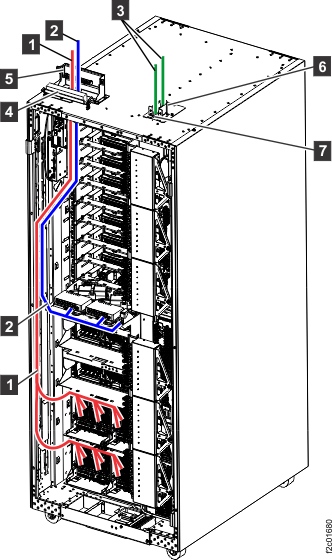
- Reinstall the tailgate brackets in
all frames using the screws 2 removed
earlier. Tighten all four screws 1 and 2 .
See Figure 8 Figure 8. Tailgate frame bracket