DS8000 Service Documentation Version 6.3.3
Checking cables
Procedure
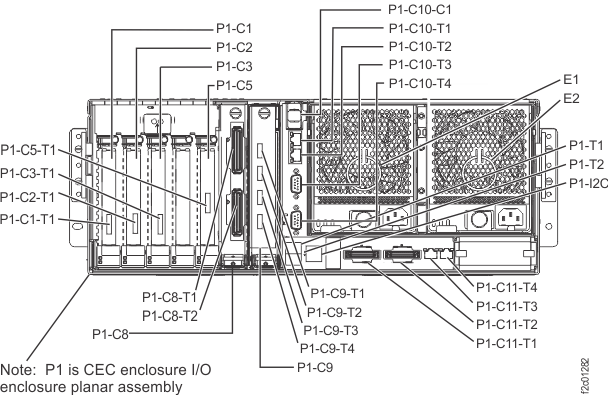
- At the rear of each CEC enclosure, gently push and pull
on each RIO (P1-C8-T1 and P1-C8-T2) cable to ensure that it is latched.
See Figure 1. Note: Loose RIO cables will cause difficult problems to repair after power up.Figure 1. CEC enclosure locations (rear)
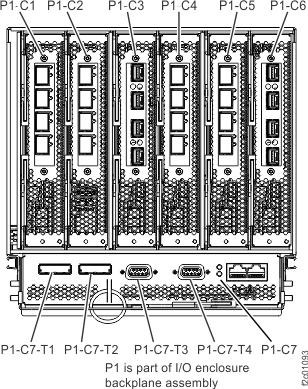
- At the rear of each I/O enclosure, gently push on each
PCIe cable (P1-C7-T1 and P1-C7-T2) to ensure that it is latched. See Figure 2. Figure 2. I/O enclosure locations (rear)
- Check all black and gray private
network Ethernet cables to ensure they are properly connected. If
any network cables are found miscabled, stop and call the next level
of support. Notes:
- Any black private network cables that are connected to the gray network connectors at power on will cause the install to fail and next level of support to recover.
- Any gray private network cables that are connected to the black network connectors at power on will cause the install to fail and next level of support to recover.
- These two conditions are caused by each private network running a DHCP server with a separate subnet value.
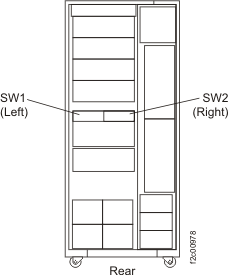
- At the rear of the Rack-1, ensure only black Ethernet
cables are connected to the SW1 (left) Ethernet switch. Ensure only
gray Ethernet cables are connected to the SW2 (right) Ethernet switch.
See Figure 3. Figure 3. Ethernet switches in rack-1
- At the rear of both CEC enclosures (see Figure 4),
ensure that:
- A black Ethernet cable is connected to P1-C11-T3 (left) and P1-C10-T1 (top)
- A gray Ethernet cable is connected to P1-C11-T4 (right) and P1-C10-T2 (bottom)
Figure 4. CEC enclosure rear Ethernet connectors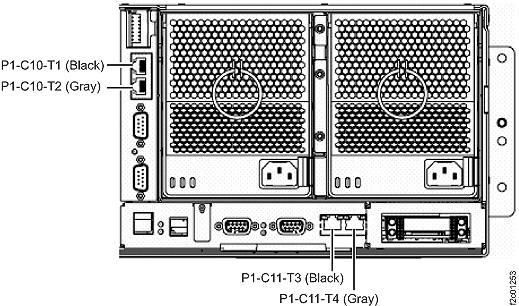
- With the ThinkPad laptop tray pulled out to the service
position, as shown in Figure 5:
- Ensure the black Ethernet cable and black USB cable connect to the same USB Ethernet adapter
- Ensure the gray Ethernet cable and gray USB cable connect to the same USB Ethernet adapter
Figure 5. ThinkPad laptop USB Ethernet adapter cables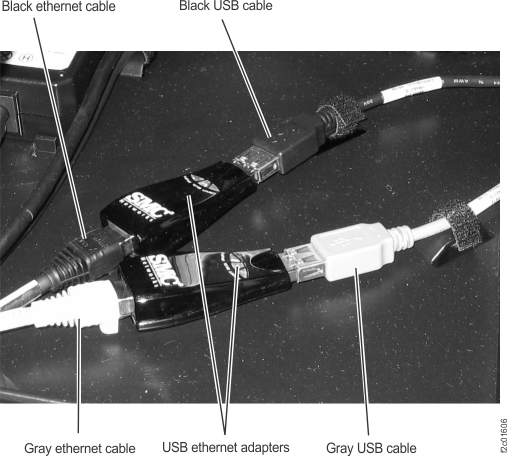
- At the management console laptop, as shown in Figure 6, Figure 7, and Figure 8:
- Ensure the USB Ethernet adapter black cable is connected to the eth0 USB port
- Ensure the USB Ethernet adapter gray cable is connected to the eth3 USB port
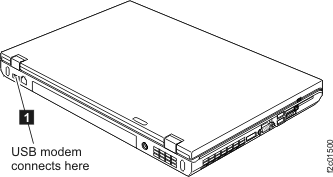
- Ensure the modem USB cable is connected to the modem USB port.
Figure 6. Thinkpad W500 USB and RJ45 network connection ports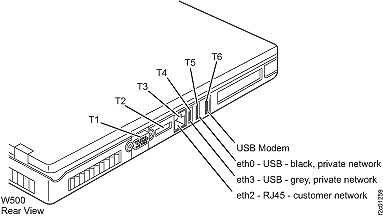 Figure 7. ThinkPad T510, T520 USB and RJ45 network connection ports
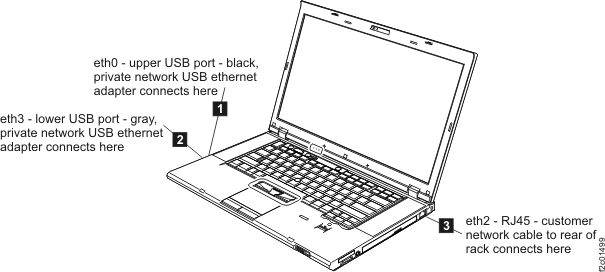 Figure 8. ThinkPad T510, T520 USB port for USB modem adapter