DS8000 Service Documentation Version 6.3.3
Checking cables
Procedure
- If you are installing Rack-2, at the rear of
each I/O enclosure gently push on each cable to ensure it is fully
seated and latched. See Figure 1.
- PCIe cables ( P1-C7-T1 and T2)
- SPCN cables (P1-C7-T3 and T4)
- FC-AL cables (P1-C3 and P1-C6, T1 T2 T3 and T4)
Figure 1. I/O enclosure locations (rear)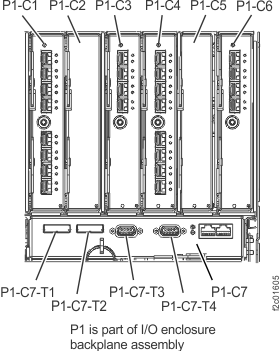
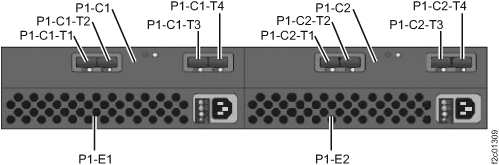
- At the rear of each storage enclosure, gently push and
pull on each FC-AL cable connector (P1-C1-T1 to T4 and P1-C2-T1 to
T4) to ensure that it is latched. See Figure 2. Note: If an FC-AL cable is damaged, you can use the point-to-point cabling diagrams to determine the other end of the cable. See Point-to-point cabling diagrams - FC-AL cables. Several FC-AL cables are tightly bundled together so it is difficult to physically trace an individual FC-AL cable from end to end.Figure 2. Storage enclosure locations rear (model 951/95E)
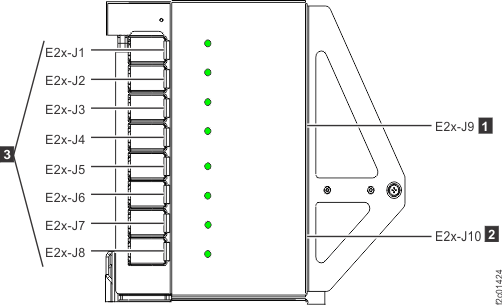
- At the rear of the rack behind the PPS power
supplies, ensure all power cables connected to each power distribution
unit connector J1-J10 are fully seated. Figure 3. Note: On a Model 951 Rack-1 or a Model 95E Rack-2, J10 on bottom two PDUs (E25 and E26) will not have cables attached.Figure 3. Locations for power distribution unit (PDU) connectors